In Sortly, an item is a product you carry, and stock is how many of it you have and where. All of your items live in one list called the Catalog. This article walks you through how they fit together and what the numbers on your screen mean.
In this article
How items, stock, and the Catalog work together
Think of it this way:
- An item is the product itself, like "AC condenser 24,000 BTU." You set it up once.
- The Catalog is the list of all your items in one place.
- Stock is how many of an item you have at a specific location, like 4 condensers in Aisle 1.
Every stock record belongs to an item in your Catalog. If you update an item, the change shows up everywhere that item is stocked.

What is in an item?
An item describes the product. It stays the same no matter where it is or how many you have. When you create an item, you can add:
- A name (required). Each item needs its own name. If you try to use a name that already exists, Sortly lets you know and takes you to the existing item.
- A unit of measure (required), like Unit. Sortly starts you off with Unit.
- Photos, up to 8 in JPG, PNG, or HEIC format.
- A description, tags, and item fields (like Brand) to help you describe and find the item.
- A QR or barcode label. Generate a Sortly label and print it.
- Vendors. Link the vendors you buy from, and add their price, part number, and product link.
Sortly also gives every item an Item ID automatically.
What is in a stock record?
A stock record tells you how much of an item is at one location. It includes the quantity, plus anything you want to track about that stock:
- Unit cost
- Min level (the number that tells Sortly when you are running low)
- Reorder point
- Tags and notes
- Stock fields, like Condition or Serial Number
What do the quantities mean?
Sortly works out a few quantities for each item and stock record for you. Here is what each one means:
Sortly also shows a status label next to Available so you can spot problems quickly:
- In stock: you have some on hand.
- Low stock: you have fewer than your min level.
- Out of stock: you have none left.
See quantities in a location
Open a location, then select the item. The quantities for that location appear at the top of the item's page, with a status label next to Available. The Item details panel on the right has a Locations tab. It shows the total available, reserved, and on order across all of the item's locations, then how many units are in each location.

See quantities in the Catalog
The Catalog shows an In stock column for every item, added up across all of its locations. Select an item, then select the Locations tab in the Item details panel to see the units in each location.

What changes where
Where you make a change decides what it affects.
Editing an item
You edit an item in the Catalog. Select Catalog, select an item, and then select Edit in the Item details panel. A change to the item, like its photo or item fields, updates it everywhere it is stocked. Sortly tells you how many locations will be affected before you save.

Editing stock
You edit stock in a location. Open the location, select the item to go to Stock Details, and then select Edit details in the Stock details card. A change to stock only updates that one stock record.

Tags and fields
Items and stock each have their own tags and fields. Here is how they differ:
Unit cost, min level, and reorder point are stock details, not item details. You will find them on the Stock Details page.
Where to find your items and stock
Select Inventory in the main menu. Next to it, the Locations panel lists your Stock locations and Job locations, with Catalog at the bottom.

Catalog
Select Catalog to see every item in one table. Each row shows the item with its ID, plus columns like Available, In stock, and Locations. Use the column icon at the top right of the table to adjust columns, and add Unit of measure, Tags, Created, or Last updated. Search by name, or use All filters to narrow the list. Select an item to open its details, including its photo, label, item fields, where it is stocked, its recent activity, and its orders.

Locations
Select Inventory, then Stock locations. Open a location, or search for an item by name, to see its item cards. Each card shows the item's photo, name, price, tags, and how many are available. Inside a location, use the search box and the Status and Tag filters to narrow the list, and select Clear filters to start over.
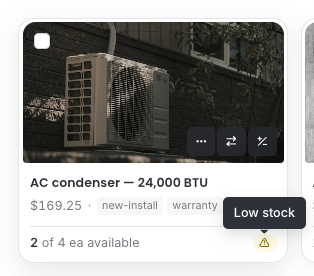
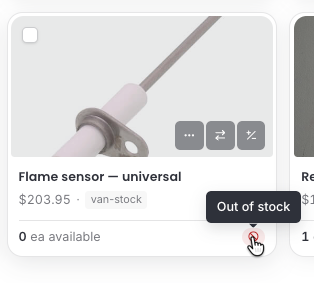
Small icons at the bottom right of a card point out items that need attention:
- ⚠️ Some of this item's stock is low.
- 🚫 Some of this item's stock is out of stock.
Hover over an icon to see the details. The tooltip says Low stock or Out of stock. When an item has more than one stock row, it says how many, for example "1 stock row low on stock." A stock row is one stock record.


Stock Details
Select an item card to open its stock. The quantities for that stock appear at the top left, with a status label next to Available. Below them, Stock details lists the unit cost, min level, reorder point, tags, notes, and stock fields.
The Item details panel on the right has Overview, Locations, Activity, and Orders tabs. Overview shows the item's photo, label, and details. Locations shows how much of the item is in each location. Activity lists what has happened to the item, like moves and quantity updates. Orders shows what is on the way. If you close the panel, select any of the icons on the right edge to open it again.
When an item has more than one stock row
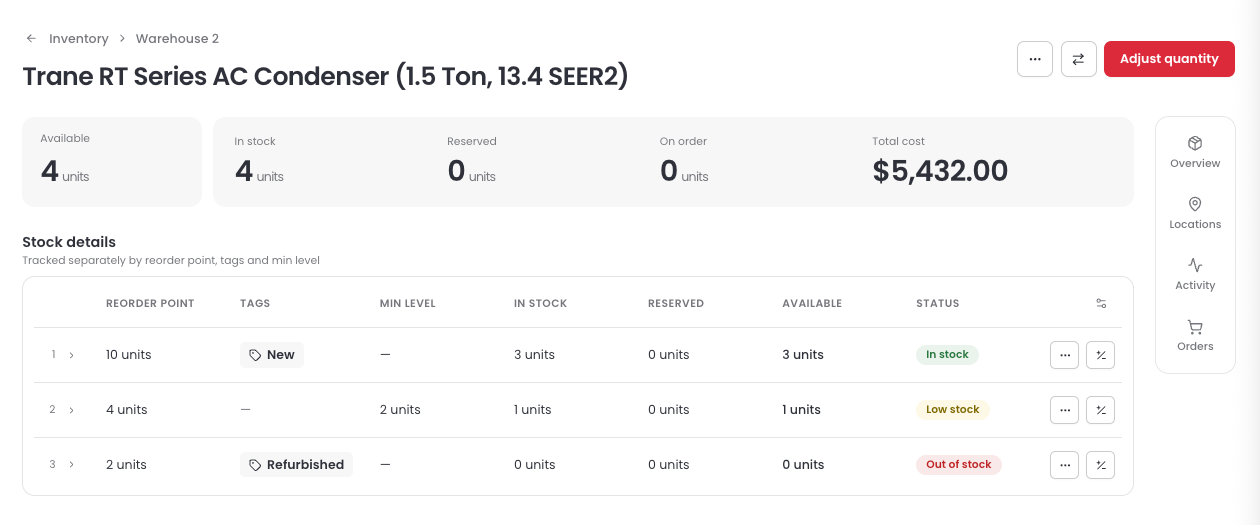
Sometimes the stock of one item at a location is not all the same. Part of it might have a different reorder point, min level, or tags than the rest. When that happens, Sortly keeps each group as its own stock row, with its own quantity, details, and status.
Here is how it looks on the Stock Details page:
- Stock details becomes a table with one numbered row for each stock row.
- A line under the heading lists what is different between the rows, like "Tracked separately by reorder point, tags and min level."
- The columns show the details that differ, along with In stock, Reserved, Available, and Status. Each row has its own status, so one can be In stock while another is Low stock or Out of stock.
- Select the arrow on a row to see all of its details, including unit cost, notes, and stock fields.
- A newly added stock row is marked New.
- The quantities at the top of the page add up all of the rows.
The Locations tab in the Item details panel also shows how many rows a location has, for example "3 rows".