---
title: Link an Existing Barcode or QR Code to an Item
description: Link a barcode or QR code you already have, such as one on a product box, to an item in Sortly so scanning it finds the item.
---
[Skip to content](https://help.sortly.com/sb/linking-existing-labels#main-content)
English
Show submenu for translations

Open main navigation
Close main navigation
- English
Show submenu for translations
Looking for answers? Start here.
- There are no suggestions because the search field is empty.
1. [Sortly Help Center](https://help.sortly.com/sb?hsLang=en)
2. [Inventory](https://help.sortly.com/sb/inventory?hsLang=en)
3. [Labels & Barcodes](https://help.sortly.com/sb/inventory?hsLang=en#labels-barcodes)
# Link an Existing Barcode or QR Code to an Item
Already have a barcode or QR code on your products, such as an EAN on a box or a supplier's QR code? Link it to an item in Sortly, so scanning that code brings up the item.
Advanced
Ultra
Premium
Enterprise
In this article
1. [How linking works](https://help.sortly.com/sb/linking-existing-labels#how-it-works)
2. [Link a code on web](https://help.sortly.com/sb/linking-existing-labels#web)
3. [Link a code on mobile](https://help.sortly.com/sb/linking-existing-labels#mobile)
4. [After you link a code](https://help.sortly.com/sb/linking-existing-labels#after)
5. [Remove a linked code](https://help.sortly.com/sb/linking-existing-labels#unlink)
6. [Frequently asked questions](https://help.sortly.com/sb/linking-existing-labels#faq)
### How linking works
A linked code is a barcode or QR code that was not made in Sortly. It belongs to the item, so one code covers all of that item's stock rows. Each item can have one linked code.
The linked code sits alongside any label you create in Sortly. For example, you can link the barcode printed on a supplier's box and also [create a Sortly label](https://help.sortly.com/sb/creating-labels?hsLang=en) for your shelf, and both stay on the item.
⚠️ Sortly cannot print a linked code, because the label was not created in Sortly. The sizes in [Choose Label Types and Sizes](https://help.sortly.com/sb/choosing-label-sizes?hsLang=en) apply only to labels you make in Sortly.
---
### Link a code on web
Working at a computer with a Bluetooth handheld scanner? Use it to link a code from the item in your Catalog. On web, linking works with a handheld scanner. To set one up, see [how to use a Bluetooth handheld scanner with Sortly](https://help.sortly.com/sb/use-bluetooth-scanner-with-sortly?hsLang=en).
1
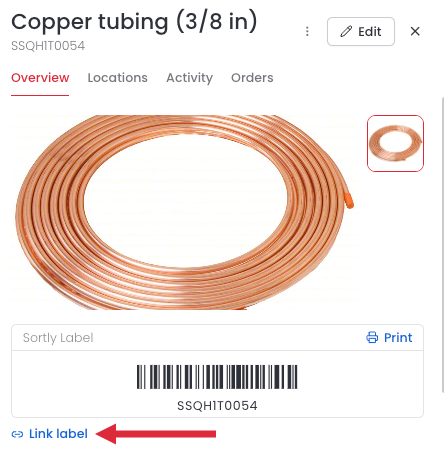
Open the item in your Catalog. In the Overview tab, select Link label under the Sortly Label card.
2
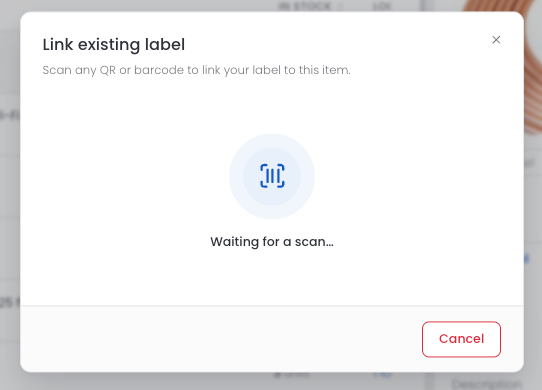
In the Link existing label window, scan the QR code or barcode with your handheld scanner. The window shows Waiting for a scan... until it reads the code.
---
### Link a code on mobile
Standing next to the product with the code in front of you? Link it from the Sortly mobile app.
1
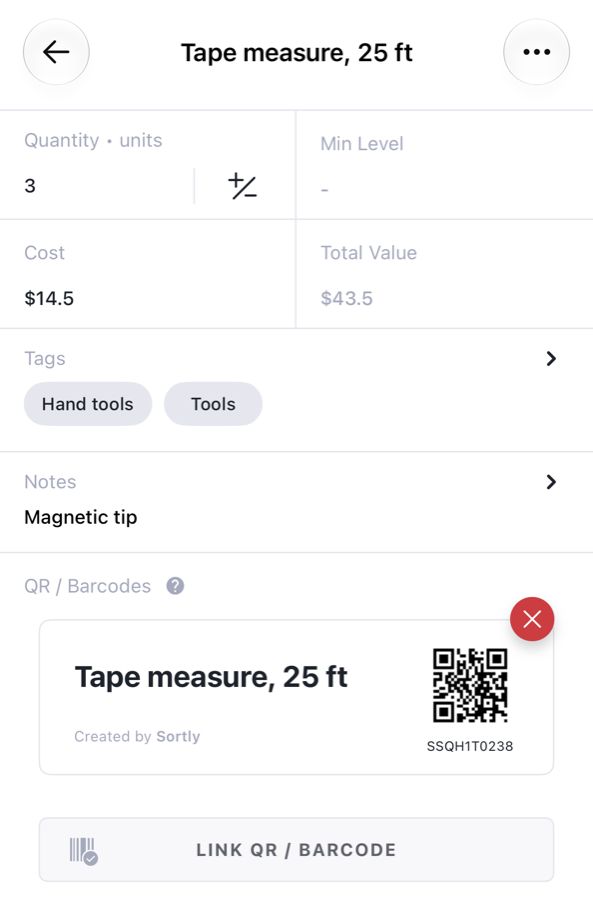
Open the item and scroll down to QR / Barcodes. Select Link QR / Barcode under the label Sortly created.
2
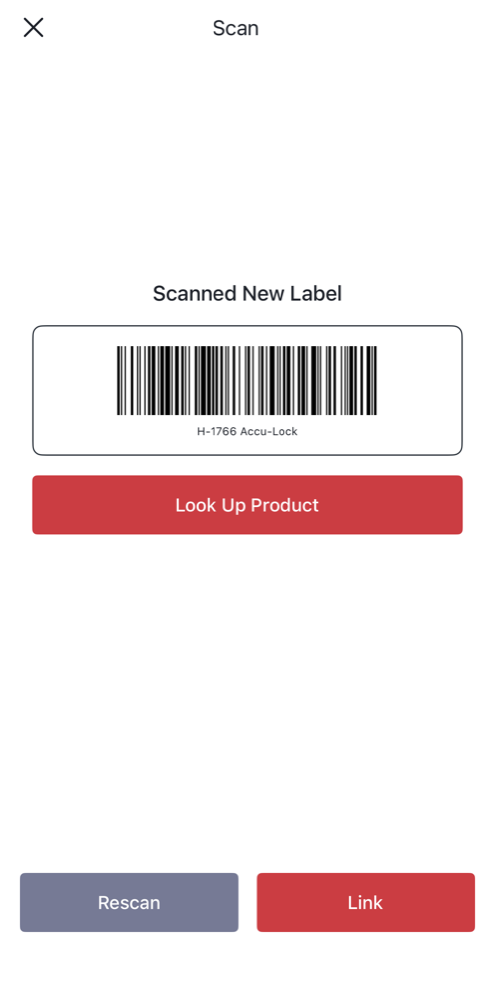
Scan the QR code or barcode you want to link. Sortly shows it as Scanned New Label. Select Link to link it, or Rescan to scan again.
3
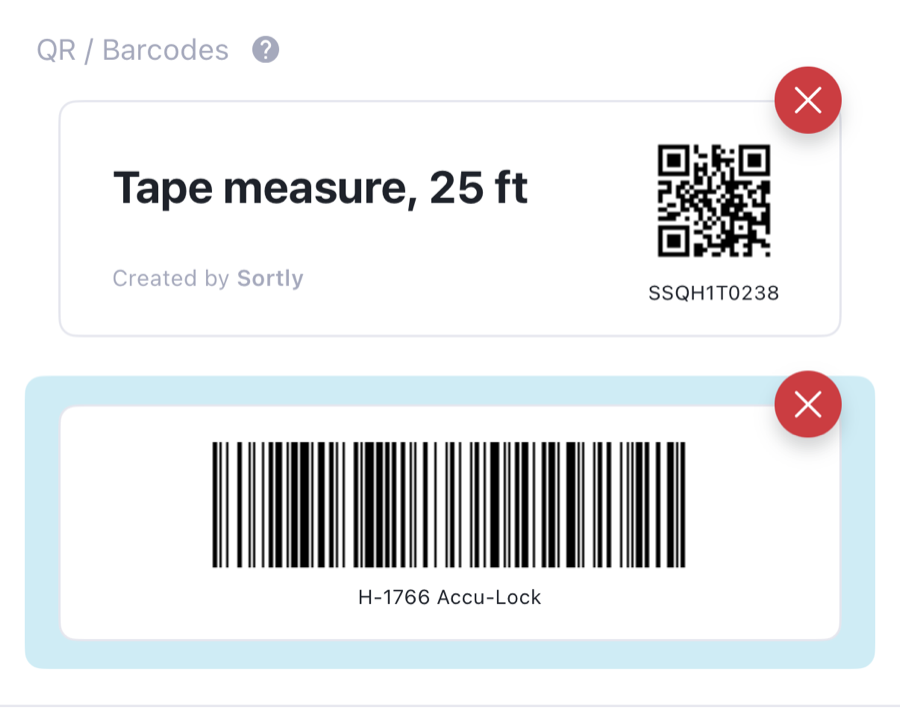
The linked code now appears under QR / Barcodes, below the label Sortly created.
---
### After you link a code
Scanning the linked code finds the item, the same way a search for the item would. Sortly then shows the item's stock rows. If you scan a 12-digit UPC-A code, Sortly also tries it as a 13-digit EAN, so both forms of the same product's code find the item. To learn how scanning works, see [scanning barcodes and QR codes on web](https://help.sortly.com/sb/scanning-codes?hsLang=en) and [on mobile](https://help.sortly.com/sb/scanning-codes-mobile?hsLang=en).
Linking and removing a code are recorded in the item's [activity history](https://help.sortly.com/sb/item-activity-history?hsLang=en) as attached and detached linked QR codes or barcodes.
---
### Remove a linked code
To remove a linked code from the item on mobile, select the red X on the code under QR / Barcodes, then select Unlink. The item keeps its other labels.
### Frequently asked questions
Can I link more than one code to an item?
No. Each item can have one linked code.
Can Sortly print a label I linked?
No. Sortly can print only labels it created. To print a label for the item, [create a Sortly label](https://help.sortly.com/sb/creating-labels?hsLang=en). The linked code stays on the item.
Will creating a Sortly label remove my linked code?
No. The linked code and the Sortly label can both be on the item.
Does the code belong to the item or to a stock row?
The item. Scanning the code finds the item, and Sortly then shows its stock rows.
[](https://www.sortly.com)
Copyright © 2026, Sortly Inc.