
Stay on top of inventory changes by sending updates to the Microsoft Teams channel of your choice. This article walks you through how the integration works, how to connect Microsoft Teams, and what the updates look like in your channel.
Ultra
Premium
Enterprise
How it works
After you connect Microsoft Teams, Sortly posts the inventory, purchase order, and job events you select to the channel you choose. Teams connects through an incoming webhook, which is a URL you create in Teams and paste into Sortly.
Connect Microsoft Teams
Connect Microsoft Teams from the Integrations page on web.
1
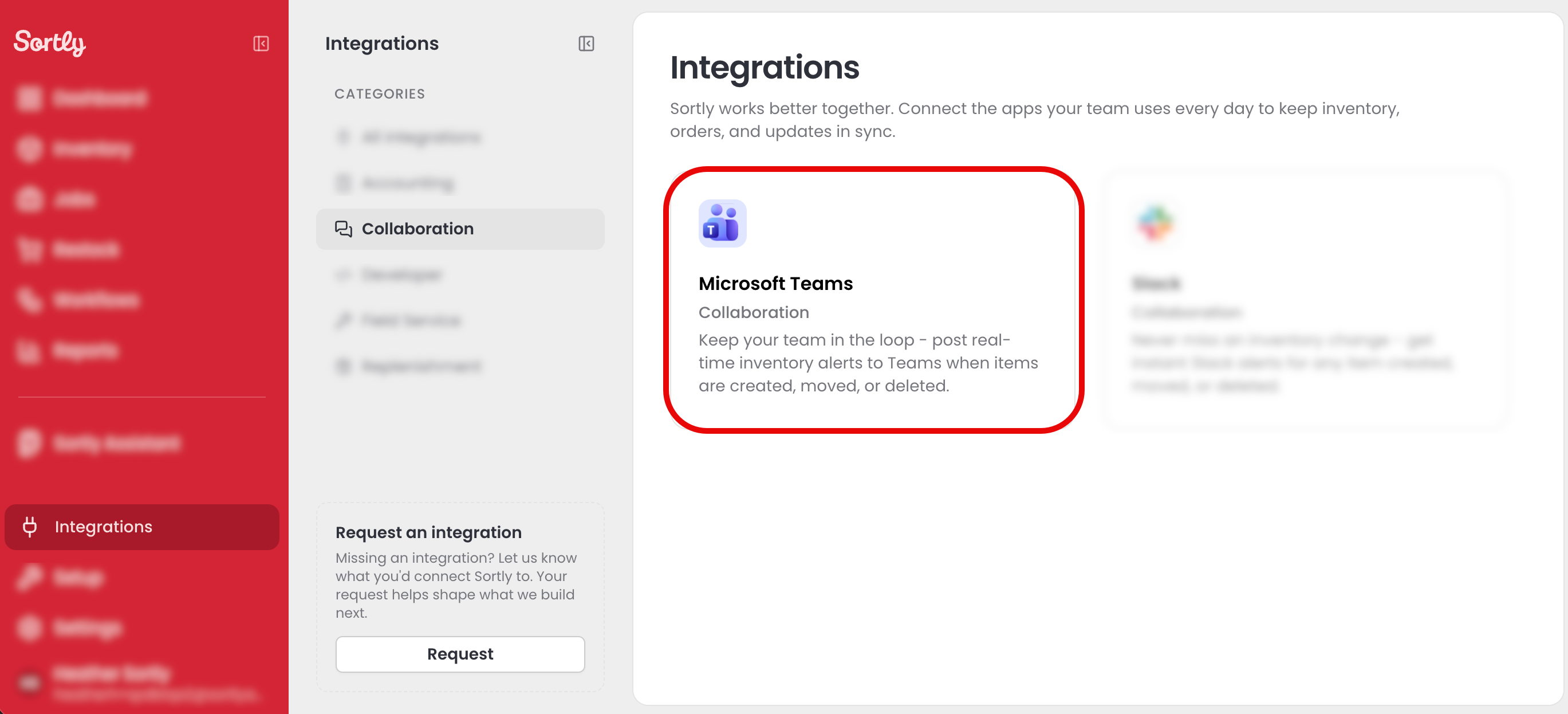
Select Integrations in the left menu, then select the Microsoft Teams card. You can find it under Collaboration or All integrations.
2
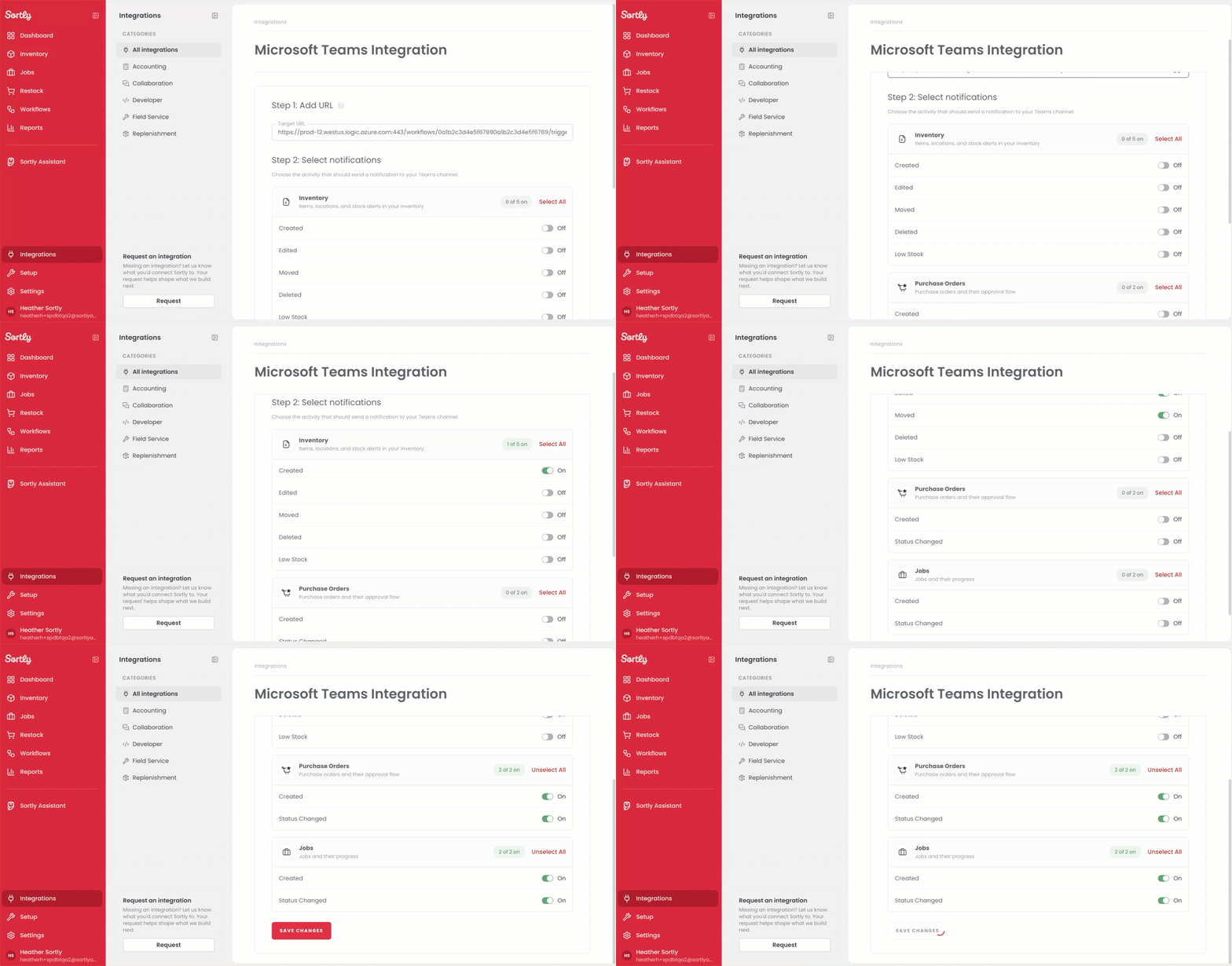
In Microsoft Teams, create an incoming webhook for the channel that will receive Sortly updates, then copy the webhook URL. For help, hover over the question mark next to Step 1: Add URL and select Learn More, or follow Microsoft's guide. Then paste the URL into the Add Target URL field under Step 1: Add URL.
3
Go to Step 2: Select notifications. Select the toggle next to each event you want to receive in Teams. To choose every event in a group, select Select All for Inventory, Purchase Orders, or Jobs.
4
Select Save Changes. You can update these settings later.
Use the integration
When you or a team member takes an action that matches a selected event, Sortly posts an update in the connected Teams channel.

💡 You can add or remove events at any time. Return to the Microsoft Teams Integration page, update your selections under Step 2: Select notifications, then select Save Changes.