---
title: Customize and Require Quantity Update Reasons
description: Customize the reasons your team picks when adding or removing stock in Sortly. Show or hide reasons, add your own, set a default, and require one.
---
[Skip to content](https://help.sortly.com/sb/quantity-update-reasons#main-content)
English
Show submenu for translations

Open main navigation
Close main navigation
- English
Show submenu for translations
Looking for answers? Start here.
- There are no suggestions because the search field is empty.
1. [Sortly Help Center](https://help.sortly.com/sb?hsLang=en)
2. [Getting started](https://help.sortly.com/sb/getting-started?hsLang=en)
3. [Set Up Your Account](https://help.sortly.com/sb/getting-started?hsLang=en#set-up-your-account)
# Customize and Require Quantity Update Reasons
Know why your stock quantities change every time someone adds or removes units. Give your team reasons that match how they work, pre-select the one they use most, and require a reason before a quantity update can be completed.
Advanced
Ultra
Premium
Enterprise
In this article
1. [How quantity update reasons work](https://help.sortly.com/sb/quantity-update-reasons#how-quantity-update-reasons-work)
2. [Open Transaction Reasons](https://help.sortly.com/sb/quantity-update-reasons#open-transaction-reasons)
3. [Customize your quantity update reasons](https://help.sortly.com/sb/quantity-update-reasons#customize-quantity-update-reasons)
4. [Require a quantity update reason](https://help.sortly.com/sb/quantity-update-reasons#require-quantity-update-reason)
5. [See quantity update reasons in your reports](https://help.sortly.com/sb/quantity-update-reasons#quantity-update-reasons-in-reports)
6. [Frequently asked questions](https://help.sortly.com/sb/quantity-update-reasons#faq)
### How quantity update reasons work
A quantity update reason tells your team why a stock quantity went up or down, such as Sold, Restocked, or Damaged. People choose a reason when they [update a stock quantity](https://help.sortly.com/sb/updating-quantities?hsLang=en), and you can filter by reason in your reports. Sortly provides a starting list, and choosing a reason is optional until you decide otherwise.
For example, say your team removes stock whenever an online order ships. You can add a reason called Online order, make it the default so it is already selected, and require a reason so every update is explained.
Only Owners and Admins can change quantity update reasons. Everyone else on your team still chooses from the list when they update a quantity, but cannot change it. Customizing reasons is available on Advanced, Ultra, Premium, and Enterprise plans.
---
### Open Transaction Reasons
Quantity update reasons and [move reasons](https://help.sortly.com/sb/move-reasons?hsLang=en) are managed in the same place, each on its own tab.
1
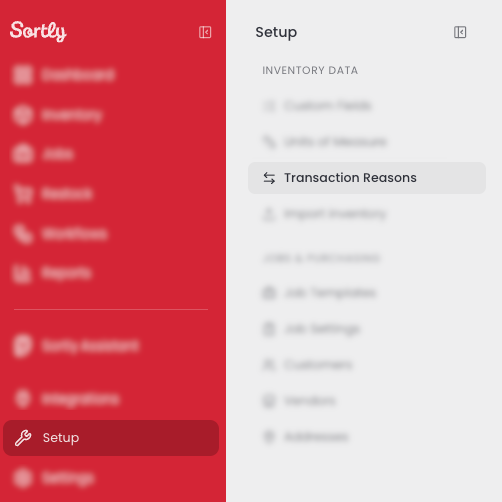
Select Setup in the left menu, then select Transaction Reasons under Inventory Data.
2
Select the Quantity Update Reason tab. Reasons for moves are on the Move Reason tab, and each tab is managed separately.
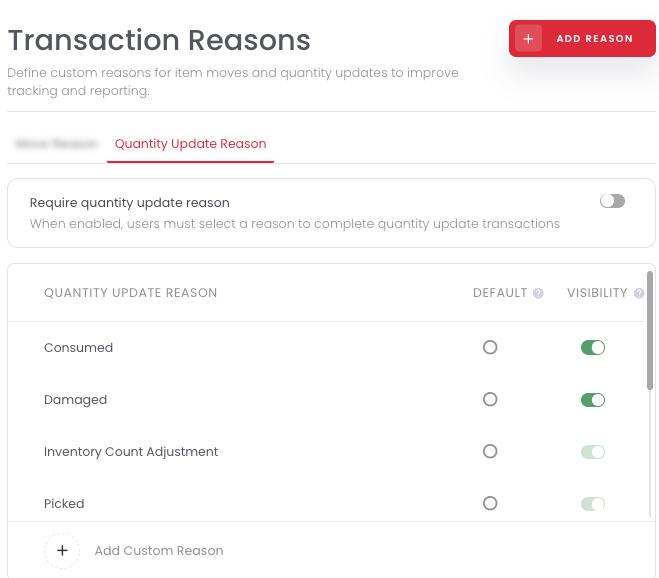
Each reason is one row. Select the circle under Default to pre-select it, and use the toggle under Visibility to show or hide it.
---
### Customize your quantity update reasons
#### Add a custom reason
Prefer to use your own wording? Add a reason for each kind of quantity change your team makes. You can add up to 15 custom quantity update reasons.
1
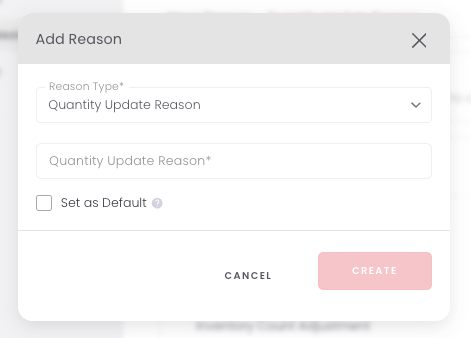
On the Quantity Update Reason tab, select Add Reason at the top right, or Add Custom Reason at the bottom of the list.
2
In the Add Reason window, make sure Reason Type is set to Quantity Update Reason, then enter a name of up to 20 characters. To make it the default, select Set as Default.
3
Select Create to add the reason to your list.
#### Set a default reason
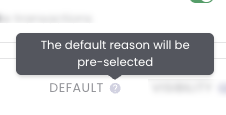
Want your team to spend less time choosing? Select the circle in the Default column for the reason they use most. It is already selected when someone updates a quantity, and they can still choose a different one. Only one reason can be the default at a time, so selecting a new one replaces the old one.
#### Show or hide a reason
Not every reason fits your business. Select a reason's toggle in the Visibility column to hide it from the options your team sees. Select the toggle again to bring it back.
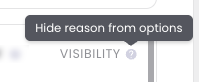
A few reasons cannot be hidden. The default reason stays visible until you set a different one as the default, and reasons Sortly uses in other workflows, such as Picked and Inventory Count Adjustment, have a toggle you cannot change. At least one reason always has to stay visible.
---
### Require a quantity update reason
Want every change explained? Require a reason, and nobody can complete a quantity update without choosing one. Pairing this with a default keeps updates fast, because people only change the reason when the default does not fit.
1
On the Quantity Update Reason tab, select the Require quantity update reason toggle. It turns green when it is enabled.

This applies to every quantity update, including bulk updates and updates in the Sortly mobile app. It only affects quantity updates. Moves have their own setting, covered in [Customize and Require Move Reasons](https://help.sortly.com/sb/move-reasons?hsLang=en).
---
### See quantity update reasons in your reports
Once your team is choosing reasons, you can filter by them to see why quantities changed. The [Transactions Report](https://help.sortly.com/sb/transactions-report?hsLang=en) and the [Activity History Report](https://help.sortly.com/sb/activity-history-report?hsLang=en) both list the reason for each update, and past updates keep the reason they were recorded with.
---
### Frequently asked questions
How many custom quantity update reasons can I add?
Up to 15. Move reasons have their own limit of 15, and the reasons Sortly provides do not count toward either one.
Can I hide every quantity update reason?
No. At least one reason has to stay visible, so your team always has something to choose.
Do these settings work in the Sortly mobile app?
Yes. The mobile app shows the reasons you leave visible, pre-selects your default, and requires a reason if you require one. You can only change the list on the web.
Can I customize quantity update reasons on the Free plan?
No. Free accounts use the reasons Sortly provides. Customizing is available on Advanced, Ultra, Premium, and Enterprise plans.
[](https://www.sortly.com)
Copyright © 2026, Sortly Inc.