Stay on top of what needs buying, so you can reorder before a job or a shelf runs short. The Restock list gathers every item that is out of stock, low on stock, or short for a job into one place. This article walks you through what shows up on the list, what each column means, and how stock status and job shortages are worked out.
In this article
How the Restock list works
Select Restock in the left menu to open the Restock list. It is your buy list. Each item appears once, with a reason for why it needs restocking. Items show up automatically when they are:
 Out of stock
 Low on stock
 Short for a job, meaning the job needs more than you have available
Job shortages come from jobs that are in Draft, Planning, or In progress. Completed jobs are not counted.
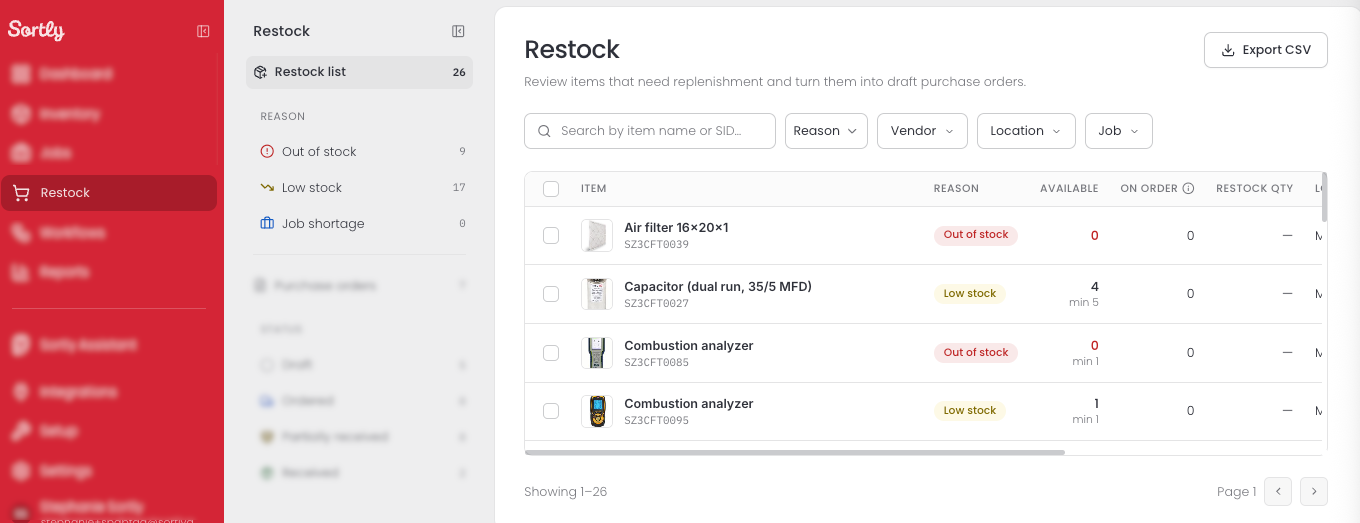
On the left, the Restock list shows how many items need attention. Under Reason, you can see how many are Out of stock, Low stock, or a Job shortage. Select a reason to see only those items.
What you see for each item
An item can have more than one reason at once, for example Job shortage and Low stock. When that happens, its restock quantity shows the total, with a breakdown by reason.
- Item: the item's name and SID.
- Reason: why the item is on the list.
- Available: units you have in stock and free to use. If the item has a minimum level, it appears underneath, such as "min 5".
- On order: units already on an ordered purchase order.
- Restock qty: how many units to buy. A dash means no quantity is set for that item.
- Location: where the item is stored.
When a shortage comes from more than one job, the row also shows a line such as "across 3 jobs".
How job shortages are counted
For each item, Sortly adds up what your active jobs still need, then subtracts the stock you have available and the units already on order. Only purchase orders with the Ordered status count as on order. Draft purchase orders do not.
For example, a job needs 10 units of an item. You have 3 available and 2 more on an ordered purchase order. The Restock qty is 5.
The quantity is one total for the item, not a figure for each job. Because of that, it can differ from the Short numbers you see on individual job pages, where the same available stock can count toward several jobs.
Open an item
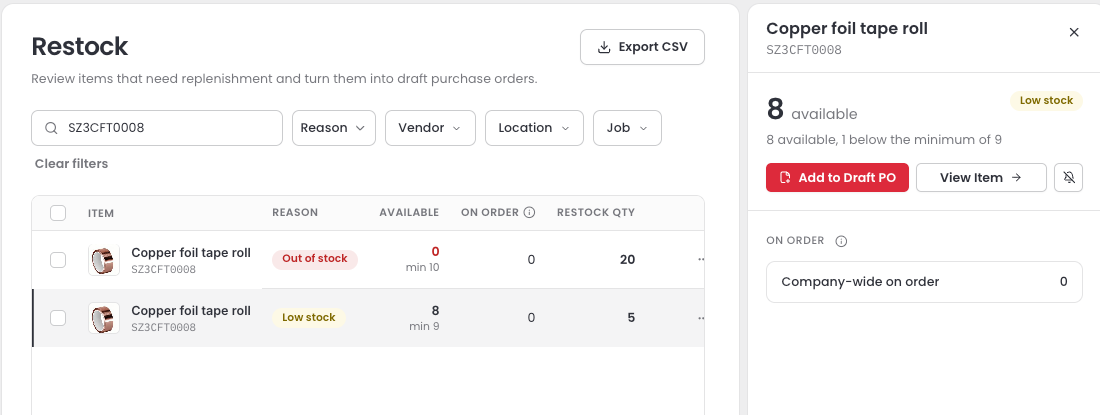
Select any row to open a panel with more detail on that item. It shows how many units are available and how far that is from the minimum level, plus the Company-wide on order quantity. From the panel you can select Add to Draft PO, select View Item to open the item, or use the dismiss icon.
Narrow the list
Search by item name or SID, or use the filters to focus on part of the list. Select a filter below to see its options and what it does.
Reason
Vendor
Location
Job
Dismiss an alert
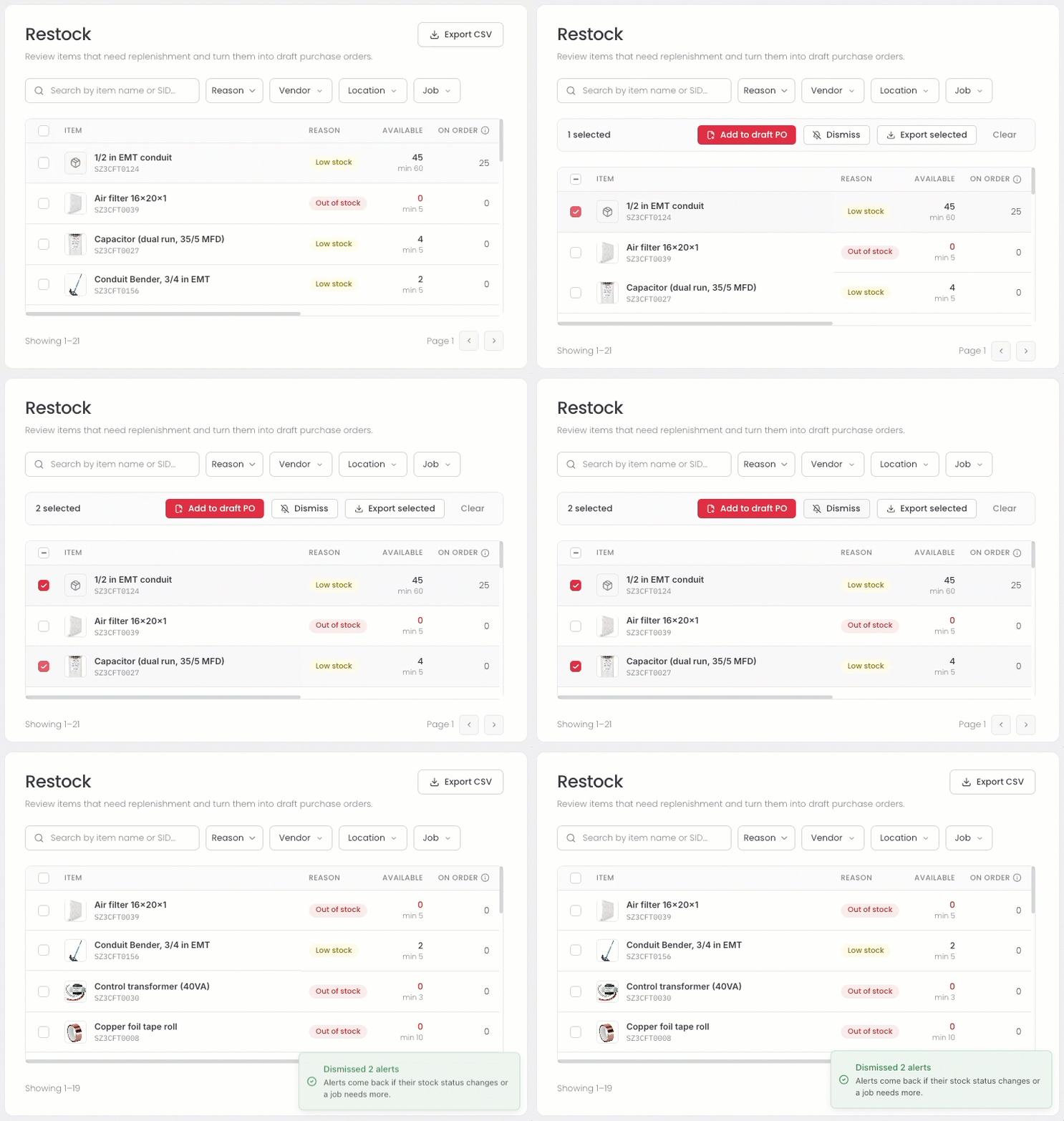
If you do not plan to restock an item right now, select it and then select Dismiss. This works for out of stock, low stock, and job shortage items. You can also use the dismiss icon in the item panel.
A message confirms what was dismissed, such as "Dismissed 2 alerts." The alert comes back if the item's stock status changes or a job needs more.