
Skip to content
English
  • There are no suggestions because the search field is empty.

Set a Minimum Level and Reorder Quantity

Set a Min level and a Reorder quantity on an item so Sortly can flag it when it runs low and suggest how many to order. You can set them one item at a time, or set a Min level on several items at once.

Free
Advanced
Ultra
Premium
Enterprise

Set a Min level and Reorder quantity

Both are optional, so you can set one or both.

1
Open the item's stock in a location, then select Edit details next to Stock details.
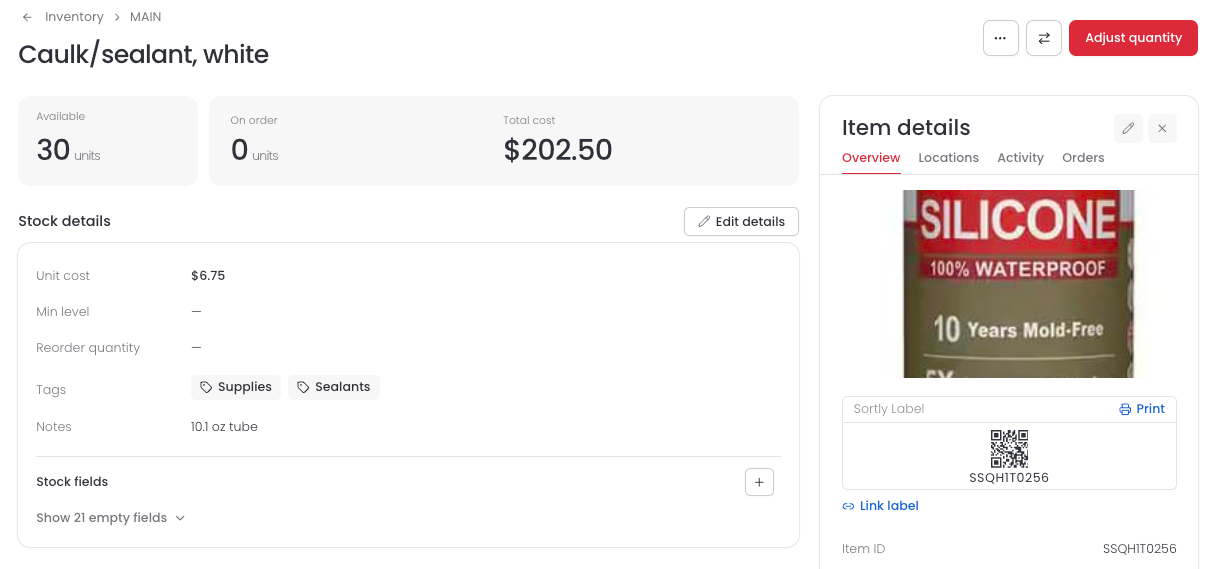
The Stock details card on an item with no Min level or Reorder quantity set, and the Edit details button
2
Enter a number in Min level and in Reorder quantity.
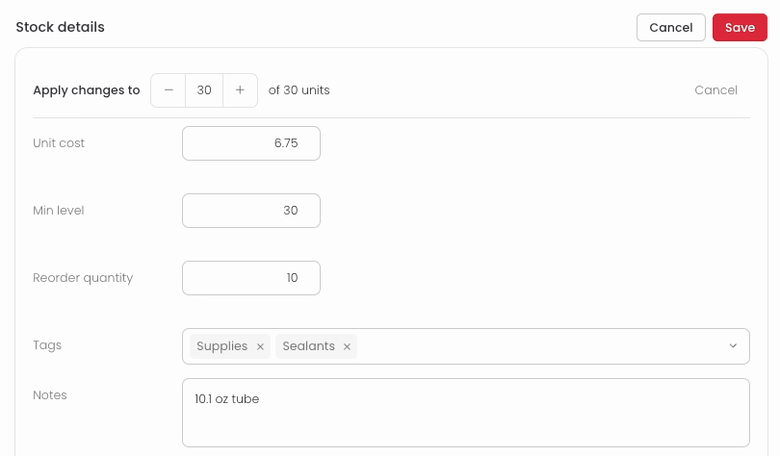
The Stock details card in edit mode with a Min level of 30 and a Reorder quantity of 10 entered
3
Select Save. In this example, the item shows Low stock because its available quantity is at the Min level.
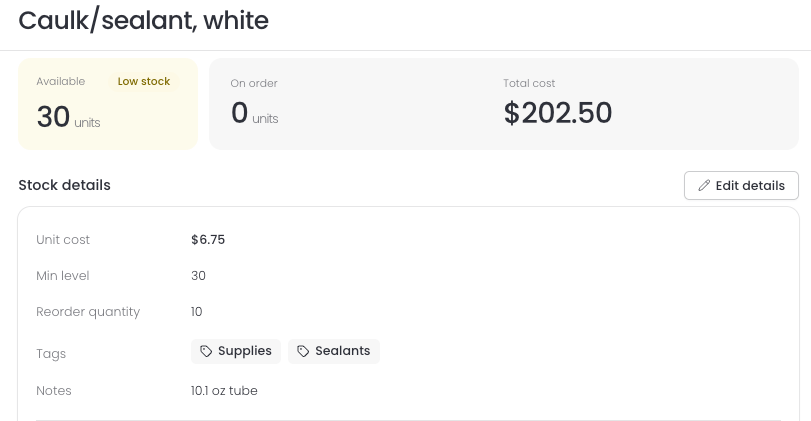
The Stock details card after saving, with a Min level of 30, a Reorder quantity of 10, and a Low stock status

You can also set them for only some of your units, or for one of several stock rows, by following the steps in edit stock details.


Set them on mobile

Prefer to set them from your phone? You can do that in the Sortly mobile app.

1
Open the item from its location, then select the pencil icon at the top to edit its stock details.
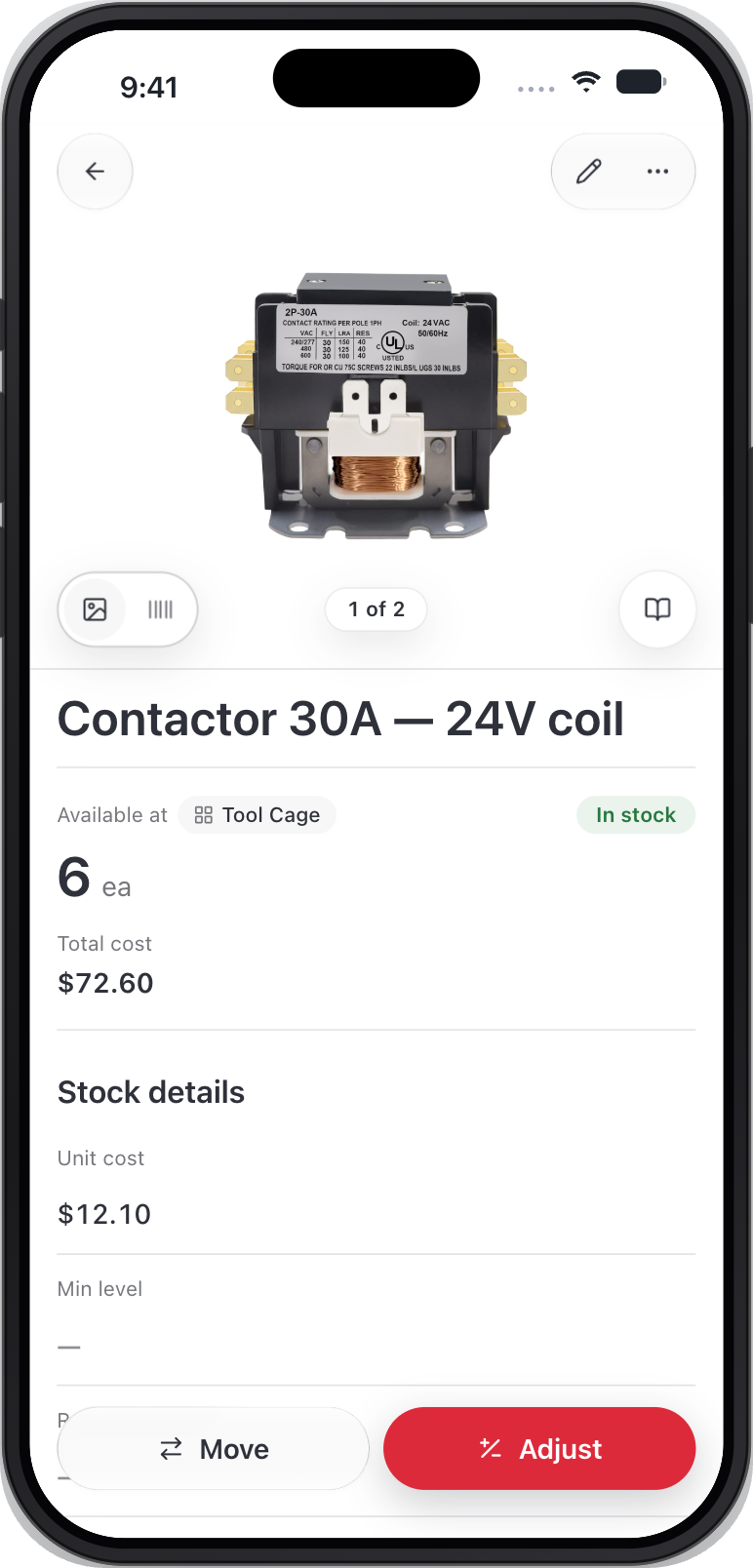
An item on mobile, with the pencil icon at the top right and the Stock details section showing Min level
2
Enter a number in Min level and in Reorder quantity, then select Save.
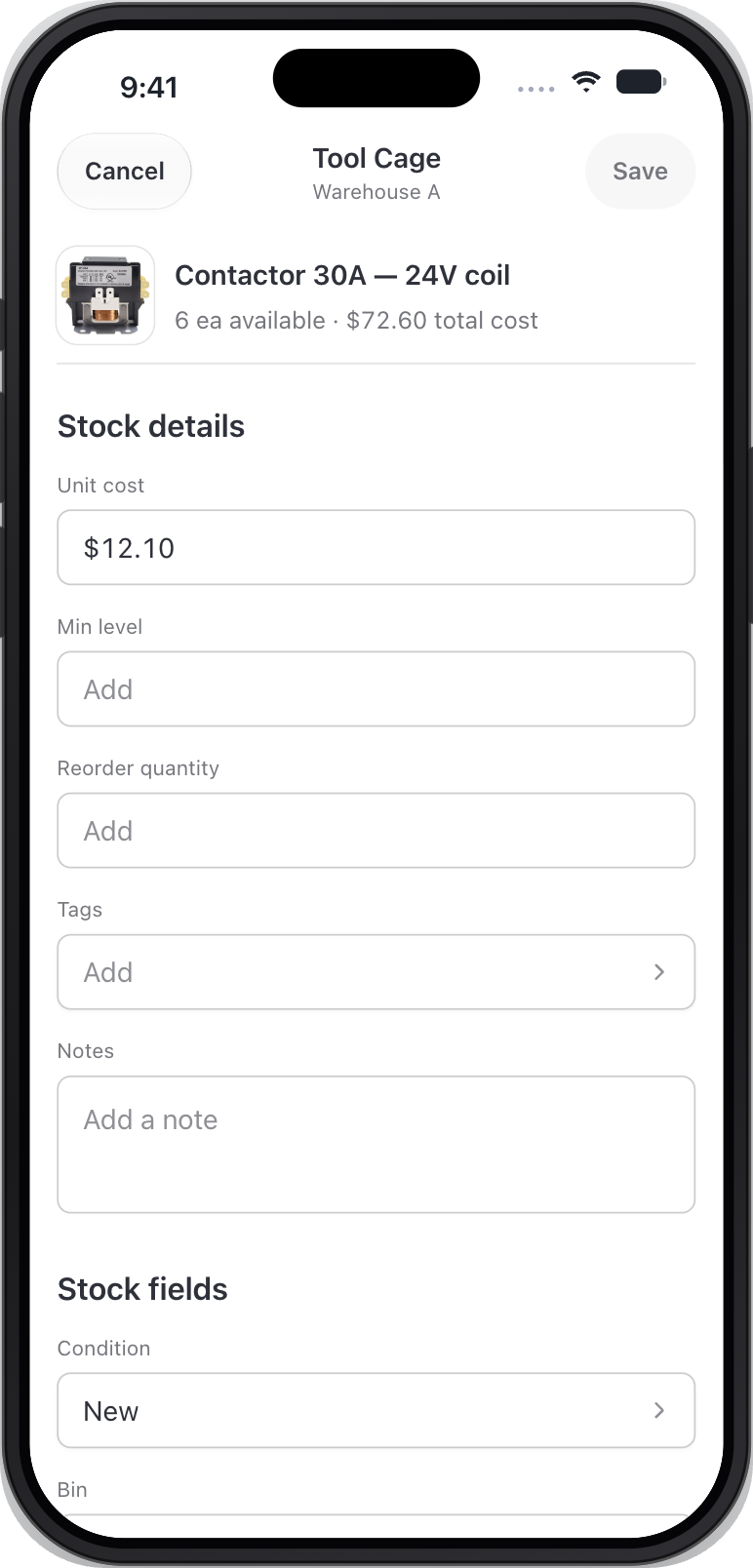
The mobile edit screen with Min level and Reorder quantity fields and Cancel and Save buttons

Set a Min level for several items at once

Setting up a lot of items? You can set the same Min level on several items in one go.

1
Open the location that holds the items, select the items you want to change, then choose Edit in the bar at the top.
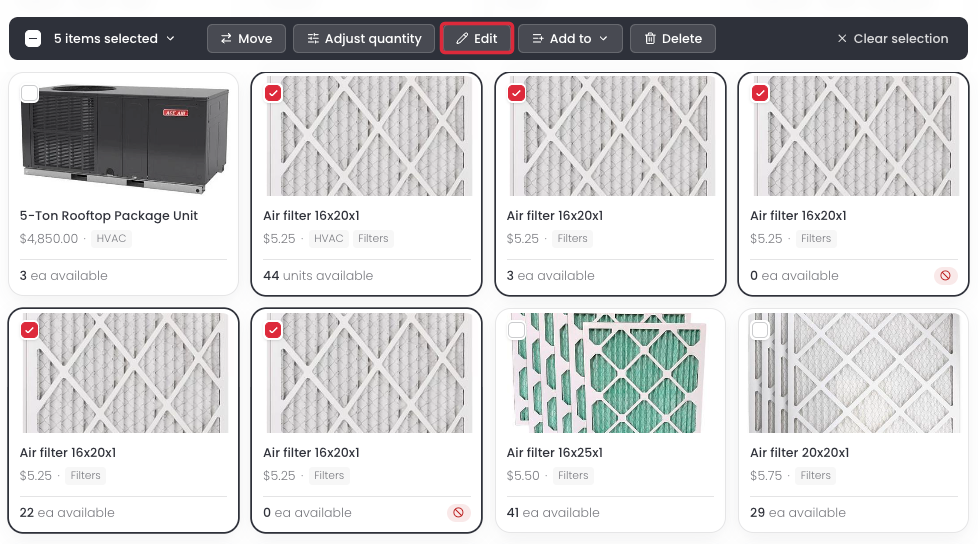
Five items selected on a location page, with the Edit button in the selection bar highlighted
2
Enter a number in Min level. Fields you leave blank keep each item's current value.
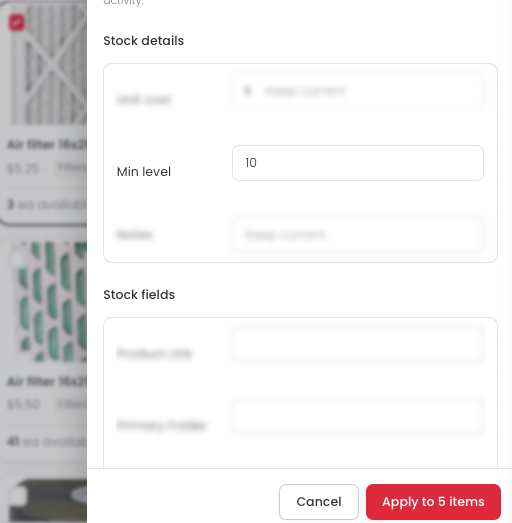
The Edit panel with a Min level of 10 entered and the Apply to 5 items button
3
Select Apply to 5 items. The number matches how many items you selected.
Frequently asked questions

Do I have to set both a Min level and a Reorder quantity?
No. Both are optional. You can set one, both, or neither.
What does a Min level do?
It sets when an item shows as Low stock. An item shows as Low stock when its Available quantity reaches the Min level or drops below it, and as Out of stock when Available is 0. Available is the quantity in stock minus anything reserved for jobs.
What does a Reorder quantity do?
It is the Restock qty for that item on the Restock list, and the quantity added when you add the item to a draft purchase order. Items without a Reorder quantity show a dash for Restock qty and are added at quantity 0, so enter a quantity before you order.
Can I set them for only some of my units?
Yes. Changing only some of your units splits the stock into separate stock rows, and each row keeps its own Min level and Reorder quantity. The steps are in edit stock details.
Can I set a Reorder quantity for several items at once?
No. Setting several items at once only covers the Min level. Set a Reorder quantity on each item.
Why were some items skipped when I set a Min level for several items?
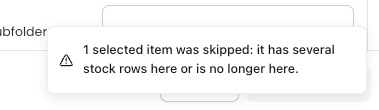
Items that have more than one stock row are skipped. A message tells you how many were skipped, and another tells you how many were updated. To set a Min level on a skipped item, open its stock, select the three dots at the end of the stock row, then select Edit. Edit stock details has the steps.
The message that appears when a selected item is skipped