
Skip to content
English
  • There are no suggestions because the search field is empty.

Slack Integration

Give your team instant Slack updates for the inventory changes that matter, so everyone sees them as they happen. Pick your events, add the Sortly app to your channel, and updates show up in Slack. This article walks you through how the integration works, how to connect Slack, and what the updates look like in your channel.

Ultra
Premium
Enterprise

How it works

After you connect Slack, Sortly posts the events you select to the public channel you choose. You can pick events for your inventory, purchase orders, and jobs, and you can change the channel or the events later.


Connect Slack

Connect Slack from the Integrations page on web.

1
Select Integrations in the left menu.
2
Select the Slack card. You can find it under Collaboration or All integrations.
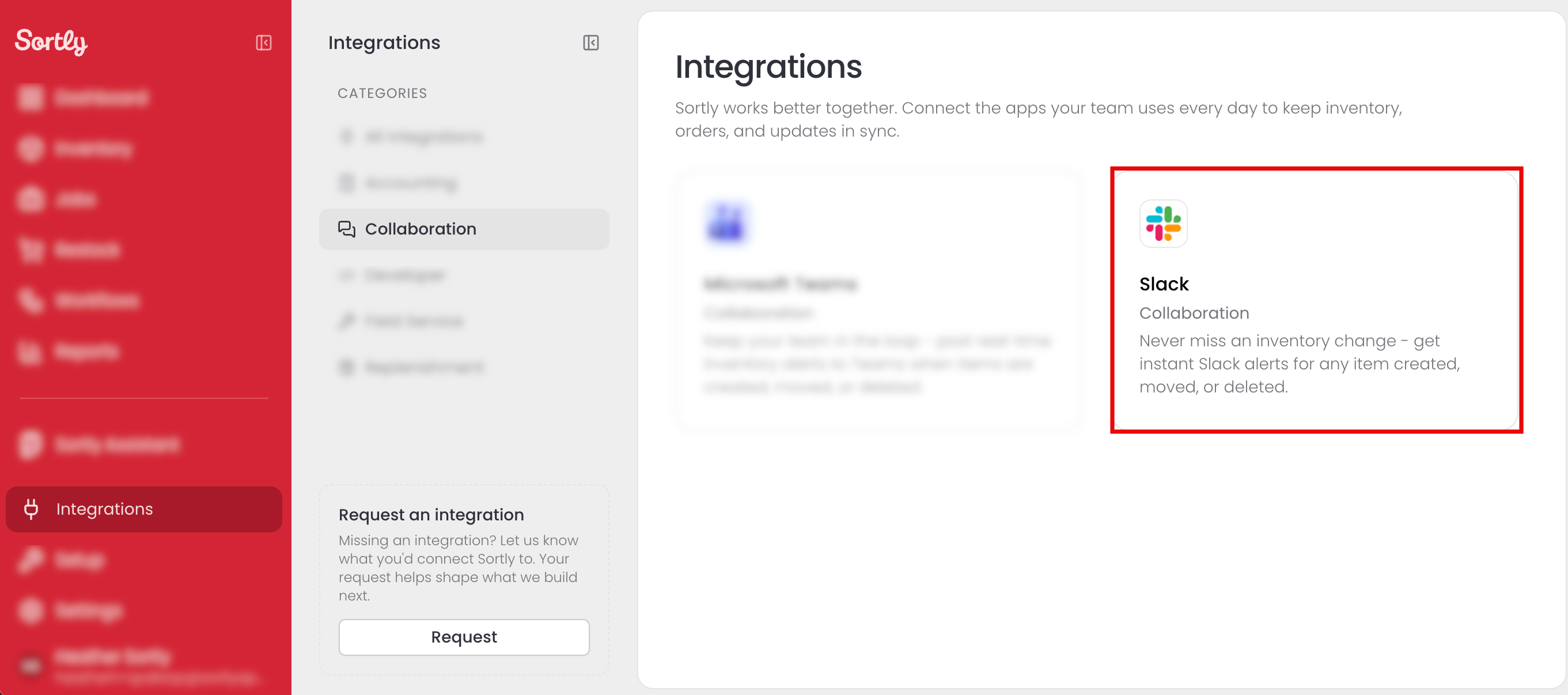
The Integrations page with the Slack card highlighted
3
On the Integrate With Slack page, go to Step 1: Select your channel. Choose the public Slack channel that will receive Sortly updates from the Slack Channel dropdown, then select Save Changes.
4
Go to Step 2: Select notifications. Select the toggle next to each event you want to receive in Slack. To choose every event in a group, select Select All for Inventory, Purchase Orders, or Jobs.
5
Select Save Changes under Step 2: Select notifications. You can update these settings later.
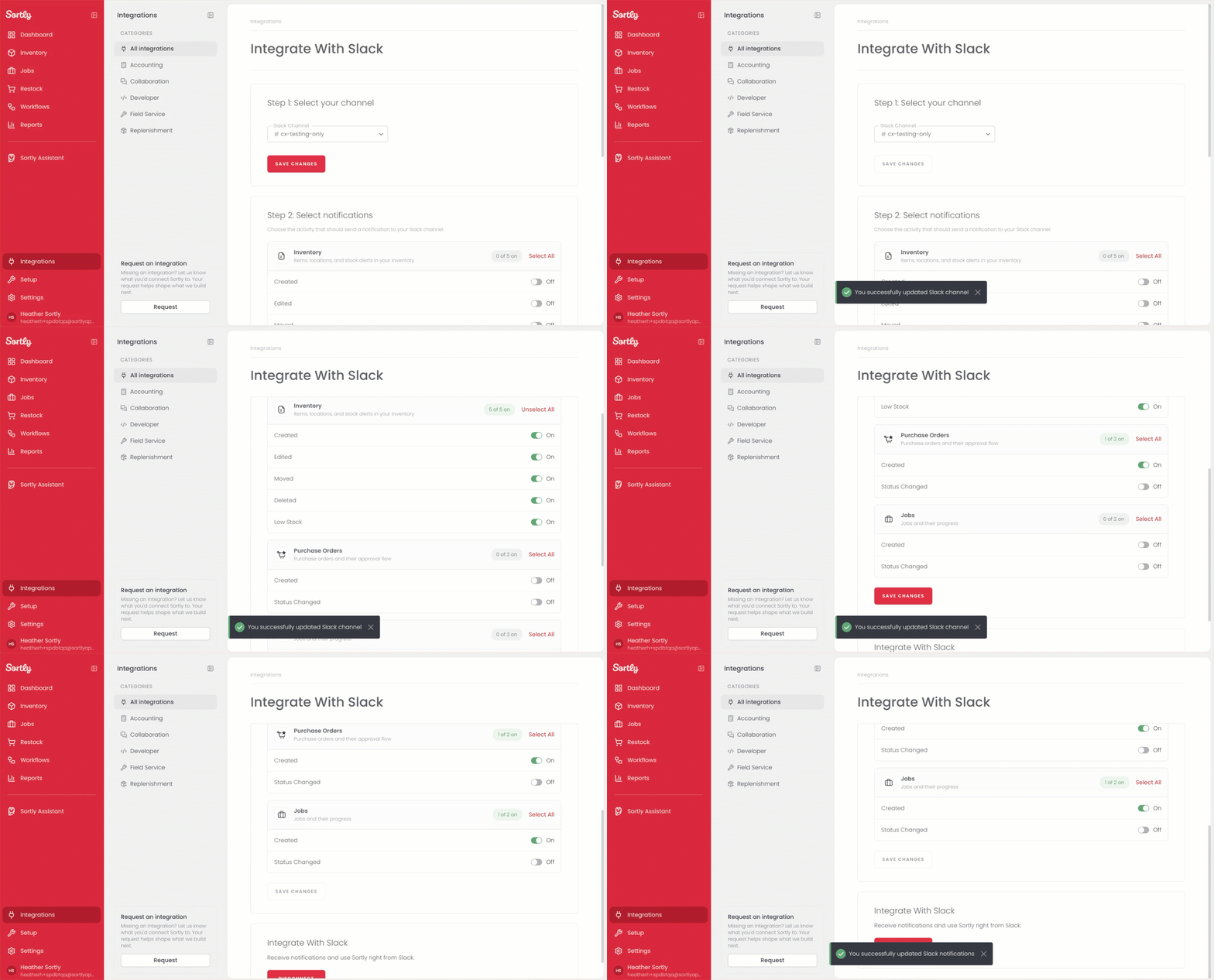
Selecting a Slack channel and events on the Integrate With Slack page, then saving changes
6
In Slack, open the channel you selected and select the member list at the top right. In the Integrations tab, confirm that the Sortly app is added under Apps. If it isn't, select Add apps and choose the Sortly app.

Use the integration

When you or a team member takes an action that matches a selected event, Sortly posts an update in the connected Slack channel.
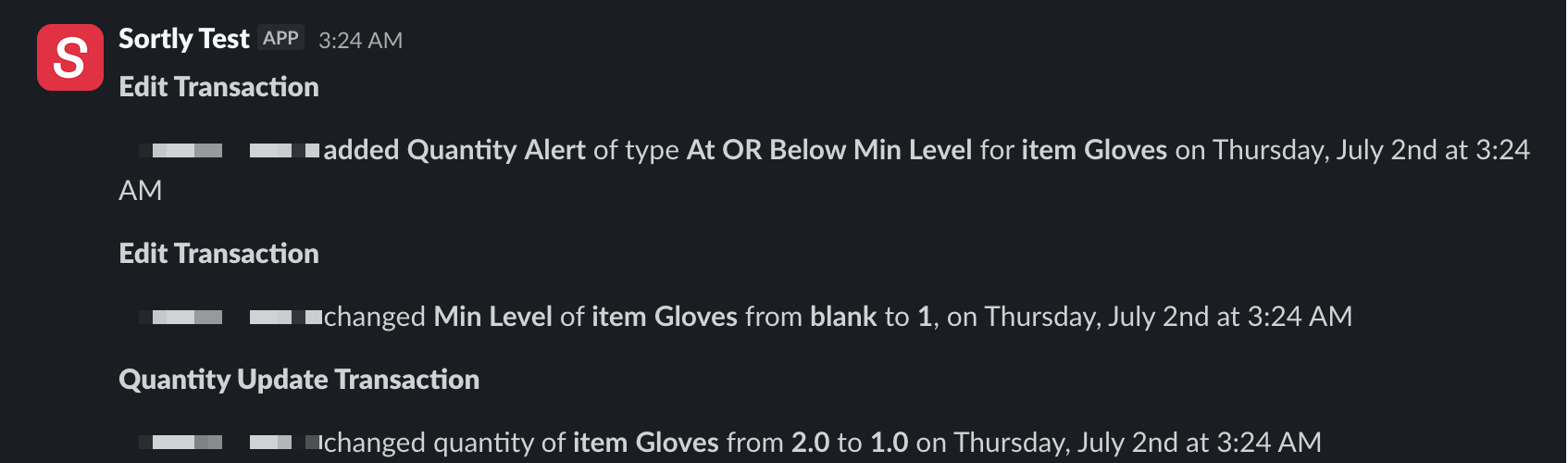
Sortly updates in a Slack channel showing a quantity alert, a min level change, and a quantity change for an item

Frequently Asked Questions

What updates can I send to Slack?
You can send updates for three areas. For Inventory: created, edited, moved, deleted, and low stock alerts. For Purchase Orders: created and status changed. For Jobs: created and status changed. Choose only the ones your team needs.
Which plans include the Slack integration?
Slack is available on the Ultra, Premium, and Enterprise plans. If you're on another plan, go to Settings, then Plan & Billing to upgrade.
Why is my channel not showing as an option?
Only public Slack channels appear as options. If your channel is private, choose a public channel instead.
Who on my team can connect Slack?
Only account owners can connect the Slack integration. If you're not the owner, ask them to connect it for you.
Can I add multiple Slack channels?
No. You can connect one Slack channel at a time.
Can I change the channel or events later?
Yes. You can update your channel and event settings at any time from the Integrate With Slack page.
I connected Slack, but I don't see updates in my channel. What should I do?
First, check that the Sortly app is added to the channel. In Slack, open the channel, select the Integrations tab, and look for the Sortly app under Apps. If it isn't there, select Add apps and add it. Then confirm in Sortly that the event you expect is selected.