
Stay on top of your stock levels by updating an item's quantity whenever stock comes in or goes out, so the numbers in Sortly match what is on your shelves. This article walks you through opening the Adjust quantity window, changing the quantity, adding a reason, and tracking stock that costs something different.
In this article
How quantities work
Sortly tracks quantity for each item at each location. When you update a quantity, you change how many of that item are in stock at one location. The totals on the item page and in the Catalog update to match.
For example, if 10 boxes of PVC fittings are in Warehouse 2 and you receive 5 more, you adjust the quantity at Warehouse 2 by 5, and it now shows 15.
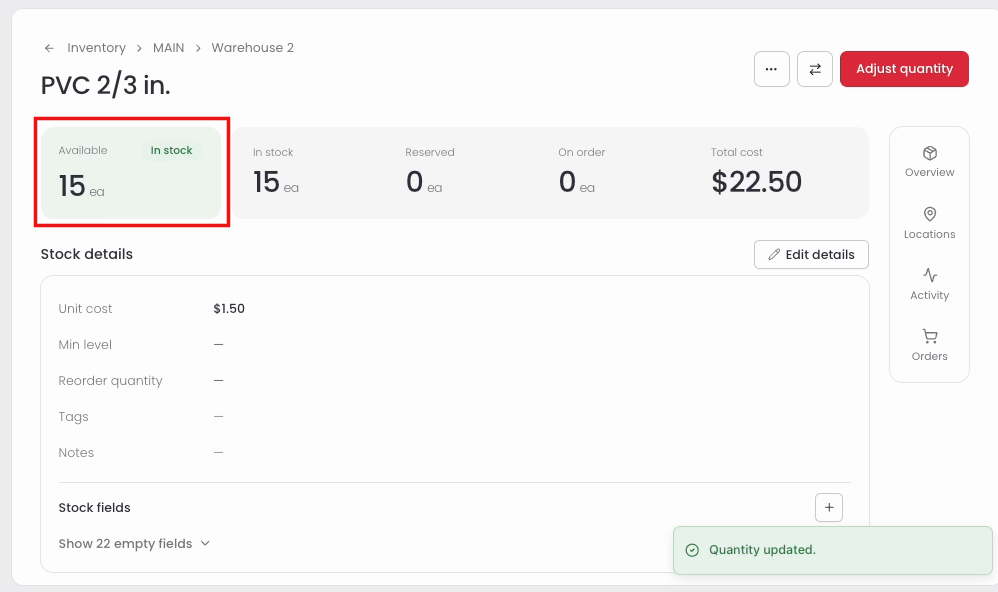
Some of the units in stock may be held for a job. In stock includes those units, Reserved shows how many are held, and Available is In stock minus Reserved. With 20 in stock and 2 reserved, 18 are available.
Adjust an item's quantity
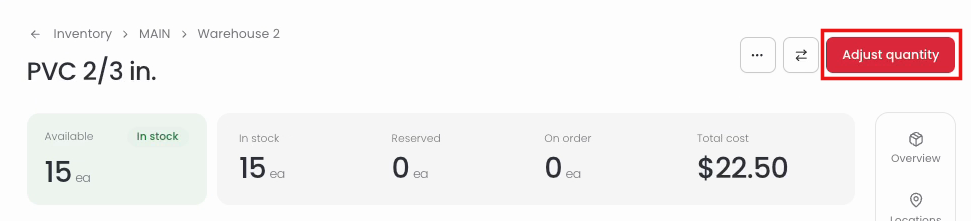
Open the Adjust quantity window
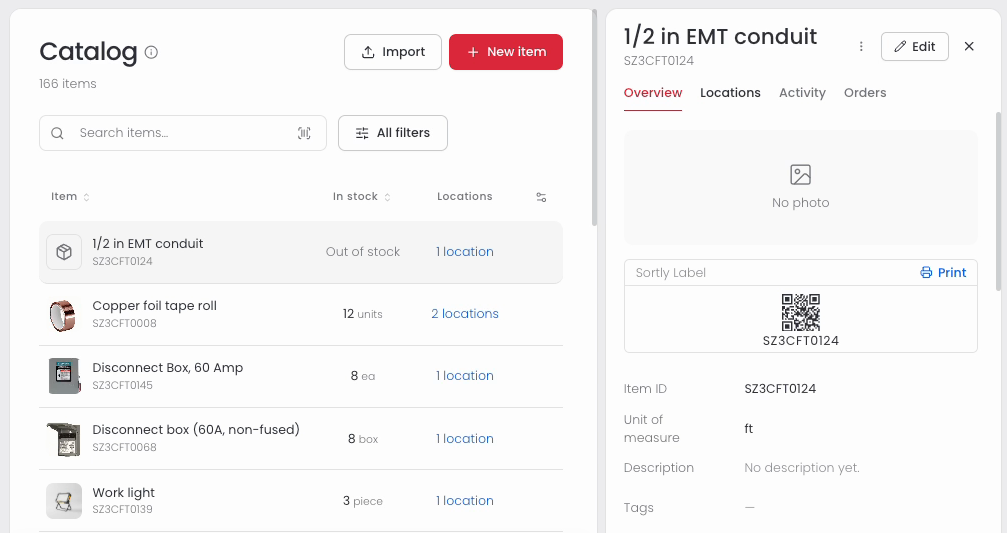
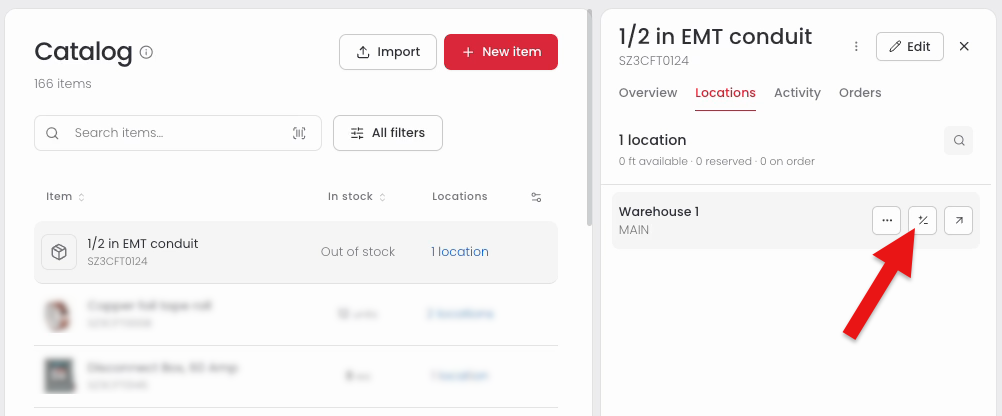
Prefer to work from the Catalog? Open the item's side panel and update the quantity without leaving the list.
Change the quantity
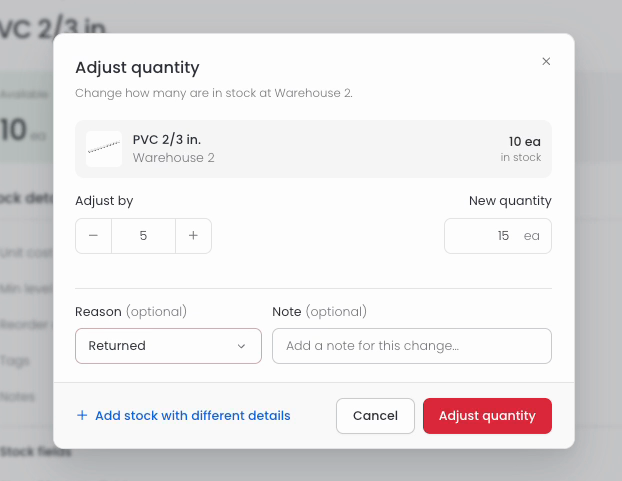
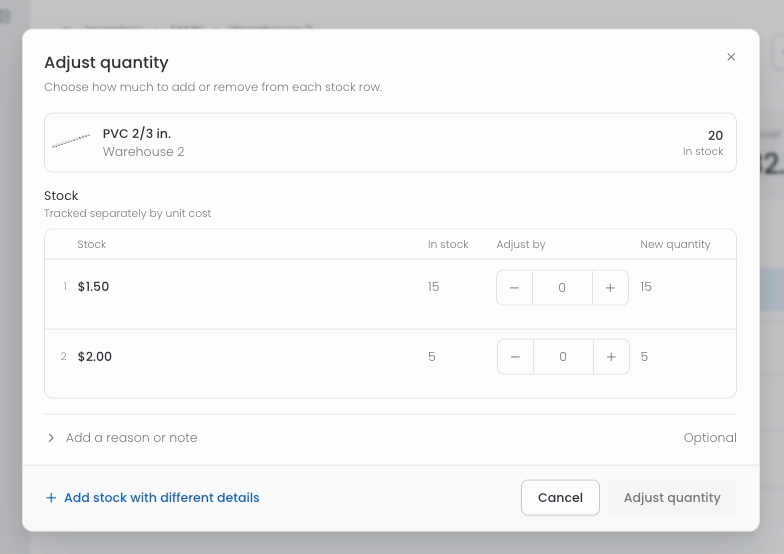
The Adjust quantity window shows the item, the location, and how many are in stock now. You can change the quantity two ways, and the other field updates as you type.
- In Adjust by, type how many to add, or use the − and + buttons.
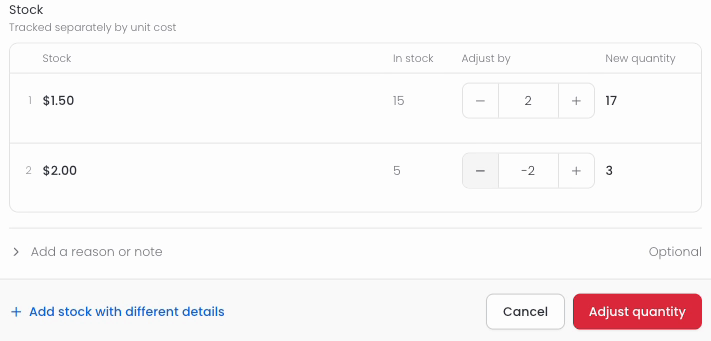
- To remove stock, enter a negative number in Adjust by, such as -2.
- Prefer to enter the final count? Type it in New quantity, and Adjust by fills in the difference.
Adjust more than one stock row
An item can have more than one stock row at a location, such as stock bought at different costs. The Adjust quantity window then lists each row, so you can change several in one go.
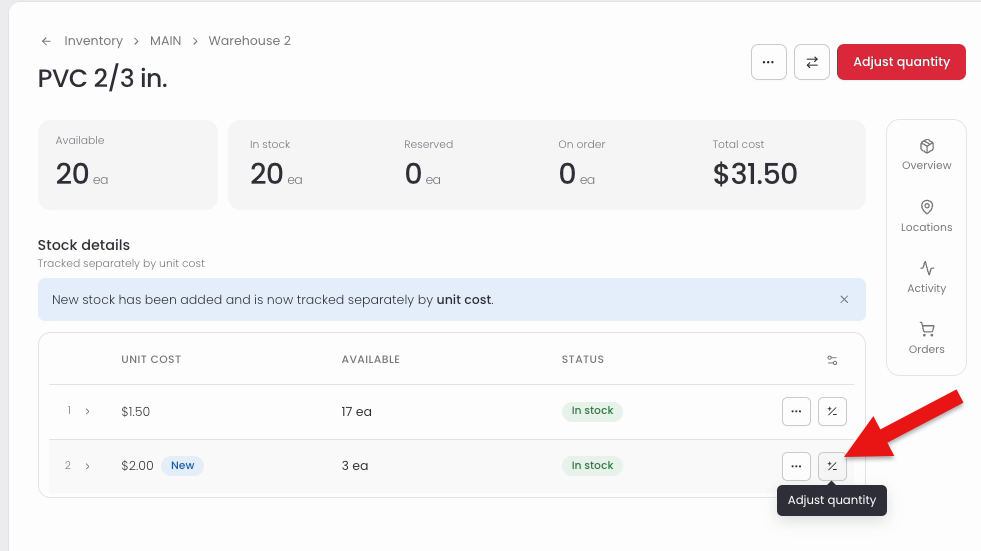
Only need to change one row? Hover over that row in the stock table and select the adjust icon. The window opens for that row alone.
Add a reason or note
A reason and a note are both optional. They help you and your team see later why a quantity changed. Select Add a reason or note in the window to show both fields.
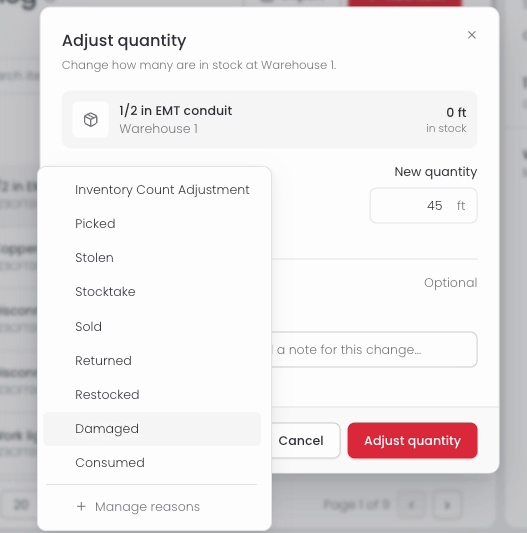
The list includes these reasons:
Need a reason that is not listed? Select Manage reasons at the bottom of the list.
Track stock with a different cost
Bought more of an item at a different price? Add it as its own stock row, and Sortly tracks each cost separately.
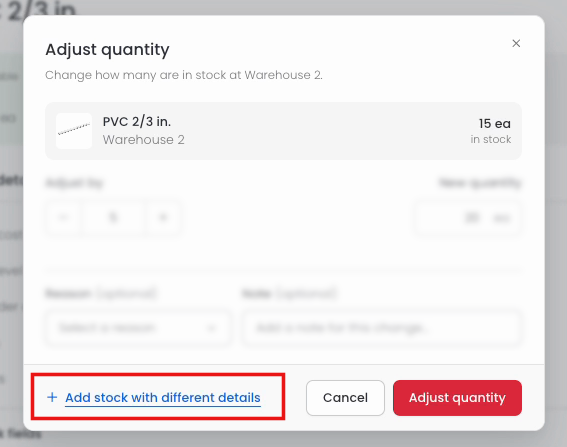
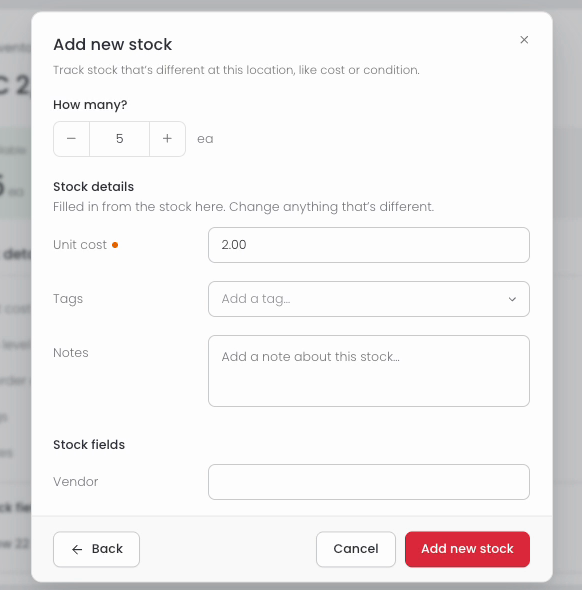
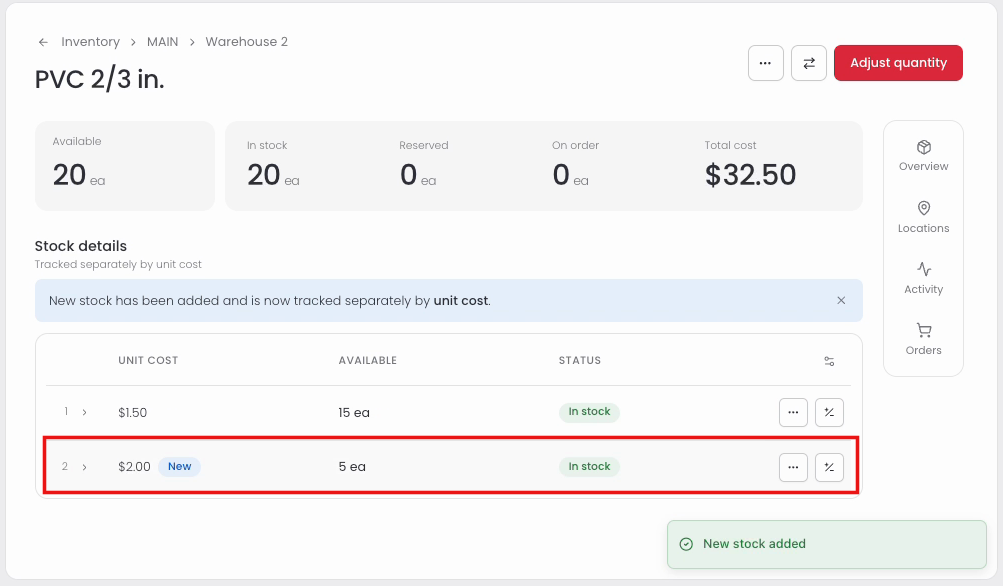
The item page now lists each stock row by unit cost, with the new one marked New. The total quantity and total cost include both rows.