---
title: Sortly Mobile App
description: Download the Sortly mobile app for iOS and Android, check system requirements, and get to know Workflows, Items, Search, alerts, and Dark Mode.
---
[Skip to content](https://help.sortly.com/sortly-mobile-app#main-content)

Open main navigation
Close main navigation
Looking for answers? Start here.
- There are no suggestions because the search field is empty.
1. [Sortly Help Center](https://help.sortly.com/?hsLang=en)
2. [Getting started](https://help.sortly.com/getting-started?hsLang=en)
3. [Introduction to Sortly](https://help.sortly.com/getting-started?hsLang=en#introduction-to-sortly)
# Sortly Mobile App
Sortly is a simple inventory tracking solution that lets your team track what you have, where it is, and who has it, anytime and anywhere. Download the app to as many devices as you want!
In this article
1. [App system requirements](https://help.sortly.com/sortly-mobile-app#system-requirements)
2. [Download and installation](https://help.sortly.com/sortly-mobile-app#download-install)
3. [App overview](https://help.sortly.com/sortly-mobile-app#app-overview)
4. [Barcode / QR code scanning](https://help.sortly.com/sortly-mobile-app#barcode-scanning)
5. [Dark mode](https://help.sortly.com/sortly-mobile-app#dark-mode)
6. [Frequently asked questions](https://help.sortly.com/sortly-mobile-app#faq)
### App system requirements
Mobile app
OS
[iOS](https://apps.apple.com/us/app/sortly-inventory-simplified/id529353551)
iOS 18.5 or above
[Android](https://play.google.com/store/apps/details?id=com.sortly.mythings&hl=en_US&gl=US&pli=1)\*
Android 12 or above
\* We only support Android devices with Google Play Services installed by default.
---
### Download and installation
#### iPhones/iPads
1. 1**Open the App Store**
On your iPhone, iPad, or iPod touch, open the App Store app.
2. 2**Search for Sortly**
Tap the Search tab and search for [Sortly: Inventory Simplified](https://apps.apple.com/us/app/sortly-inventory-simplified/id529353551).
3. 3**Tap Get**
Tap Get to begin the download. If you've already downloaded the app, you'll see a cloud icon with an arrow. Tap it to reinstall. If you see Open instead of Get, the app is already installed.
#### Android devices
1. 1**Open the Google Play Store**
2. 2**Search for Sortly**
Search for [Sortly: Inventory Simplified](https://play.google.com/store/apps/details?id=com.sortly.mythings&hl=en_US).
3. 3**Select the app**
Select the Sortly: Inventory Simplified app.
4. 4**Tap Install**
5. 5**Finish installing**
Follow the on-screen instructions to complete the installation.
---
### App overview
Sortly has a user-friendly interface designed to simplify the organization process. Navigate effortlessly through the app's various sections and tools.
#### Workflows
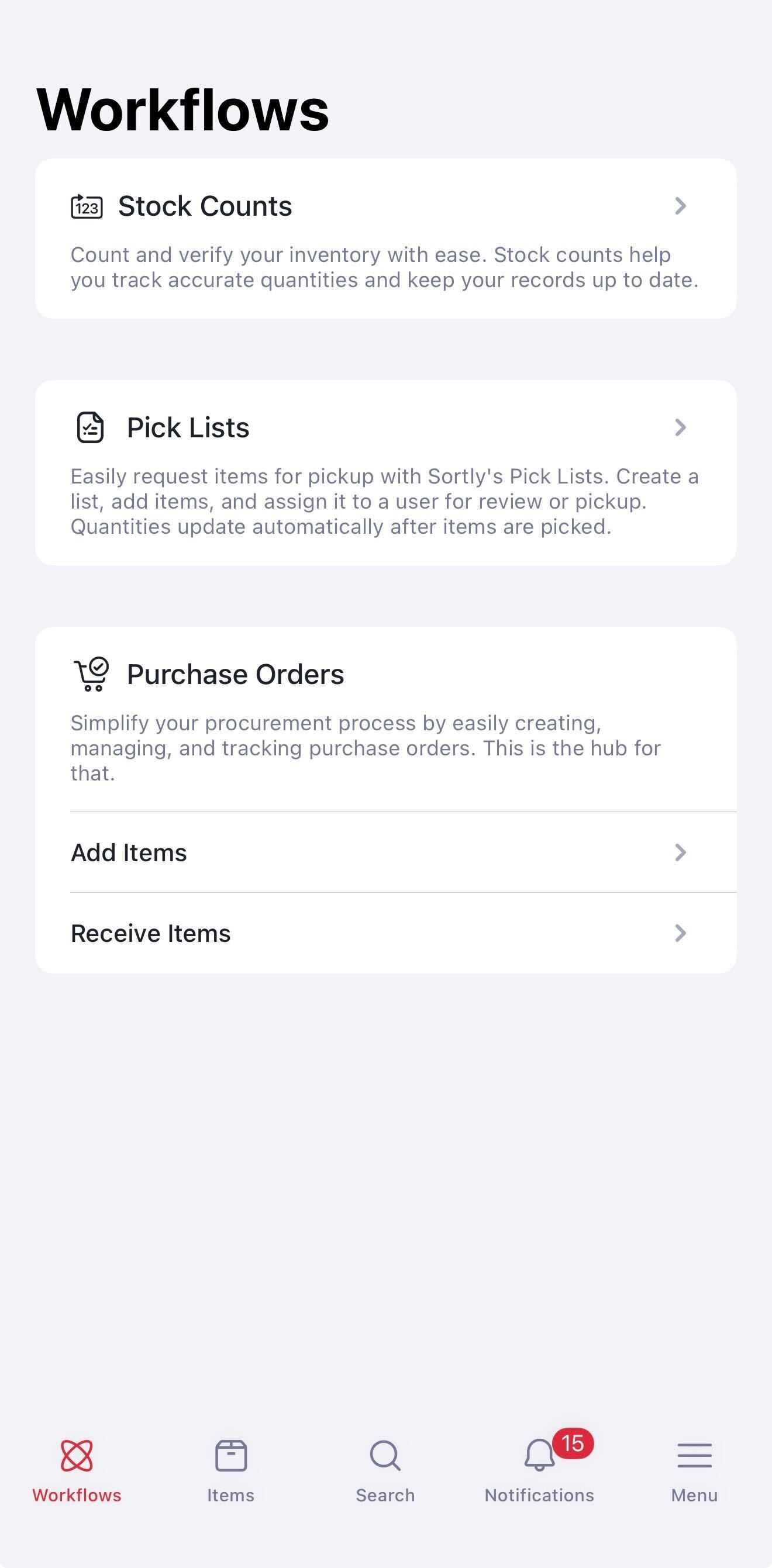
The Workflows tab provides quick and easy access to essential tools like [Stock Counts](https://help.sortly.com/hc/en-us/articles/41121062802203-Stock-Counts?hsLang=en), [Pick Lists](https://help.sortly.com/hc/en-us/articles/28105359156123?hsLang=en), and [Purchase Orders](https://help.sortly.com/hc/en-us/articles/21170610546715?hsLang=en), helping you streamline your daily inventory tasks.
#### Items
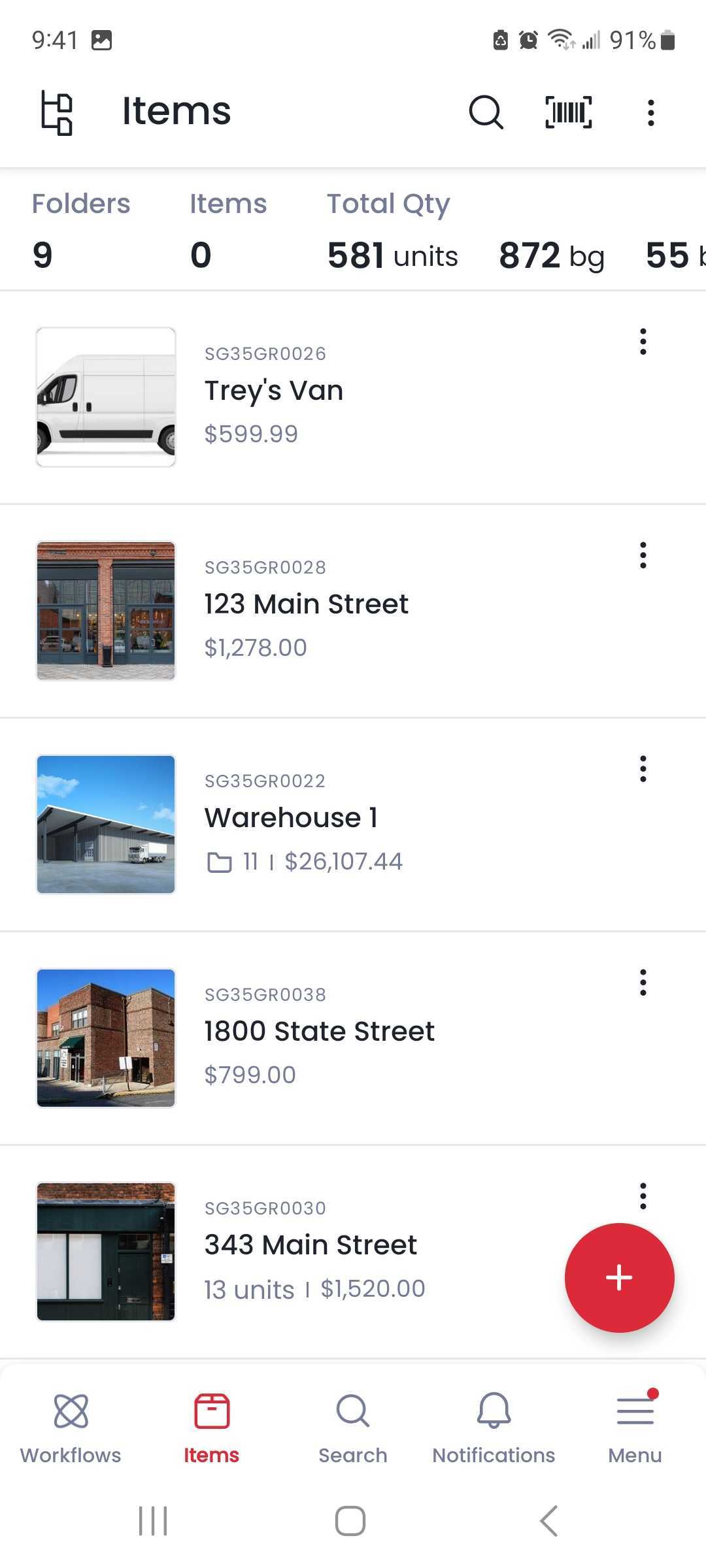
Begin populating your inventory by adding items manually or using the barcode scanning feature. Capture item details, attach photos, and assign relevant tags and locations for easy retrieval.
#### Search
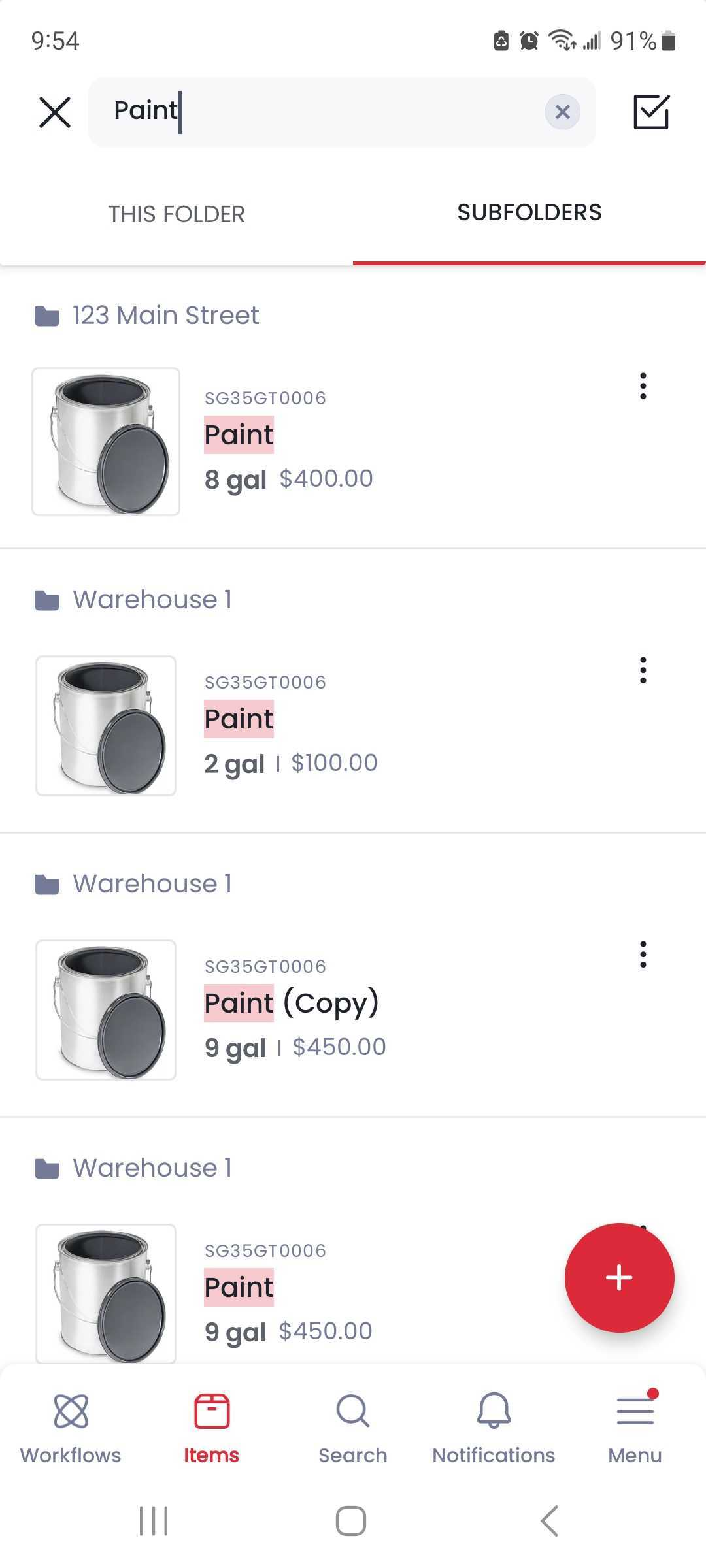
Search using the search bar or Scan to Search to easily see where your items are located.
#### Alerts and notifications
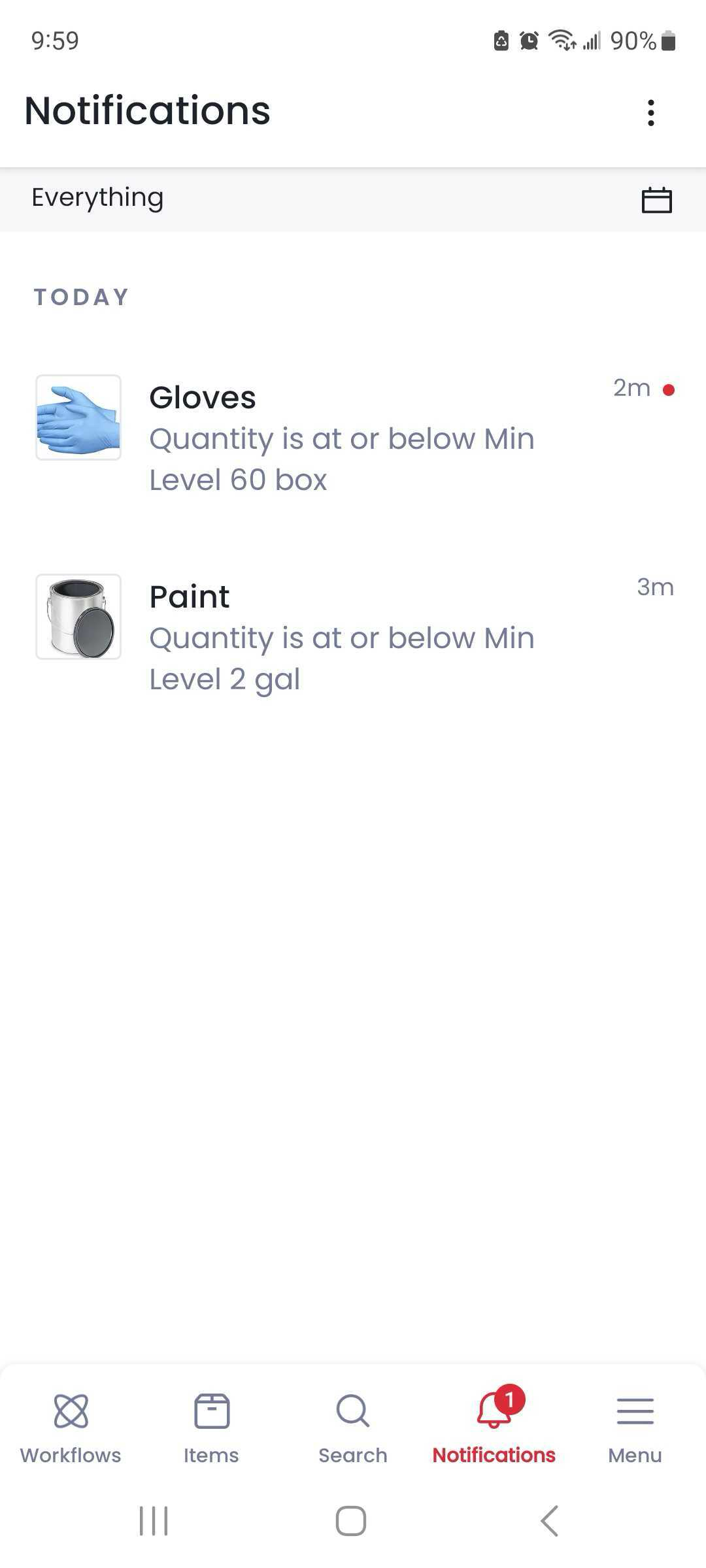
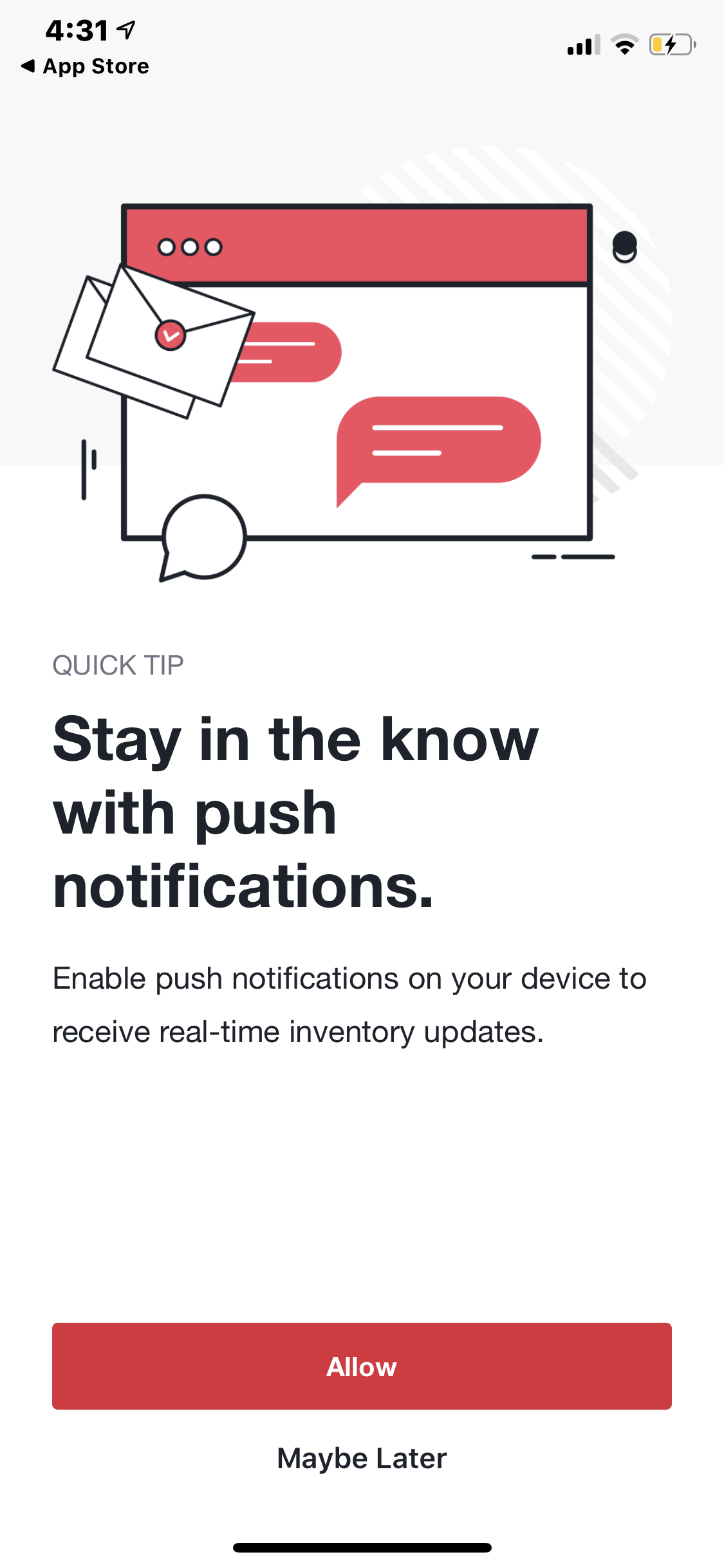
Configure date and quantity alerts to ensure proactive inventory management. Stay connected with push notifications for timely updates and reminders.
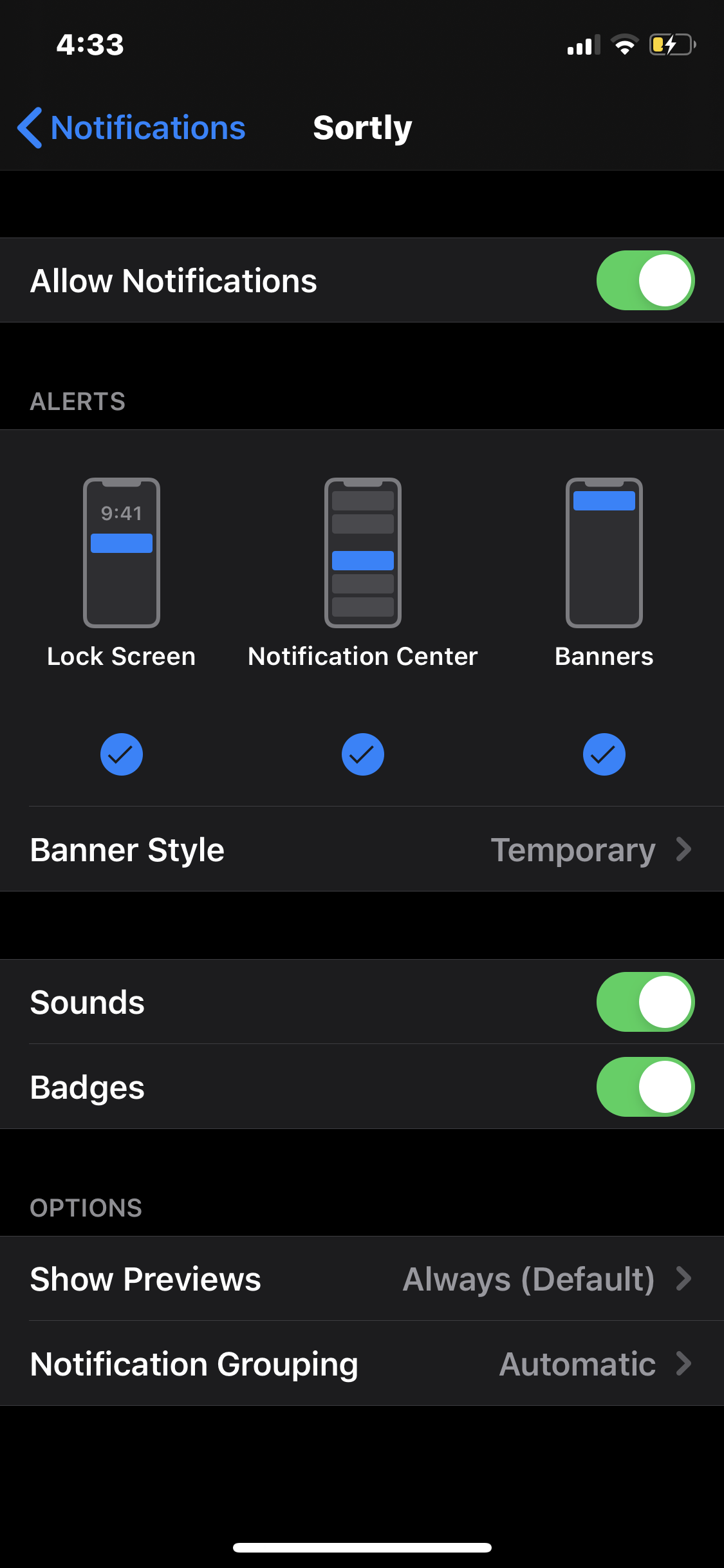
**Enabling push notifications**
To enable notifications from Sortly on your mobile device:
1. 1Open Settings on your mobile device
2. 2Go to Notifications
3. 3Find **Sortly** in the list
4. 4Turn on Allow Notifications
5. 5Customize settings if needed
**Notifications for quantity-based alerts**
Quantity-based alerts operate in real-time, promptly notifying users when a specified threshold has been reached. The accompanying popup displays the item name and the met threshold, ensuring clarity and actionable insights at a glance.
**Notifications for date-based alerts**
Date-based alerts are synchronized with the user's chosen timezone preferences. Each day, date-based events are dispatched at 8 AM local time.
#### Menu
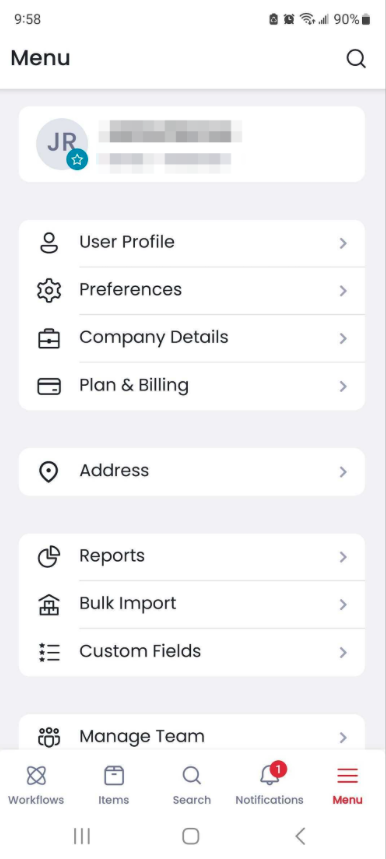
Configure and manage your company's account, billing, and team settings, view reports, see the latest updates and releases, and bulk import new inventory.
---
### Barcode / QR code scanning
You can speed up inventory entry by using your device's camera to scan barcodes and QR codes. Sortly [automatically populates item details](https://help.sortly.com/hc/en-us/articles/360042658292-How-to-Add-Items?hsLang=en), saving you time and reducing manual data entry errors. You can also perform [Quick Actions](https://help.sortly.com/hc/en-us/articles/360012367432-Quick-Actions-on-the-Sortly-Mobile-App?hsLang=en), which allow you to edit and update quantities, among other things.
---
### Dark mode
Dark Mode reduces eye strain in low-light environments like warehouses, during night shifts, or for a more comfortable viewing experience. It also enhances accessibility for users with visual impairments or light sensitivity.
Dark Mode can be automatically enabled based on your iOS or Android settings, or manually toggled in the Sortly Mobile app settings. Once activated, all screens in Sortly Mobile will display a dark background. This feature is available on both iOS and Android devices.
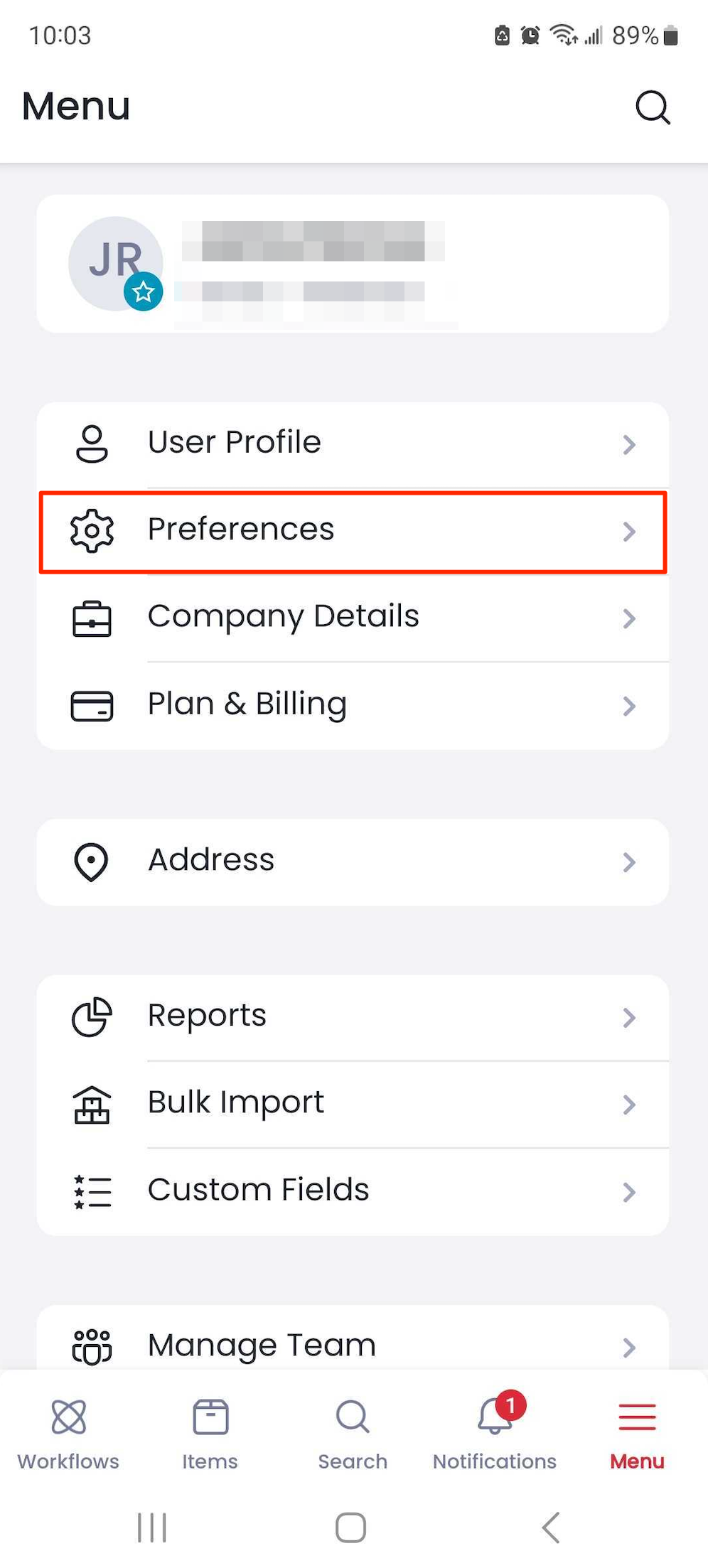
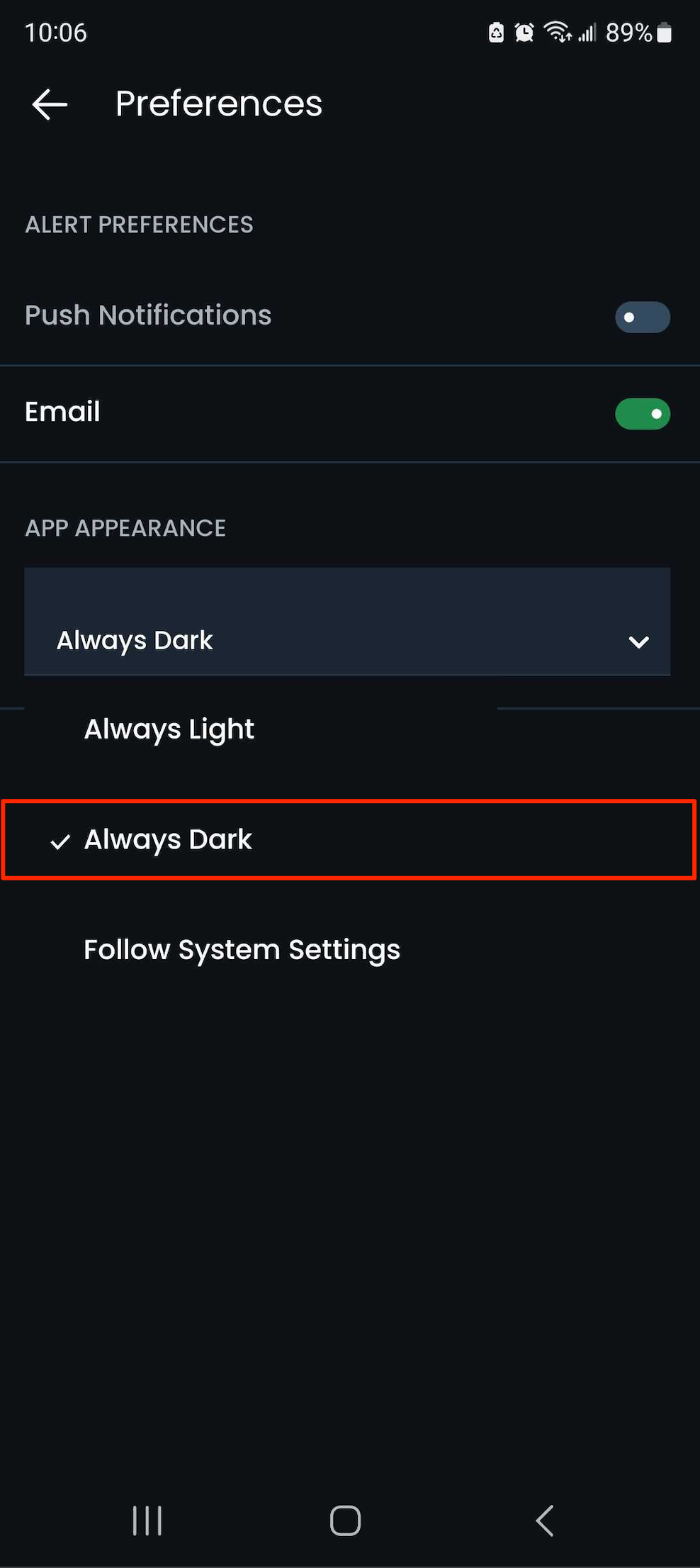
To activate Dark Mode, go to Menu \> Preferences and choose Always Light, Always Dark, or Follow System Settings under App Appearance.
---
### Frequently Asked Questions
My inventory looks different on mobile than on my computer. What should I do?
Try a full inventory sync: go to Settings \> Sync Inventory \> Full Sync on your mobile device. Also make sure that Sync Only On WiFi and Disable Sync are turned off. For more details, see [Why are my items, folders, or photos not showing in the app?](https://help.sortly.com/why-are-my-items-folders-or-photos-not-showing-in-the-app?hsLang=en)
What changed with the recent mobile app update?
The Dashboard tab was removed and replaced with the Workflows tab, which now includes both Pick Lists and Purchase Orders. Reports (Inventory Summary, Low Stock, Transactions, and others) moved to Menu \> Reports. Recent Items are still available by sorting or searching within the Items tab, without the previous 9-item limit. Stock Level filters were removed from the home view, but you can still track stock levels through individual item details, low stock alerts, and the Reports section. No data was lost, only the interface was reorganized. This change applies to the mobile app only; the web app remains as-is.
Is the Workflows tab available to all users?
Access to Pick Lists and Purchase Orders may depend on your plan. If you don't see them, reach out to support to learn more about upgrading or enabling them.
Can I still track recent inventory updates without the Dashboard?
Yes. Use the Transactions Report or sort by Last Modified in the Items tab to see recent activity.
How do I turn on Dark Mode, and is it available everywhere?
Go to Menu \> Preferences and choose Always Light, Always Dark, or Follow System Settings under App Appearance. If it's not switching automatically, check both your device's system settings and your app preference, since the auto-switch depends on both. You can use Dark Mode at any time of day, and it's available on both iOS and Android, though not yet on the web version of Sortly.
Does Dark Mode cost anything or affect battery life?
Dark Mode is available at no additional cost. It can also help save battery life on devices with OLED and AMOLED screens, since those displays consume less power when showing dark colors.
Who can access Purchase Orders in the mobile app?
Only Owners and Admins can access Purchase Orders by default. Team Members may also be granted access, but this must be explicitly enabled in user permissions. Limited Access and Custom Roles are not supported for Purchase Order access on mobile.
How do Purchase Orders work on mobile?
To create one, tap Add Items, then the + button. You can only receive items for POs in Ordered or Partially Received status, and confirming receipt automatically updates your item quantities. Adding or receiving items through the Workflows tab requires a linked Purchase Order; for quick inventory adjustments outside of a PO, use the Items tab instead. Scanning to receive items against a PO isn't currently supported on mobile. Instead, receive manually by selecting the PO and entering quantities directly.
What if I don't see any Purchase Orders when trying to add or receive items?
If Purchase Orders are visible in your web app but not on mobile, try resyncing your data. Go to Menu \> Sync Inventory in your mobile app.
[](https://www.sortly.com/)
Copyright © 2026, Sortly Inc.