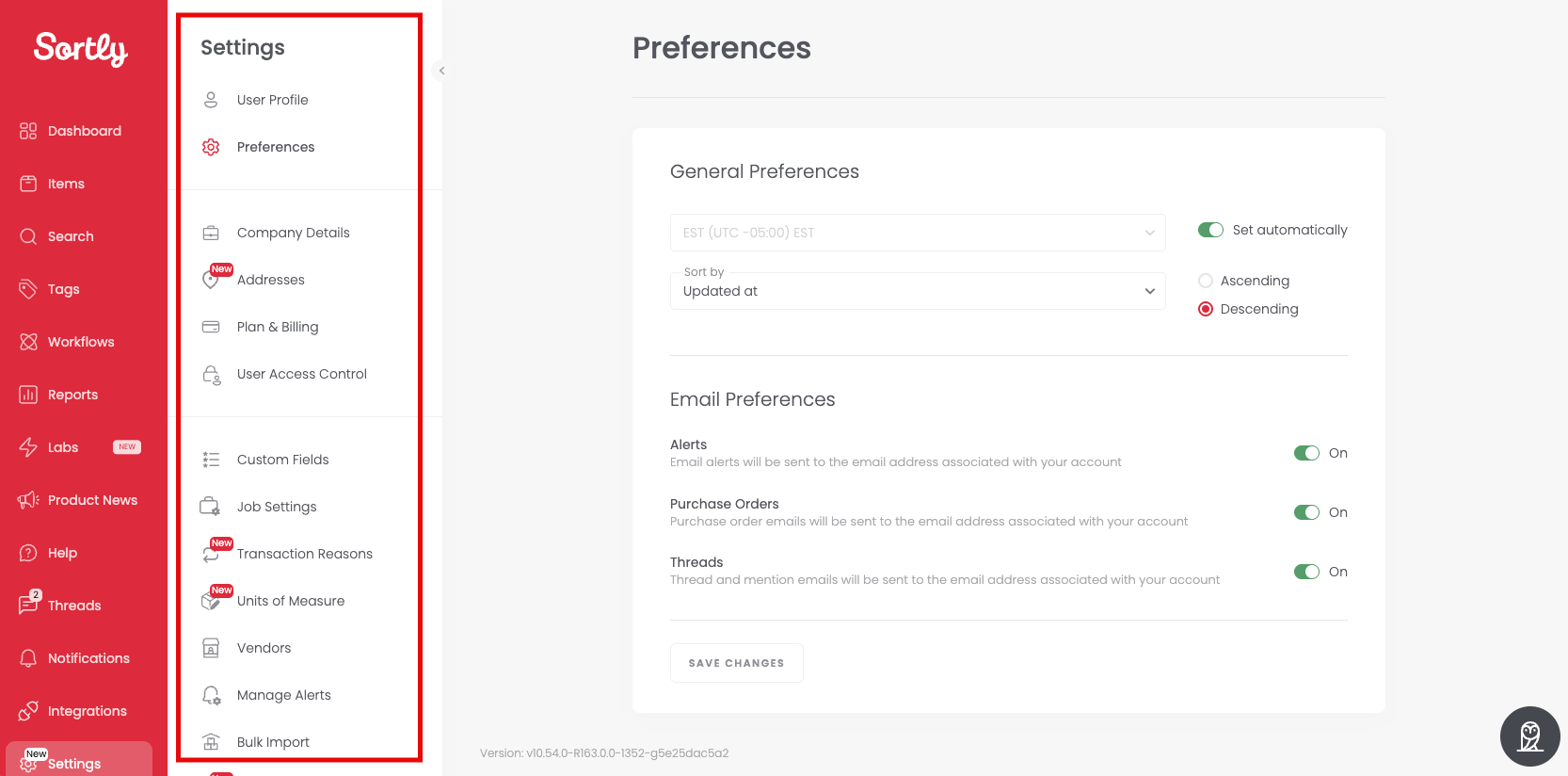
See at a glance where everything lives in Sortly, so you can find what you need and get to work. This article walks you through the Dashboard, Items and Folders, Search, Tags, Reports, and Settings.
Dashboard
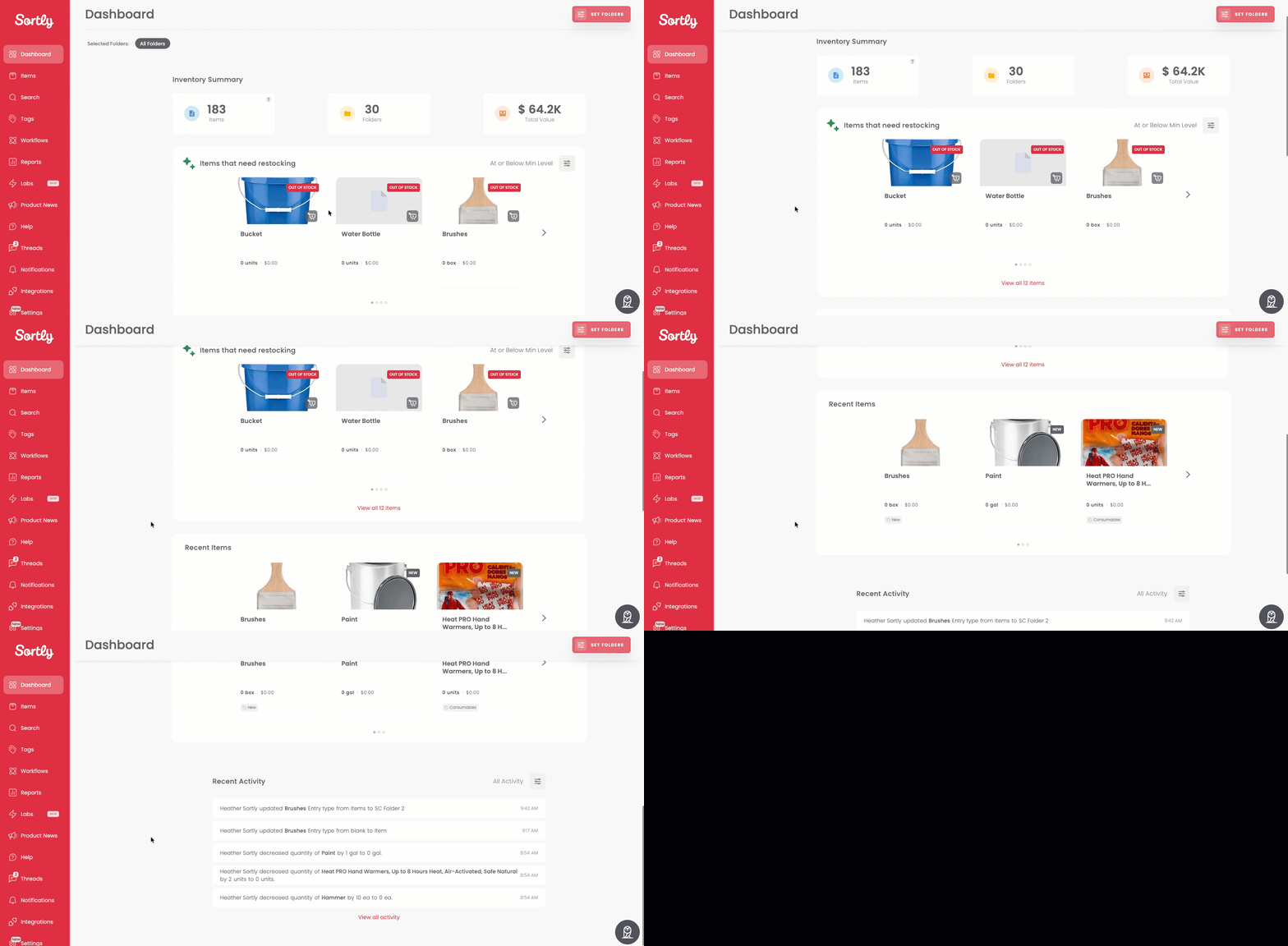
The Dashboard is your home screen, with an overview of your inventory. Here, you can:
- View a summary of your item, folder, and value totals under Inventory Summary
- Review items that are low in stock under Items that need restocking
- See your newest items and folders under Recent Items
- Check the latest changes to your items and folders under Recent Activity
Items and Folders
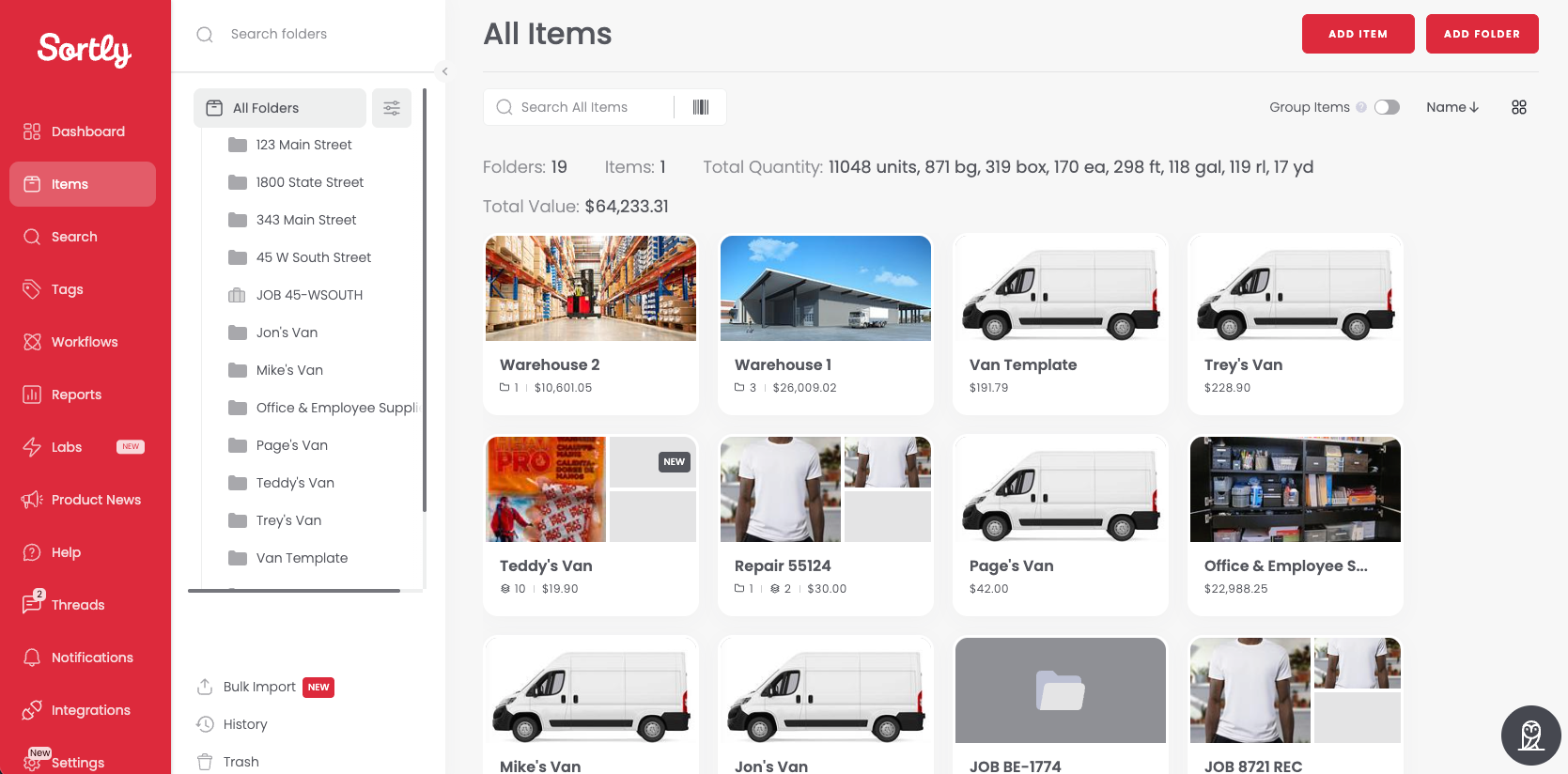
Select Items in the left menu to see your items and folders. Your folders are listed beside the main view. From here, you can:
- Add new items with details such as name, description, quantity, price, and more, using Add Item
- View item details by selecting any item, including photos and custom fields
- Edit items to update their details as needed
- Delete items to remove them from your inventory
- Create new folders with Add Folder, then name them to keep your inventory organized
- Open a folder to see the items inside it, and move or rename folders
- Nest folders by creating sub-folders within folders for a hierarchical structure
Search
Search helps you find items or folders using keywords.
Quick search
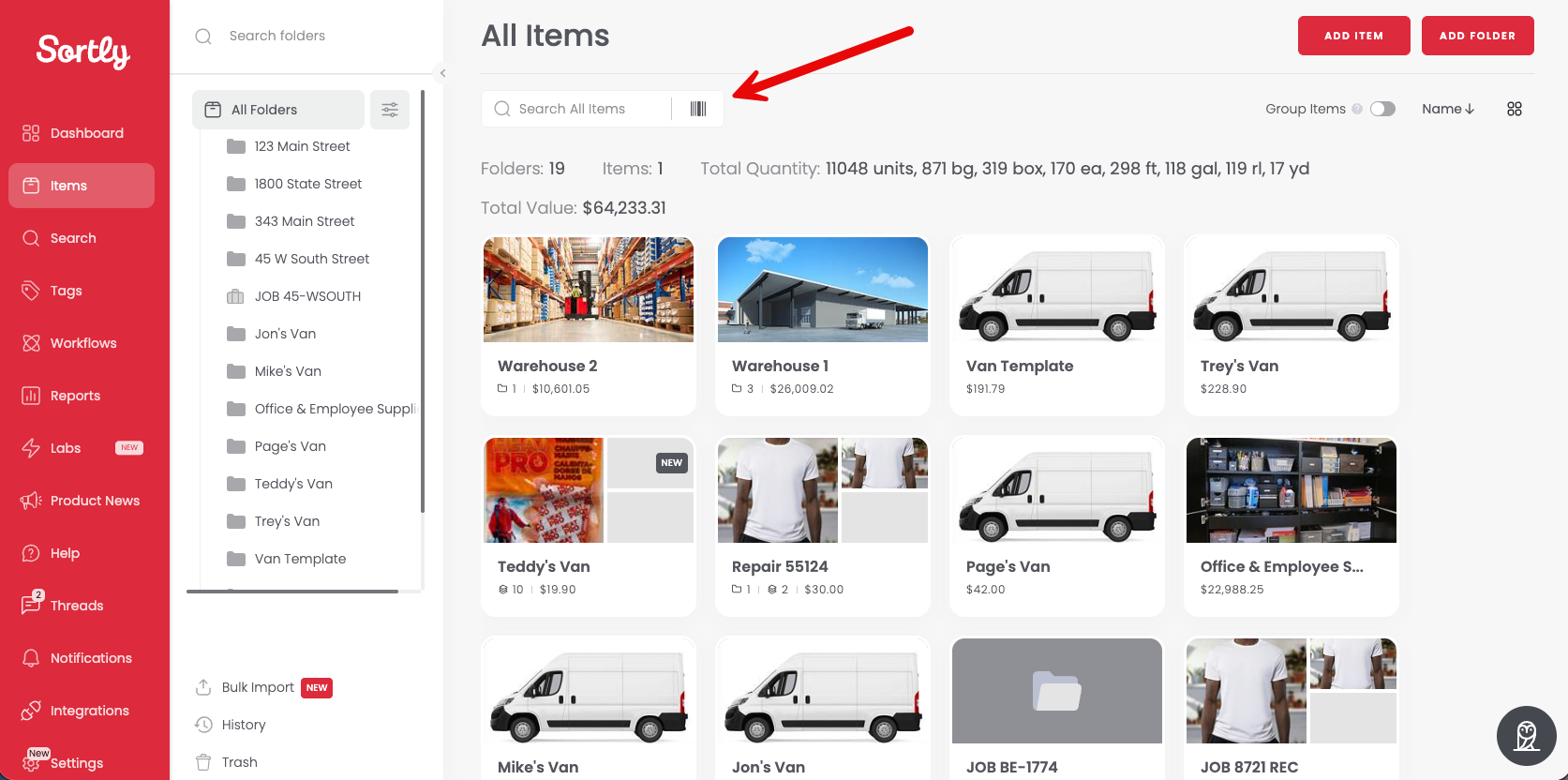
Need to find something fast? Enter keywords in the Search All Items bar to find items or folders instantly.
Advanced Search
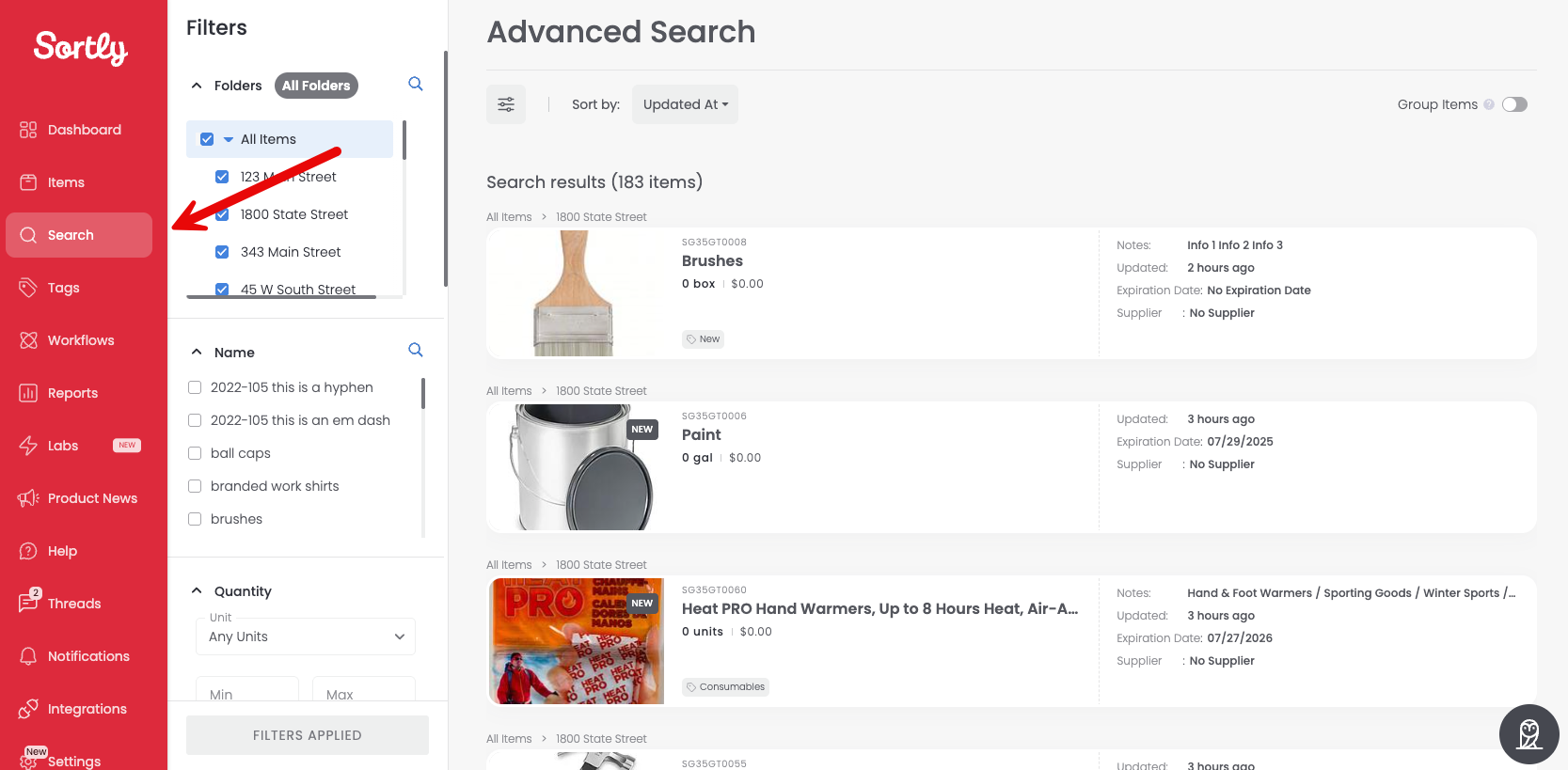
Want to narrow results down? Select Search in the left menu to use Advanced Search, and filter results by criteria such as Folder, Name, Quantity, Sortly ID, Custom Fields, and more.
Tags
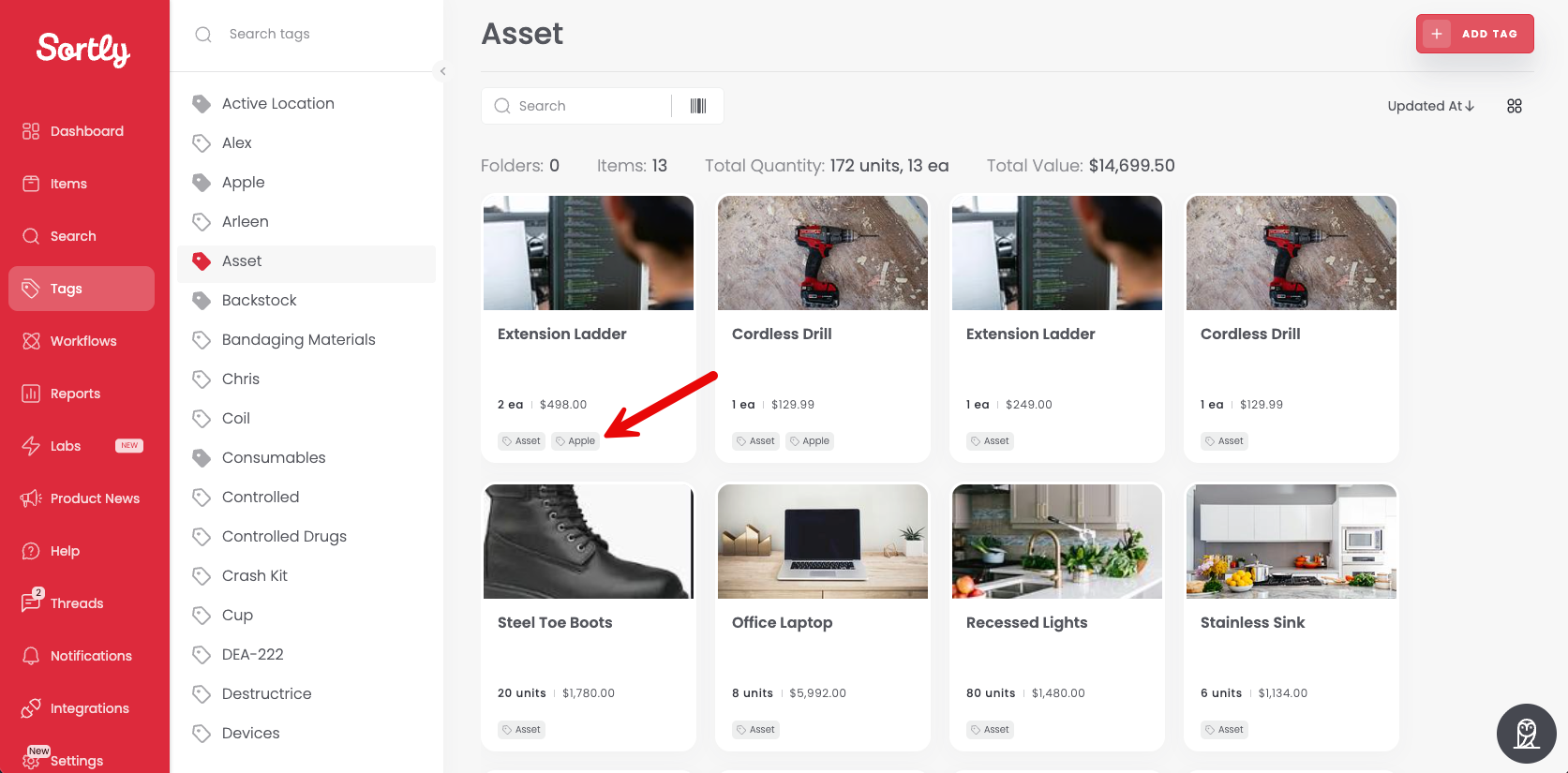
Select Tags in the left menu to use tags. Tags offer a versatile way to categorize your inventory, which makes items easier to search and organize. While folders are typically arranged by location, tags let you group items based on other criteria, such as brand or color. Select a tag to see every item that has it, or use Add Tag to create a new one.
Reports
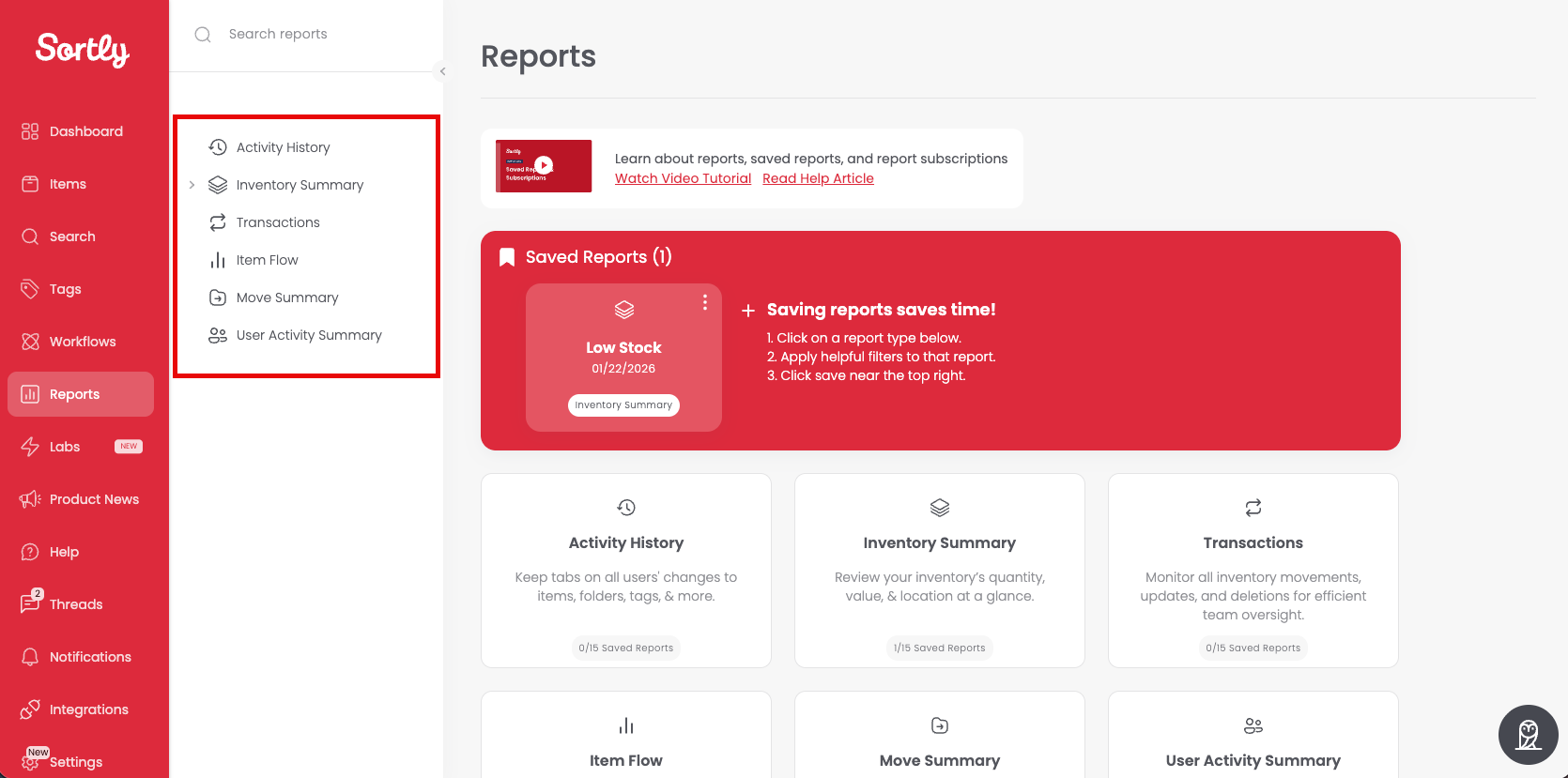
Select Reports in the left menu to generate and view reports that help you analyze your inventory. The report types are Activity History, Inventory Summary, Transactions, Item Flow, Move Summary, and User Activity Summary. Features include:
- Custom reports based on specific criteria such as item category, value, and more
- Export options in various formats like CSV or PDF for further analysis or sharing
- Scheduled reports at regular intervals, so you receive updates automatically
Settings
Customize your Sortly experience in Settings. Options include:
- User Profile: change your email address, password, or link to Google SSO
- User Access Control: add or remove users, assign roles, and set permissions
- Preferences: set preferences for notifications, display settings, and more
- Company Details: update your Company Name, Industry, App Color, Initials, and Company Logo
- Connect Sortly with other tools and platforms for seamless data synchronization from Integrations in the left menu