See at a glance where your inventory is moving and what your team has been doing in Sortly, so you can spot trends without digging through every transaction. This article walks you through the Move Summary report and the User Activity Summary report, including how to open, filter, and read each one.
In this article
Move Summary report
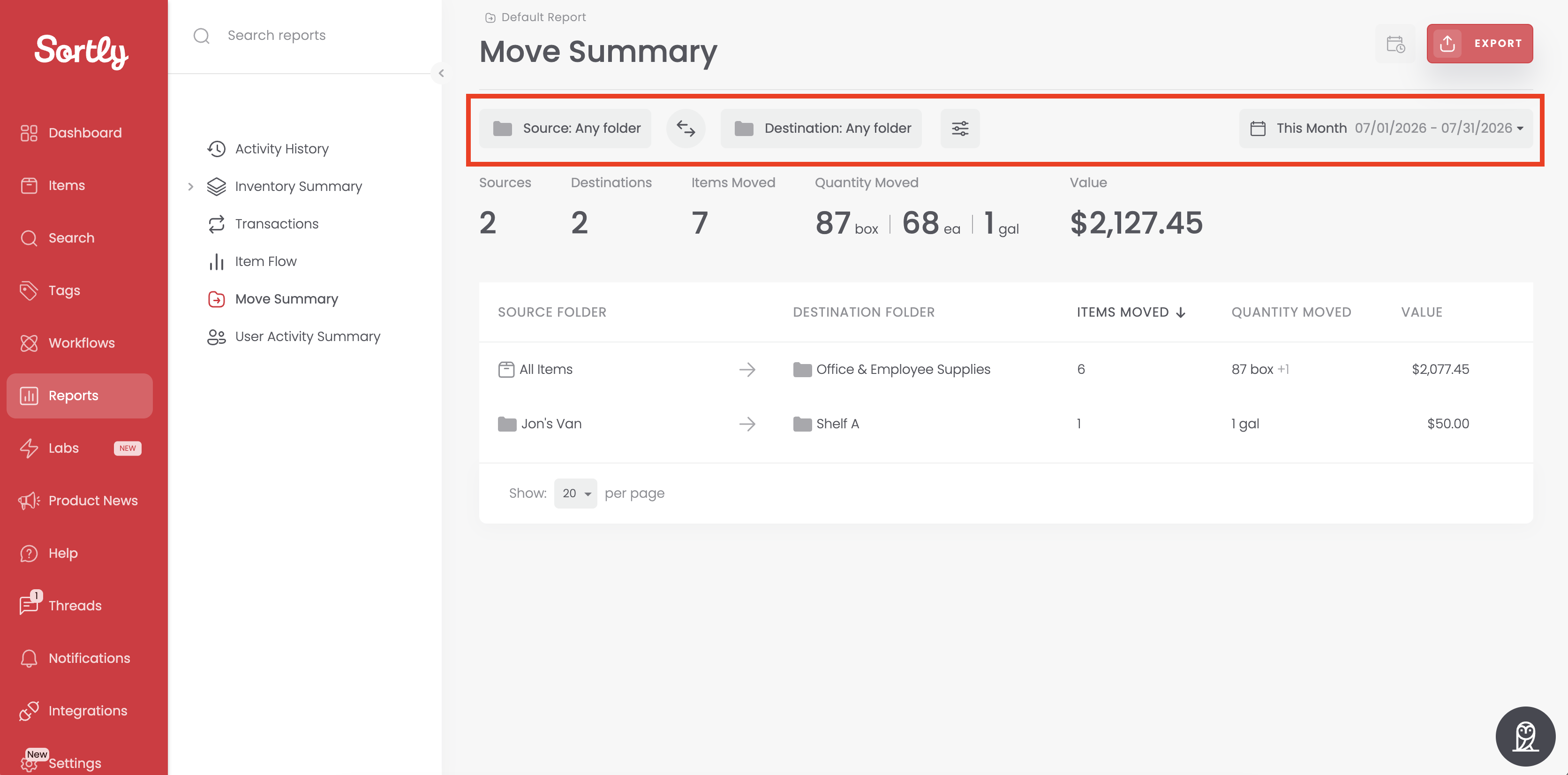
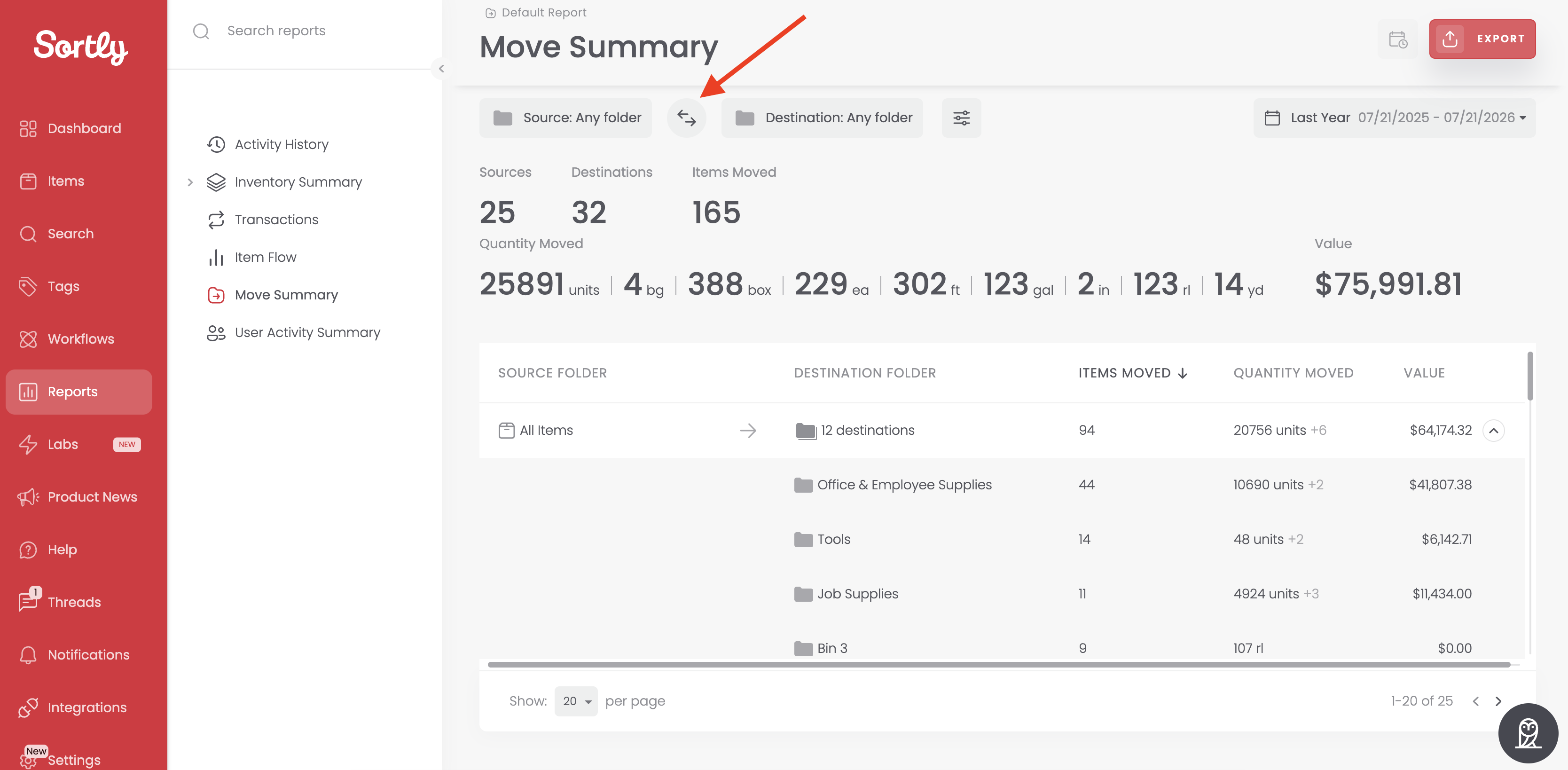
The Move Summary report shows inventory that has moved between folders. You can filter it by source folder, destination folder, and date range.
For each move, the report shows:
- Source folder
- Destination folder
- Items moved
- Quantity moved
- Value
To open the report:
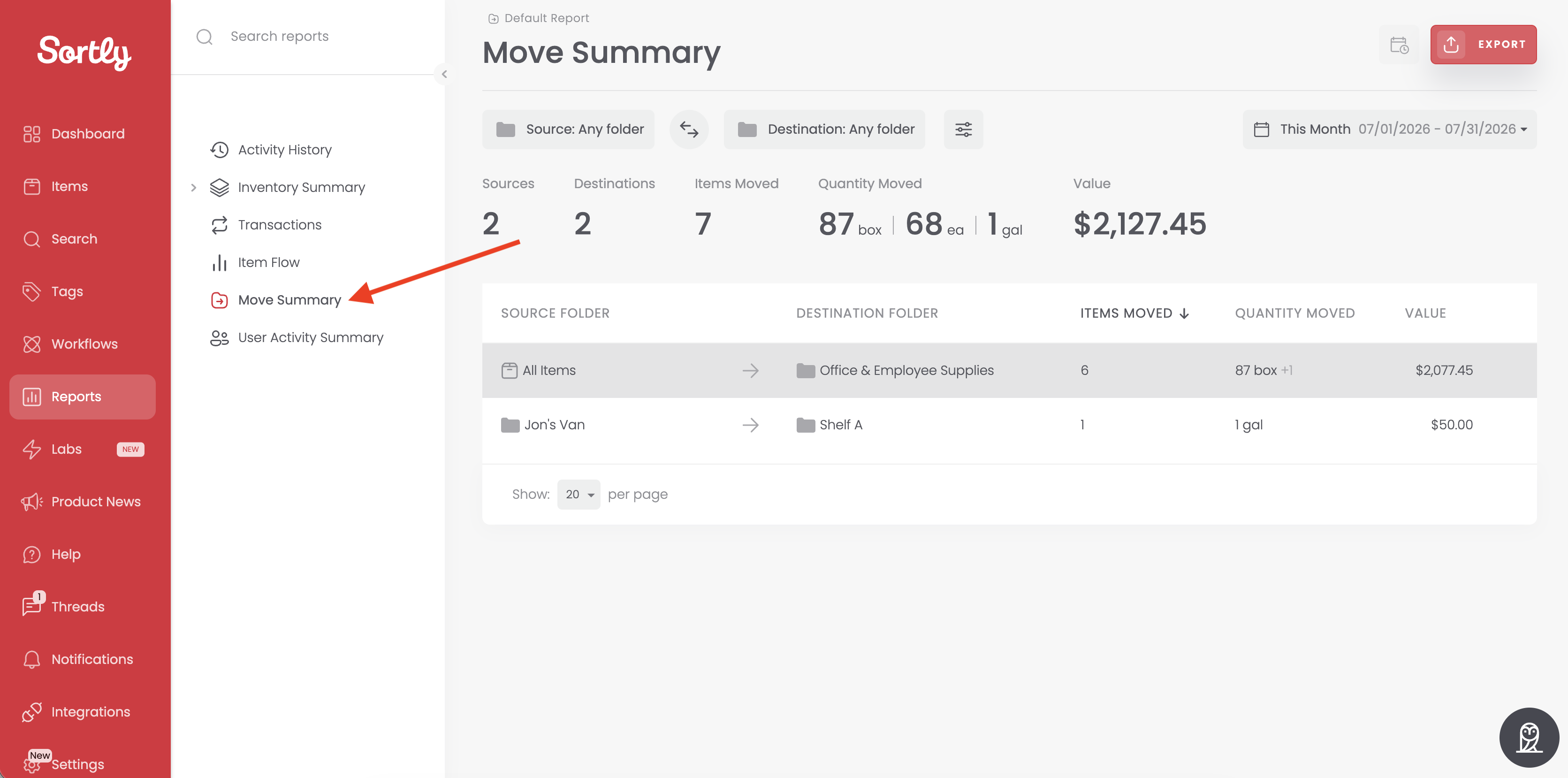
From there, you can see all moves and narrow them down to specific folders or a date range.
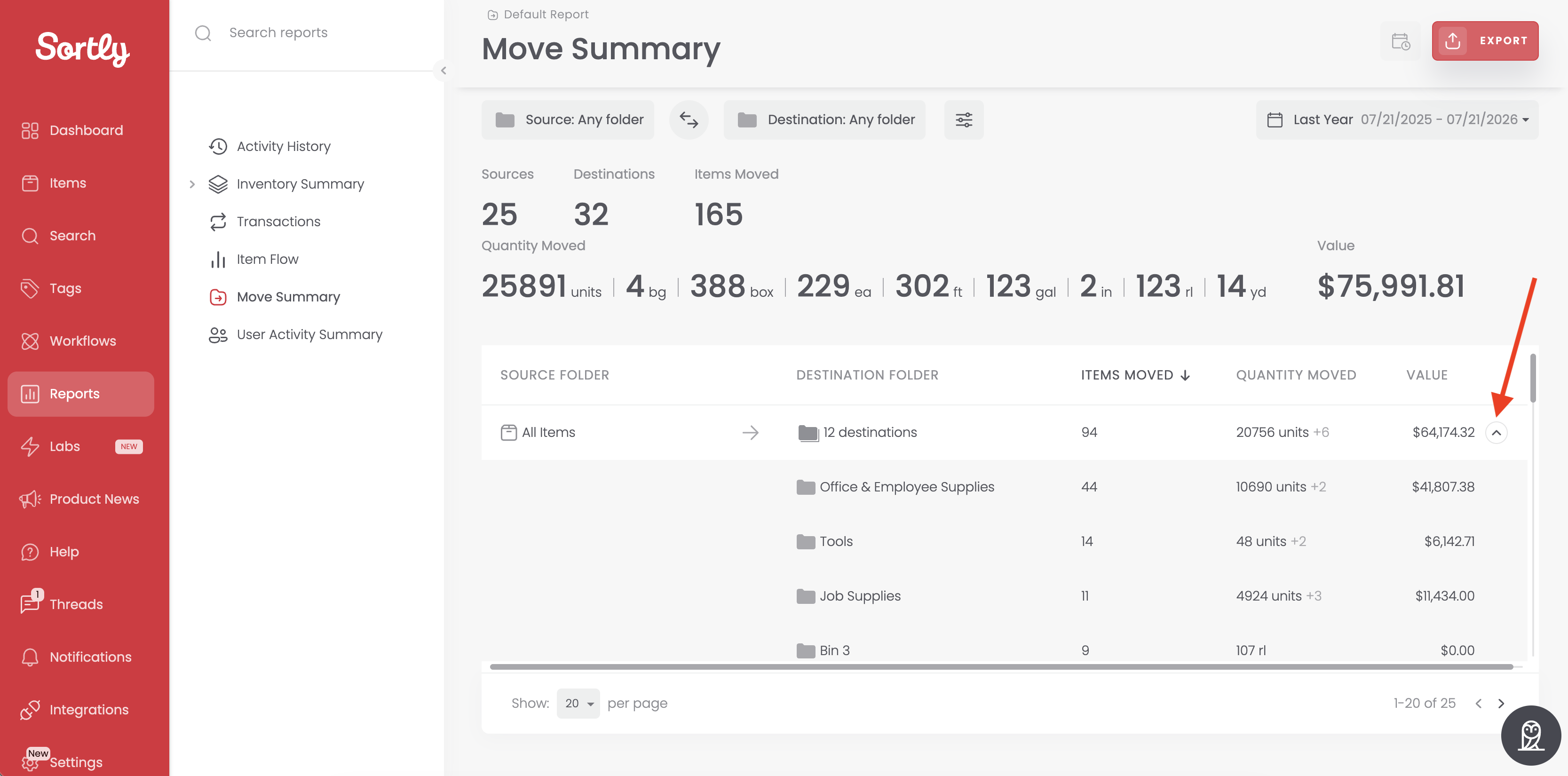
If an item went to more than one destination, select the drop-down arrow next to it to see the details for every destination in one view.
To flip the view, select the swap arrows between Source and Destination. You can also change either folder to focus on the moves you care about.
User Activity Summary report
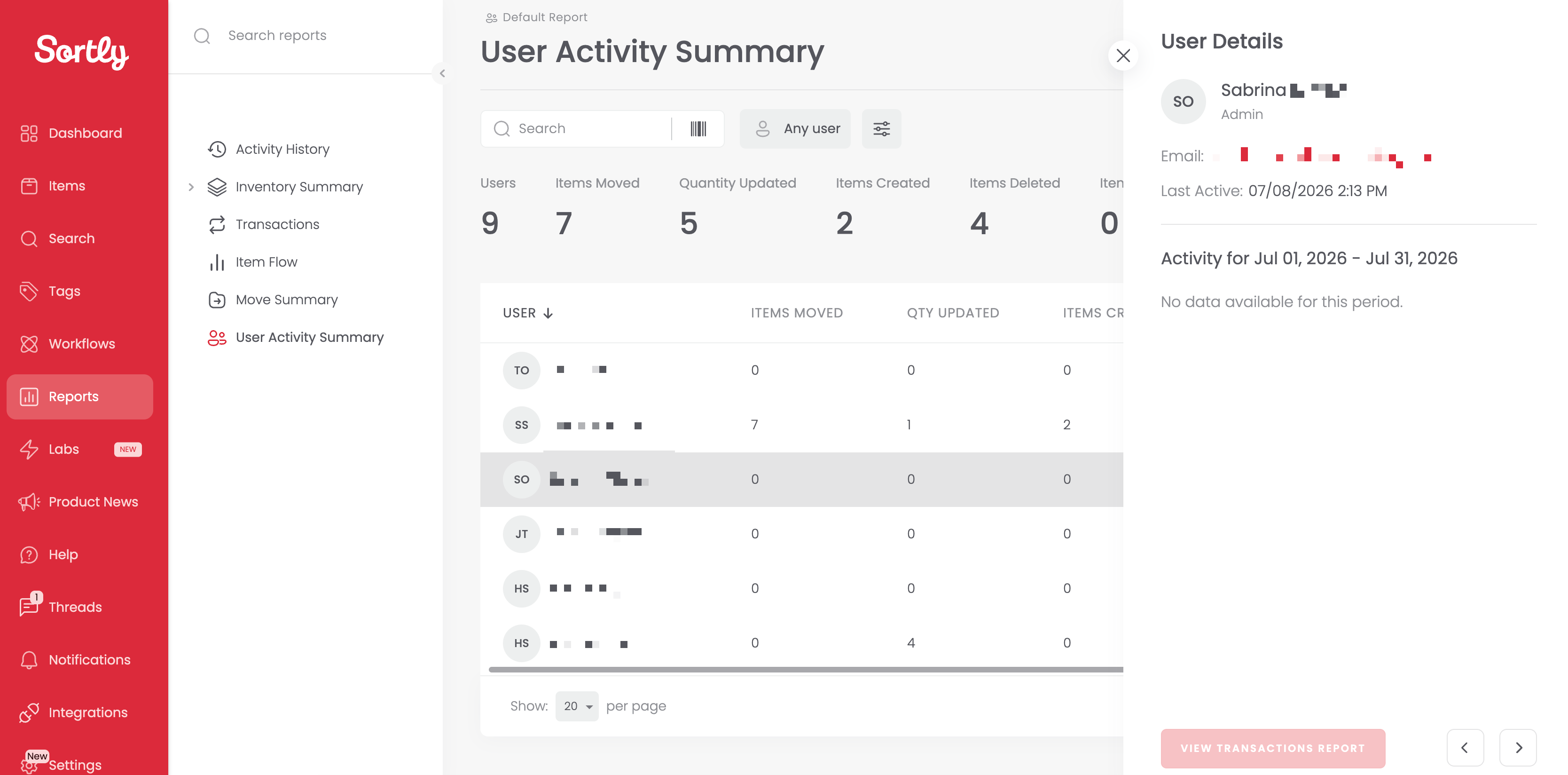
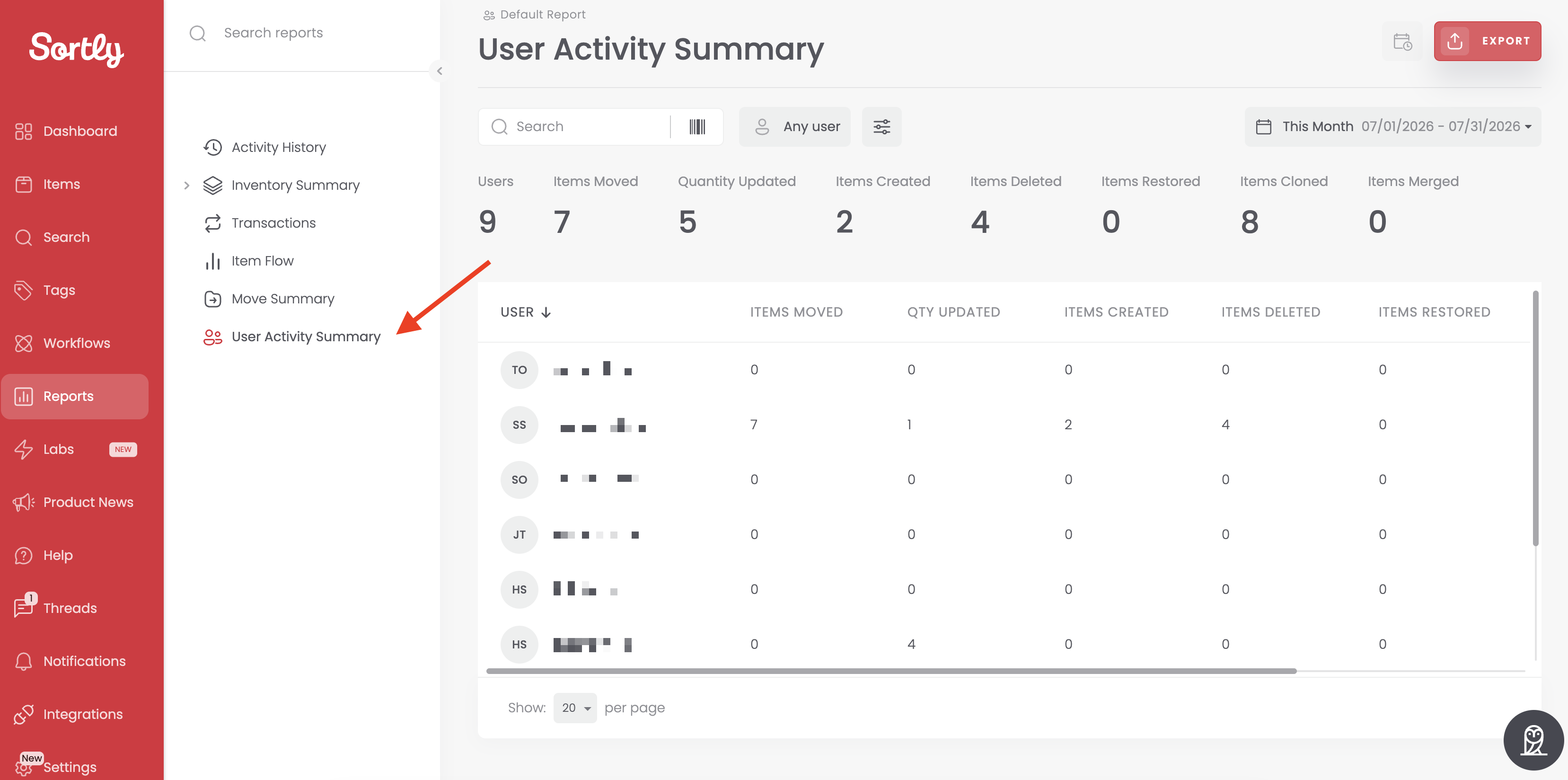
The User Activity Summary report sums up what your team has done in Sortly over a period of time. You can filter it by user and date range.
For each person, the report counts:
- Items moved
- Quantity updated
- Items created
- Items deleted
- Items restored
- Items cloned
- Items merged
To open the report:
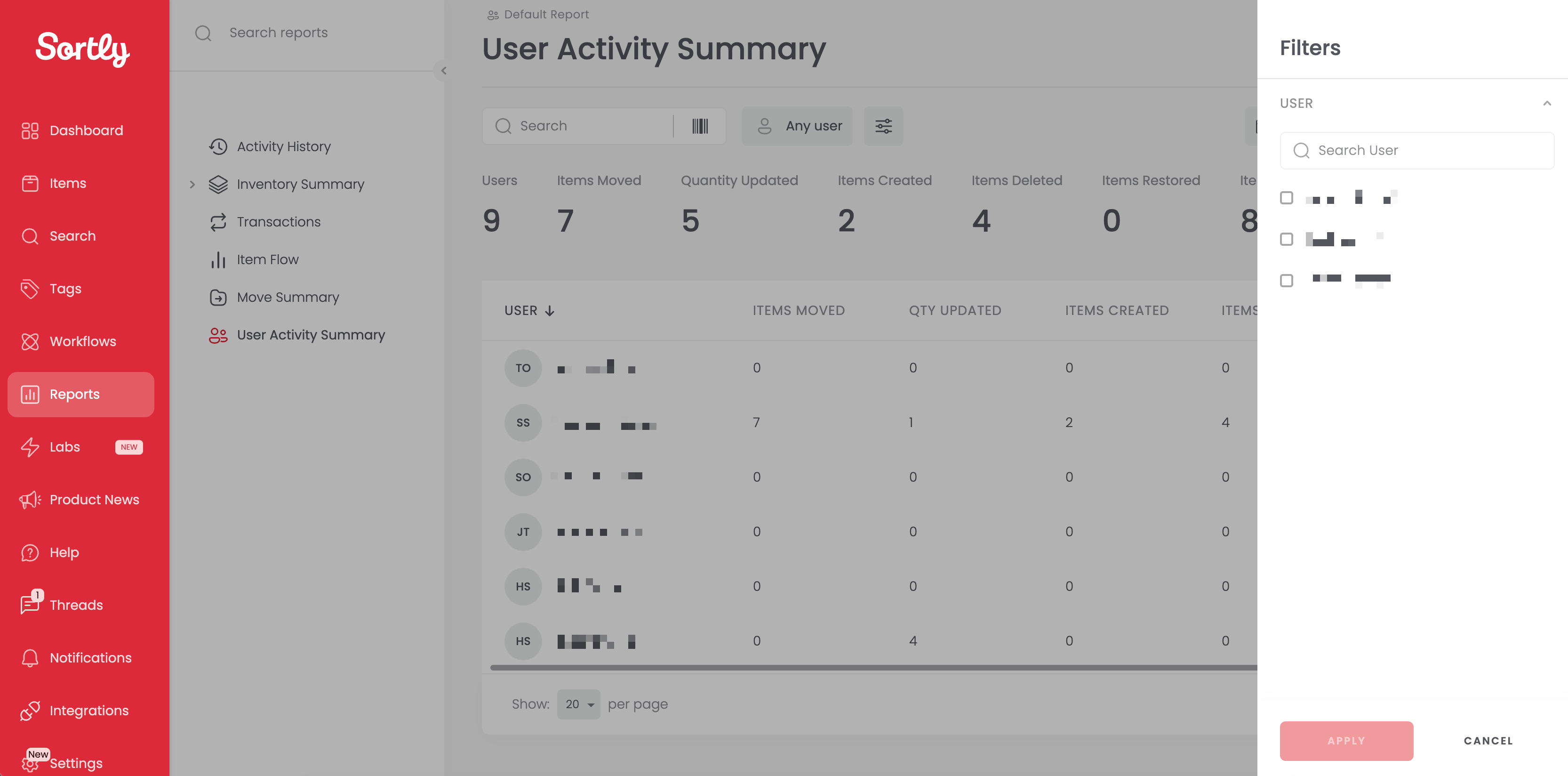
To look at specific people, select Any user, choose the users you want, and select Apply.
Select a person's row to open their details. From there, select View Transactions Report to see everything they did in that period.