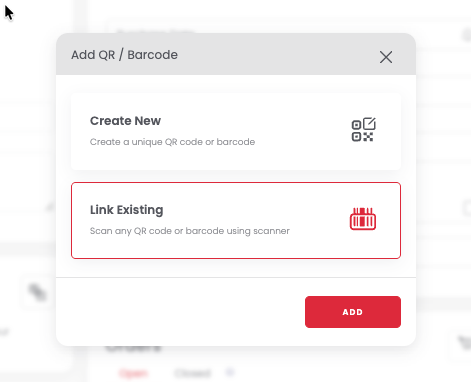
A Bluetooth handheld scanner pairs with Sortly to speed up inventory tasks. On the mobile app, you can do everything: search for items, link barcodes and QR codes, and perform Quick Actions like editing, moving, and updating quantities. On the web version, you can search and link codes only.
This article covers Bluetooth handheld scanners paired to a separate mobile device or computer. Not sure which scanner type you have? See What kind of scanners can I use with Sortly?
In this article
Handheld scanner features: mobile app vs. web
What your handheld scanner can do depends on whether you are using the Sortly mobile app or the web version.
Before you start
You only need to pair your scanner once. Once connected via Bluetooth, it stays active until you turn it off. Follow your scanner manufacturer's instructions to pair it with your mobile device or computer before opening Sortly.
Using your scanner with the mobile app
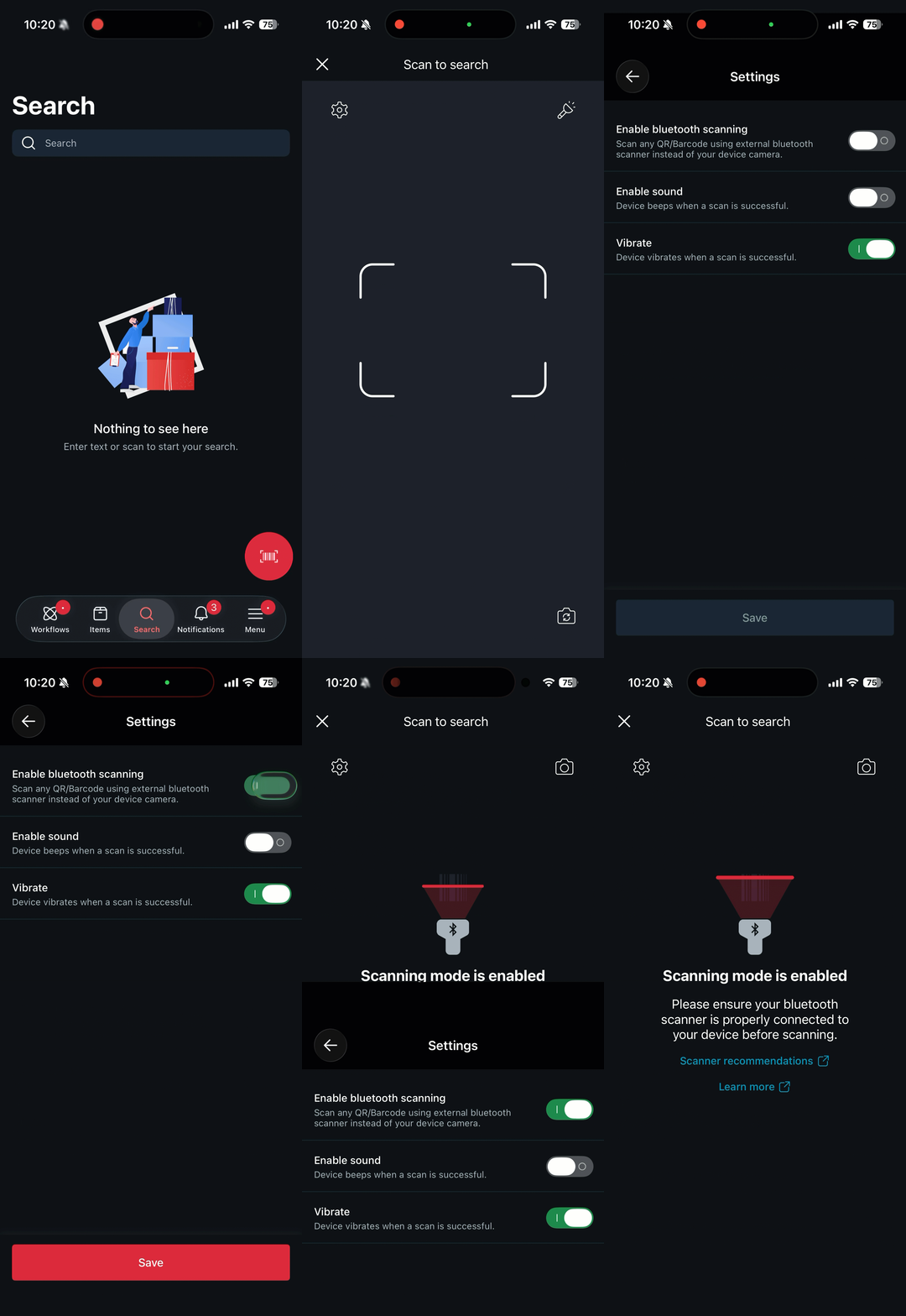
Once your scanner is paired to your mobile device, you need to enable Bluetooth Scanning in Sortly once. It stays on until you turn it off, so you will not need to do this every time.
Searching for items
-
1Tap Search in the bottom navigation bar
-
2Tap the scanner icon in the bottom right of the search bar
-
3Scan the barcode or QR code to find the item
Linking a barcode or QR code to an item
-
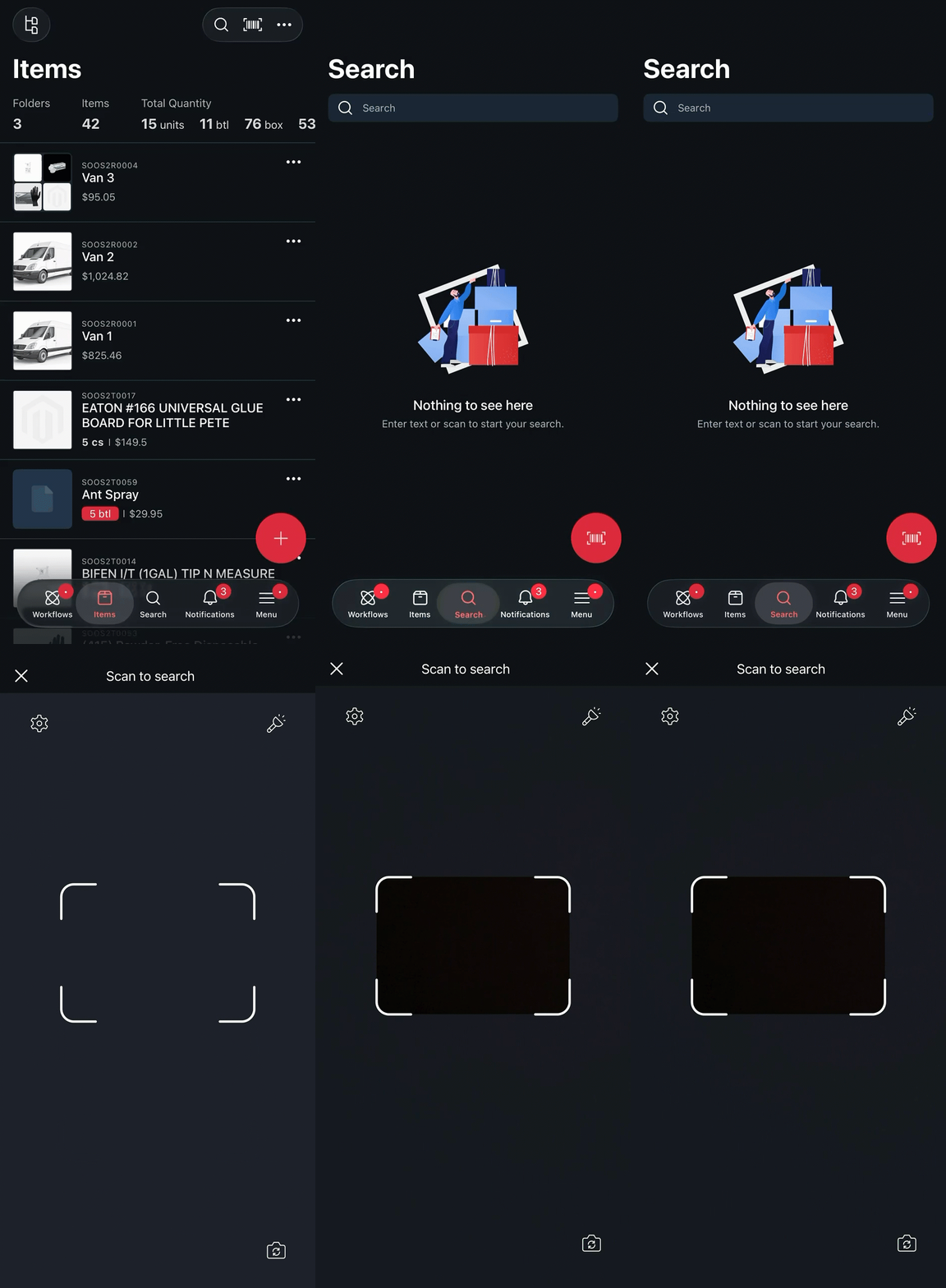
1Open the item and tap Edit
-
2Scroll down and tap Link QR / Barcode
-
3Scan the code to link it to the item
Using Quick Actions
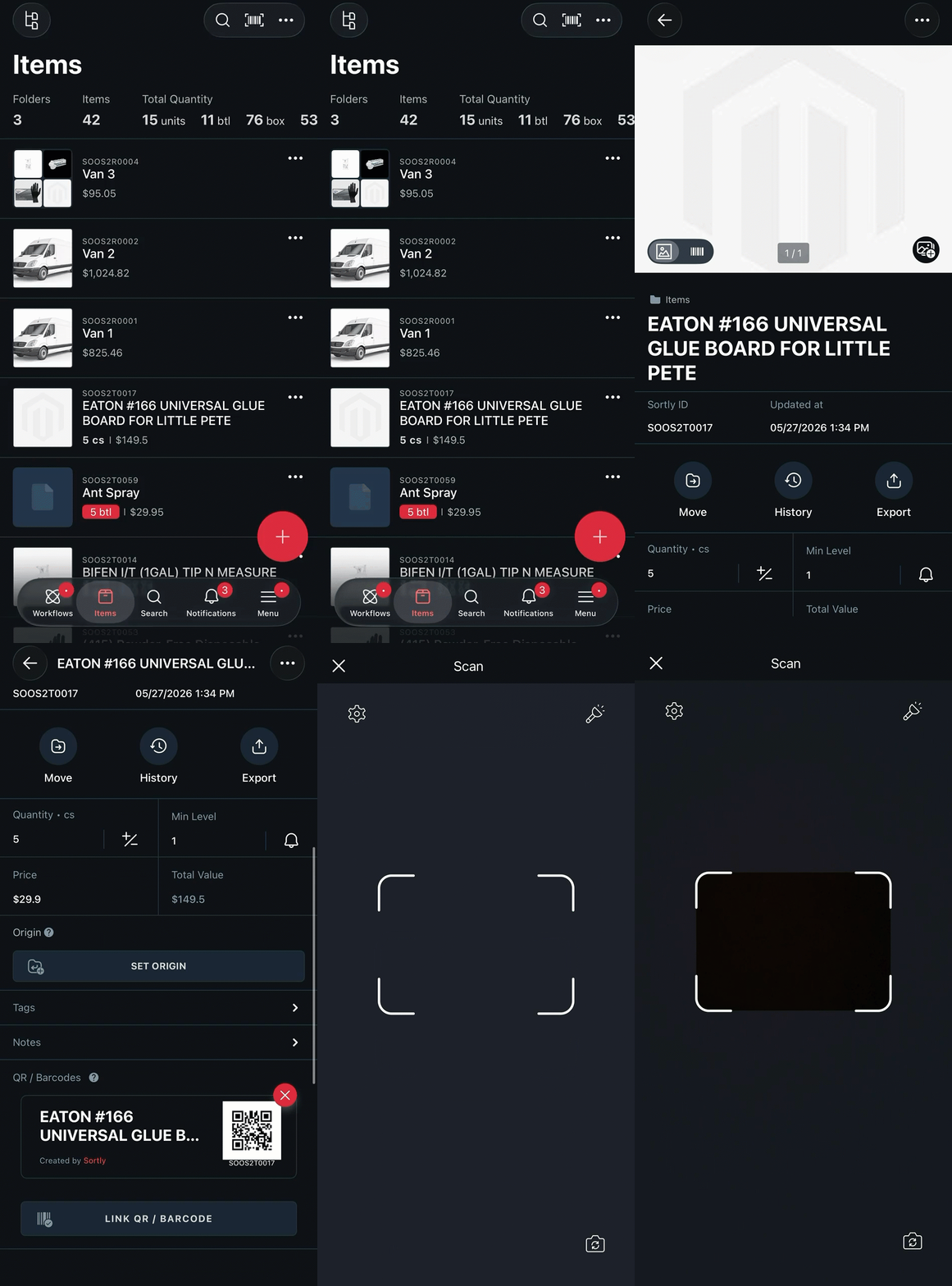
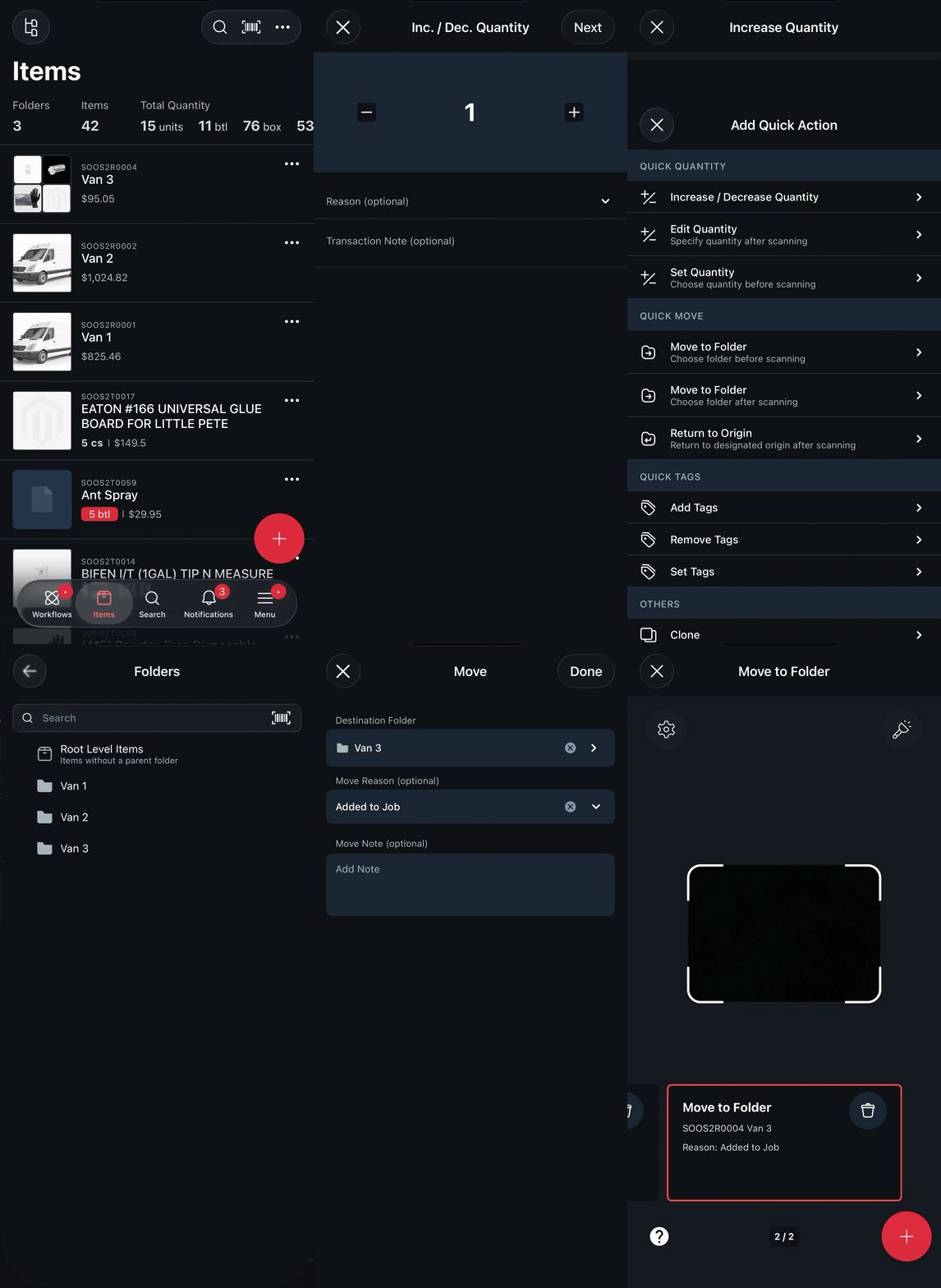
Quick Actions let you instantly update items by scanning their barcode or QR code. Available actions include updating quantity, moving items, editing, cloning, adding or removing tags, and deleting.
-
1Go to the Items tab and tap the scanner icon in the top right
-
2Select the Quick Action you want to perform
-
3Scan the item's barcode or QR code to perform the action
Using your scanner with the web version
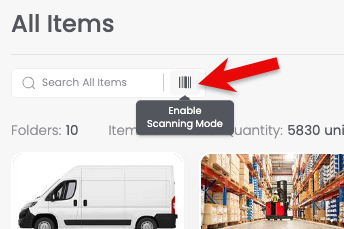
On the web version, your handheld scanner works anywhere you see a search bar in Sortly. That includes folder pages, advanced search, reports, Pick Lists, and Stock Counts. Click any search bar and scan to search. You can also link barcodes and QR codes to items from the item edit screen.
Searching for items
Click any search bar in Sortly on the web and scan the item's barcode or QR code. This works across folder pages, advanced search, reports, Pick Lists, and Stock Counts.
Linking a barcode or QR code to an item
-
1Open the item you want to update and click Edit
-
2Scroll down to the QR & Barcode field
-
3Click Scan any QR/Barcode using scanner to link
-
4Scan the code with your handheld scanner to link it to the item