
You can easily find out where your items are stored in Sortly, whether they’re in one folder or multiple folders.
In Sortly, locations = folders, so each folder represents a physical or logical place where your items are stored.
In this article
View item locations using the Inventory Summary report
If you want a complete view of where an item is located (and how many exist in each folder), the Inventory Summary report is the best place to start.
-
1Go to the Reports tab in your Sortly account.
-
2Select Inventory Summary.
-
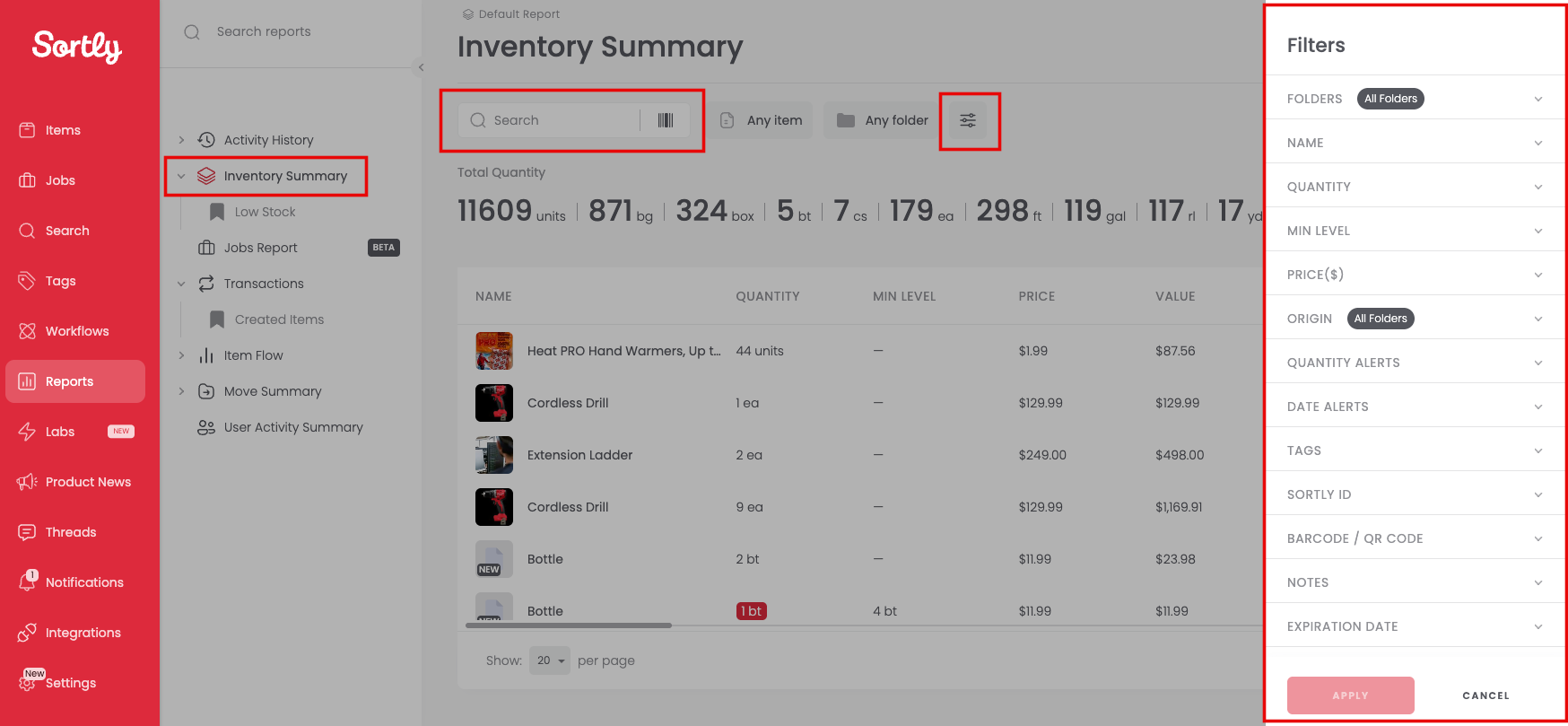
3Find the item you want to view:
- Type the item name in the Search field, or
- Use the Filter option to locate that specific item.
-
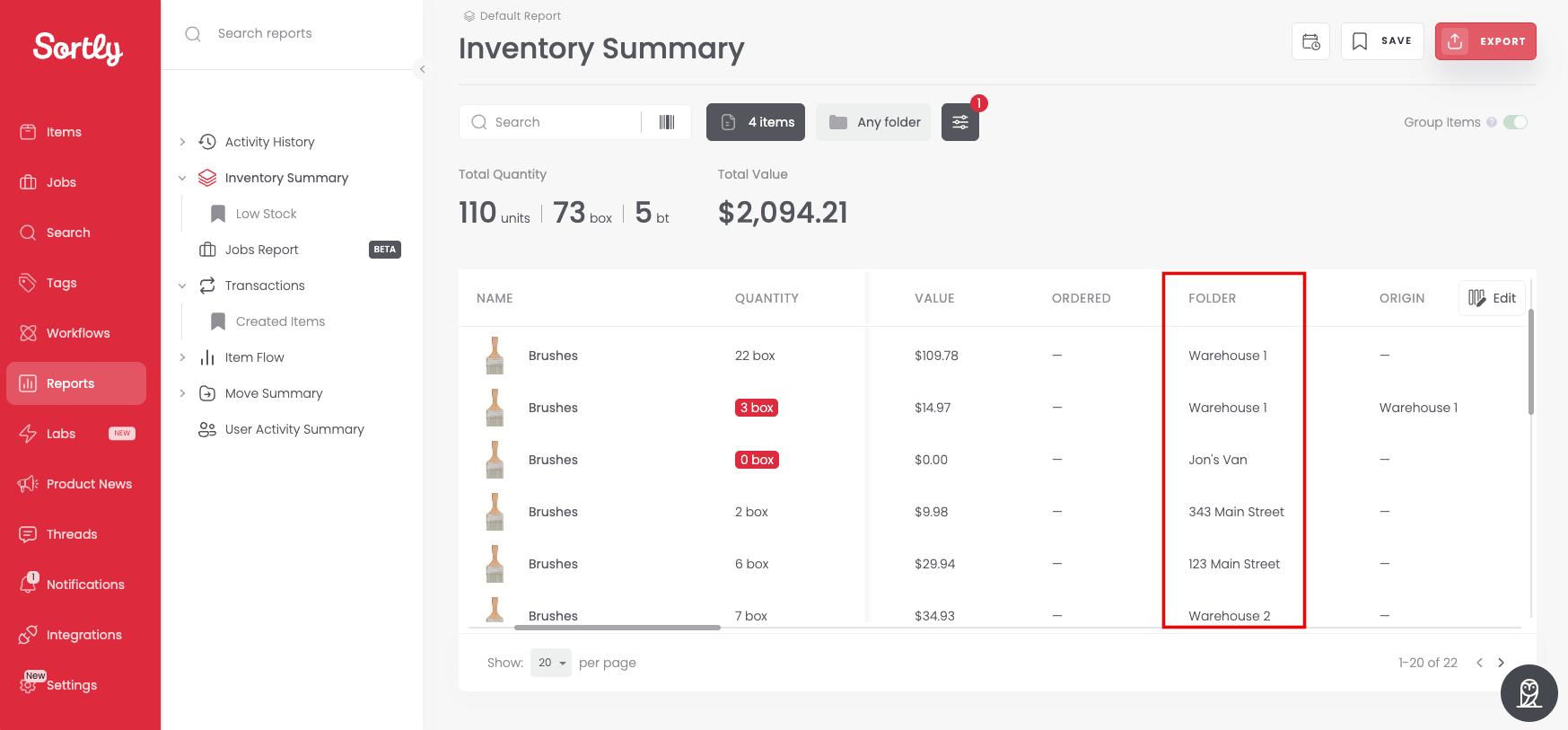
4You’ll now see a report showing all the folders (locations) where that item exists.
-
5(Optional) Export the report if you want to view it outside of Sortly:
- Choose Export CSV or Export PDF. (How to Export Your Inventory in Sortly)
-
6(If available in your plan) Save this report so you can easily access it again later to see that item’s locations at any time.
View item locations from the All Items tab
You can also quickly find an item’s location right from your item list.
-
1Go to the All Items tab.
-
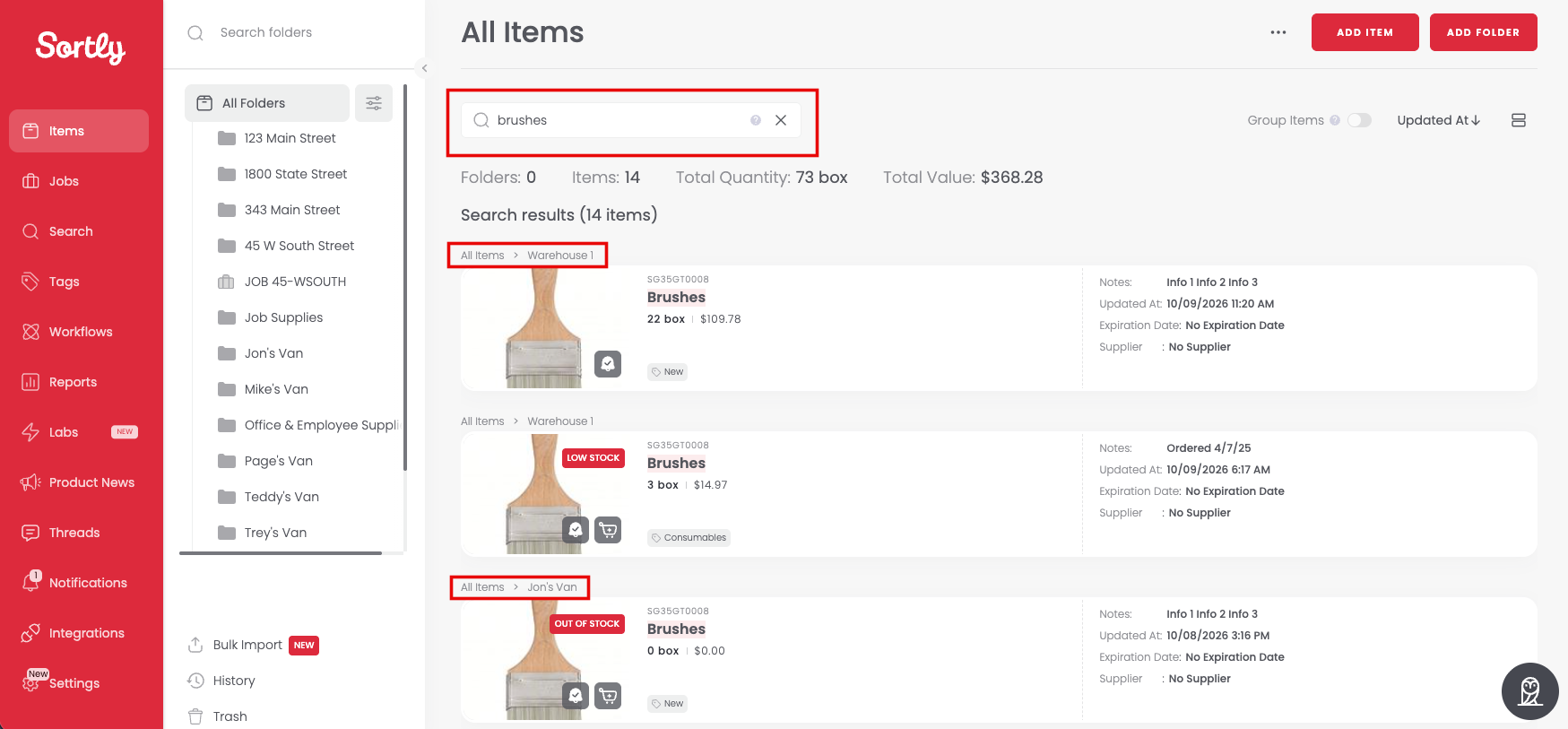
2Type the item name in the Search field.
-
3The search results will show the item, along with the folder (location) it’s stored in.
🔍 This option is great for quick lookups when you just need to know where one specific item lives.
Tips and best practices
- Folders represent locations. You can name folders after warehouses, rooms, shelves, or any other location type.
- If you track the same item in multiple folders, the Inventory Summary report will show all of them together.
- Saved reports are ideal if you frequently check specific items or restock locations.
- Export reports as CSV or PDF for easy sharing, printing, or offline access.