---
title: Why are my items duplicating?
description: Items with the same SID (Sortly ID) and identical details merge automatically within a folder.
---
[Skip to content](https://help.sortly.com/why-are-my-items-duplicating#main-content)

Open main navigation
Close main navigation
Looking for answers? Start here.
- There are no suggestions because the search field is empty.
1. [Sortly Help Center](https://help.sortly.com/?hsLang=en)
2. [FAQs](https://help.sortly.com/faqs?hsLang=en)
3. [FAQ](https://help.sortly.com/faqs?hsLang=en#faq)
# Why are my items duplicating?
Items with the same SID (Sortly ID) and identical details merge automatically within a folder. Changing any detail — custom fields, notes, alerts, tags, etc. — makes Sortly treat it as distinct, so it won't auto-merge again, even if you move it back.
**In this article**
1. [How Automatic Merging Works](https://help.sortly.com/why-are-my-items-duplicating#how-merging-works)
2. [Manually Merging Items](https://help.sortly.com/why-are-my-items-duplicating#manual-merge)
3. [FAQ](https://help.sortly.com/why-are-my-items-duplicating#faq)
## **How Automatic Merging Works**
### **What Happens When You Re-add an Item?**
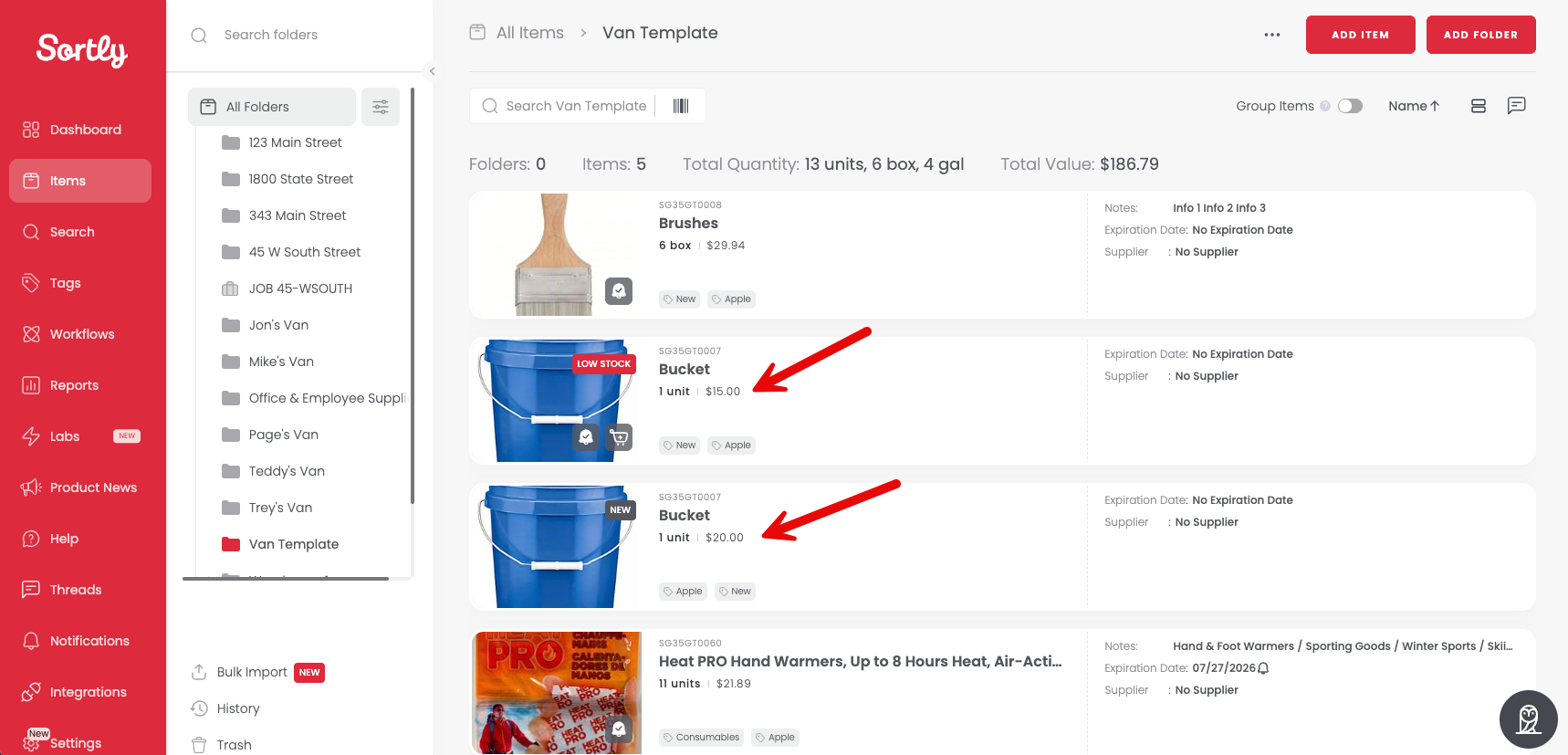
If you move a modified item back to its original folder, it will appear as a separate item, even though it shares the same SID, because its details no longer match those of the existing item.
You'll see both versions listed separately in the folder. This is especially noticeable when **List View** is toggled off, as shown below:
## **Manually Merging Items**
If you'd rather the items be treated as one with an updated combined quantity, you can merge them manually.
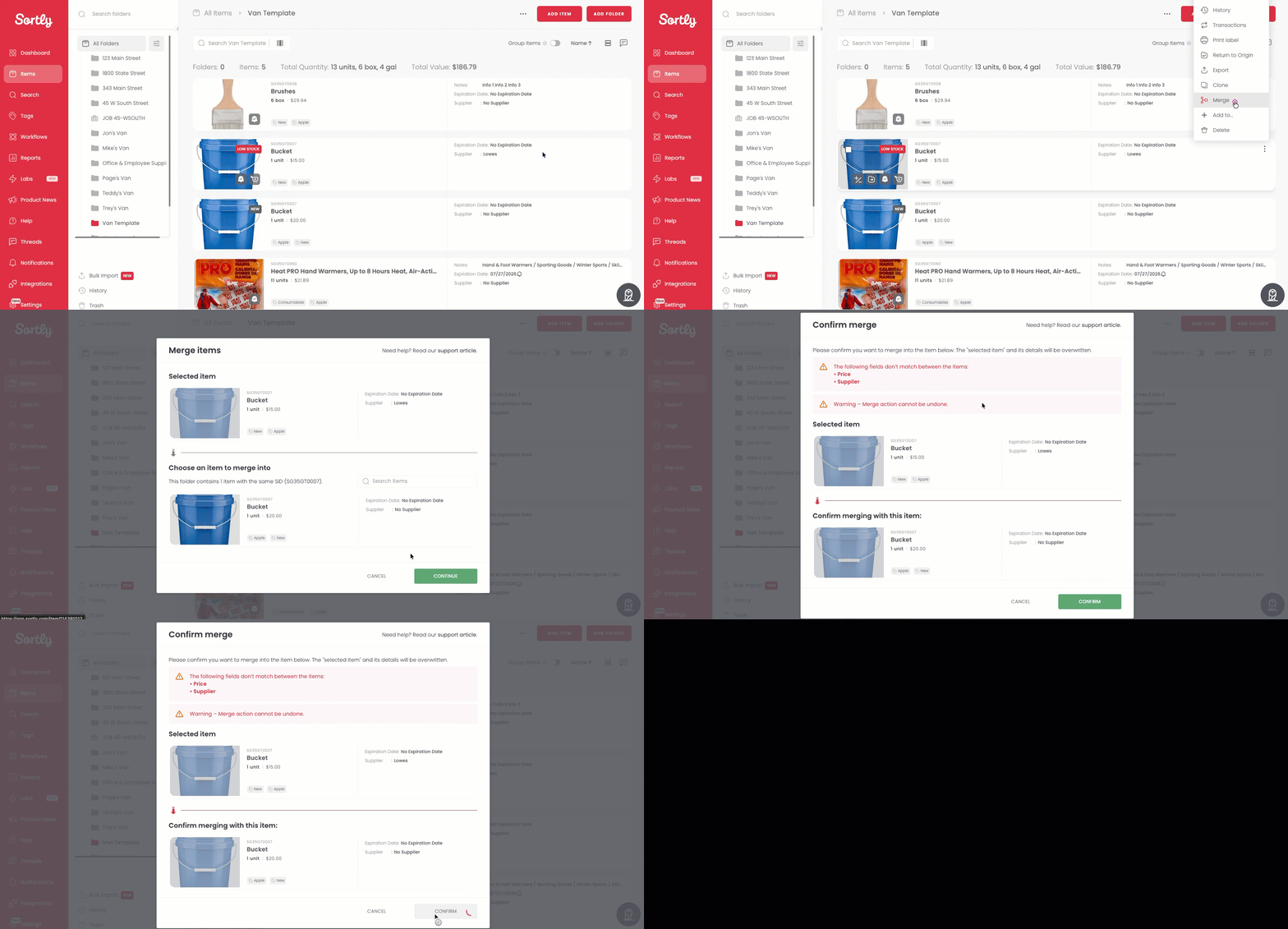
1. 1While viewing the item within the folder, click the **vertical ellipsis** (...) and select **Merge**.
⚠️ This item will lose its unique details and become part of the item it's merged into.
2. 2Select which item with the same SID you want to merge into, then click **Continue**.
3. 3Sortly will detect that the two items have differences and show a pop-up.
4. 4Confirm the merge. Sortly will list which fields don't match (in this example, the **Tag** field) and remind you this action can't be undone. Click **Confirm** to proceed.
5. 5Sortly confirms the merge was successful. The two items now appear as one, with an updated combined quantity, sharing the details of the item they were merged into.
## **Frequently Asked Questions**
What details need to match for items to merge automatically?
Items must be in the same folder, and every one of the following details must match exactly:
- Name
- Price
- Notes
- Sortly label
- Third-party label
- SID
- Custom field values
- Photos
- Tags
If even one of these details differs, the item won't auto-merge, even with a matching SID. You can still merge the items manually if needed.
[](https://www.sortly.com/)
Copyright © 2026, Sortly Inc.