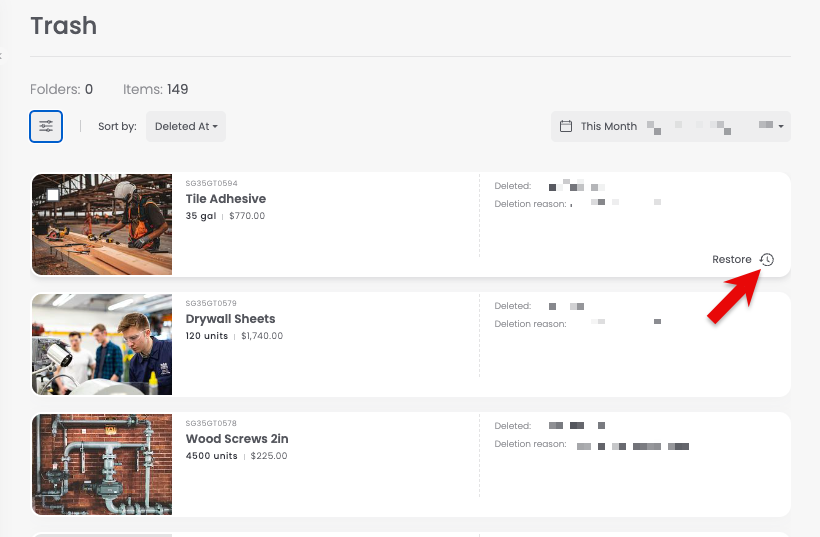
Sortly never removes a deleted item or folder for good. Everything you delete goes to the Trash and stays there until you restore it, so you can always recover something you deleted by mistake.
In this article
How to delete an item or folder
You can delete an item or folder from both the web and mobile apps.
Web
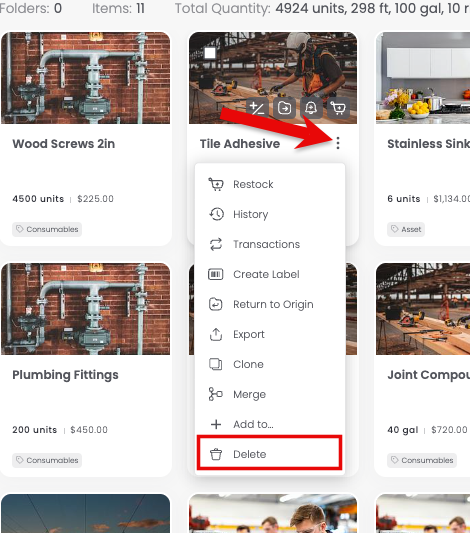
1Open the item or folder menu
Click the ... (vertical ellipsis) icon next to the item or folder you want to delete.
2Select Delete
Choose Delete from the dropdown menu. The item or folder moves to the Trash.
Mobile
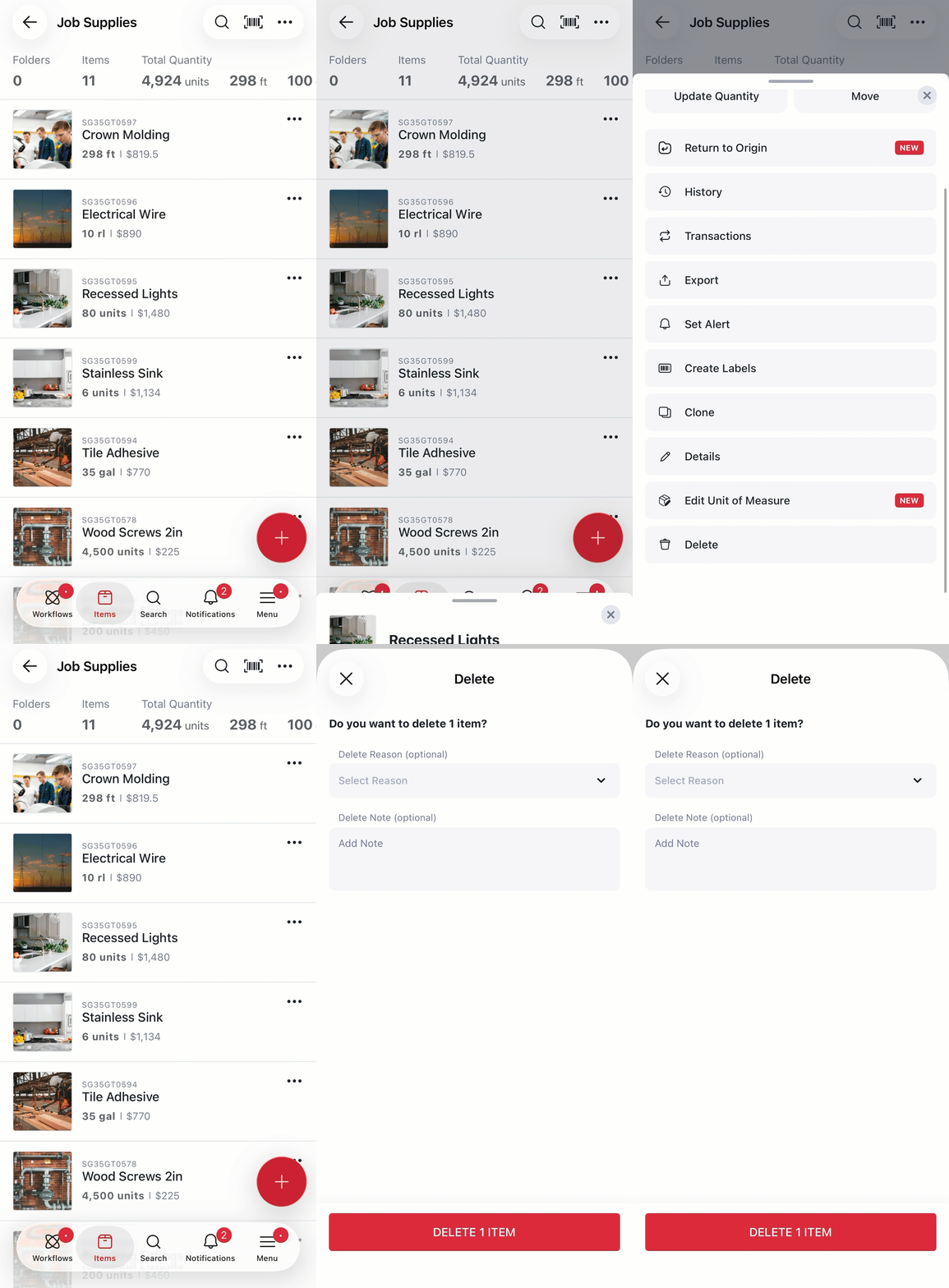
1Open the item or folder menu
Tap the ... (vertical ellipsis) icon next to the item or folder you want to delete.
2Tap Delete
Tap Delete. The item or folder moves to the Trash.
How to restore an item or folder
Restoring is currently available on the web app only. Deleted items are listed in reverse chronological order, with the most recently deleted at the top.
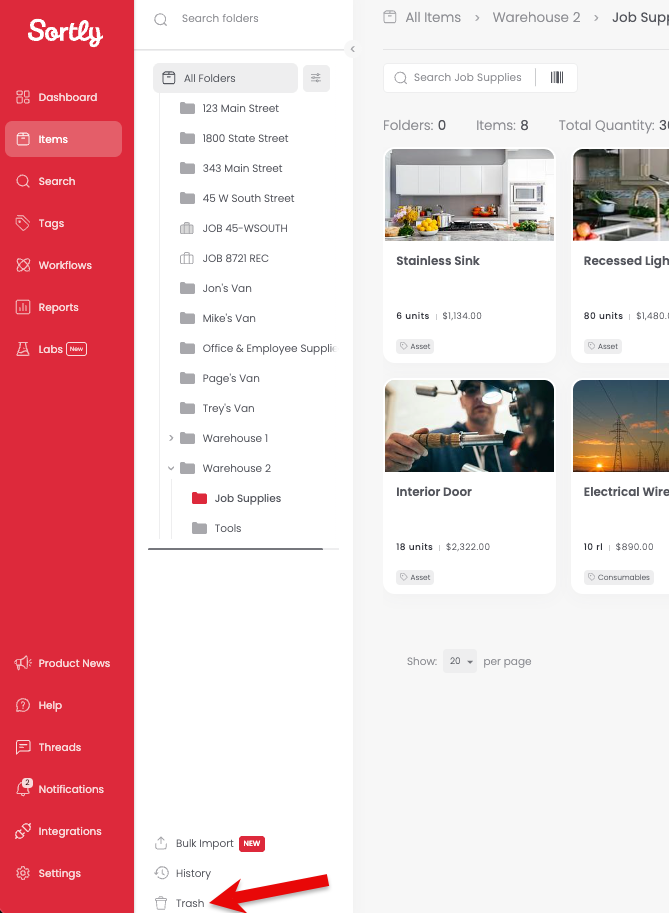
1Go to the Trash
Navigate to All Items and select Trash, or go directly to app.sortly.com/trash.
2Restore the item or folder
Hover over the item or folder you want to restore, then click Restore. It returns to your inventory immediately.