Skip to content
  • There are no suggestions because the search field is empty.

Can I Print QR Labels Before Adding Items to Sortly?

Get a head start on organizing by printing QR labels before your items are in Sortly. Apply them to your shelves, bins, or items now, then scan each one with the Sortly mobile app to link it to the right item or folder when you're ready. This article walks you through how unlinked labels work, how to create them on web and mobile, and what each printing option does.

Advanced
Ultra
Premium
Enterprise

How unlinked labels work

An unlinked QR label isn't connected to an item yet when you print it. That lets you label shelves, bins, or inventory ahead of time, then connect each one to the right item whenever you're ready.

Once your labels are printed and applied, open the Sortly mobile app and scan each code to link it to the item or folder it belongs to. You can also use an external QR or barcode scanner connected to your device instead of your phone's camera.

💡 If you already know which items your labels are for, you don't need unlinked labels. Instead, generate labels directly from an item or folder so the code is linked automatically. See Create QR Code and Barcode Labels.

Create unlinked labels on the web

Need to print labels from your computer? Use the web app, where you can download a PDF or send the labels straight to your printer.
1
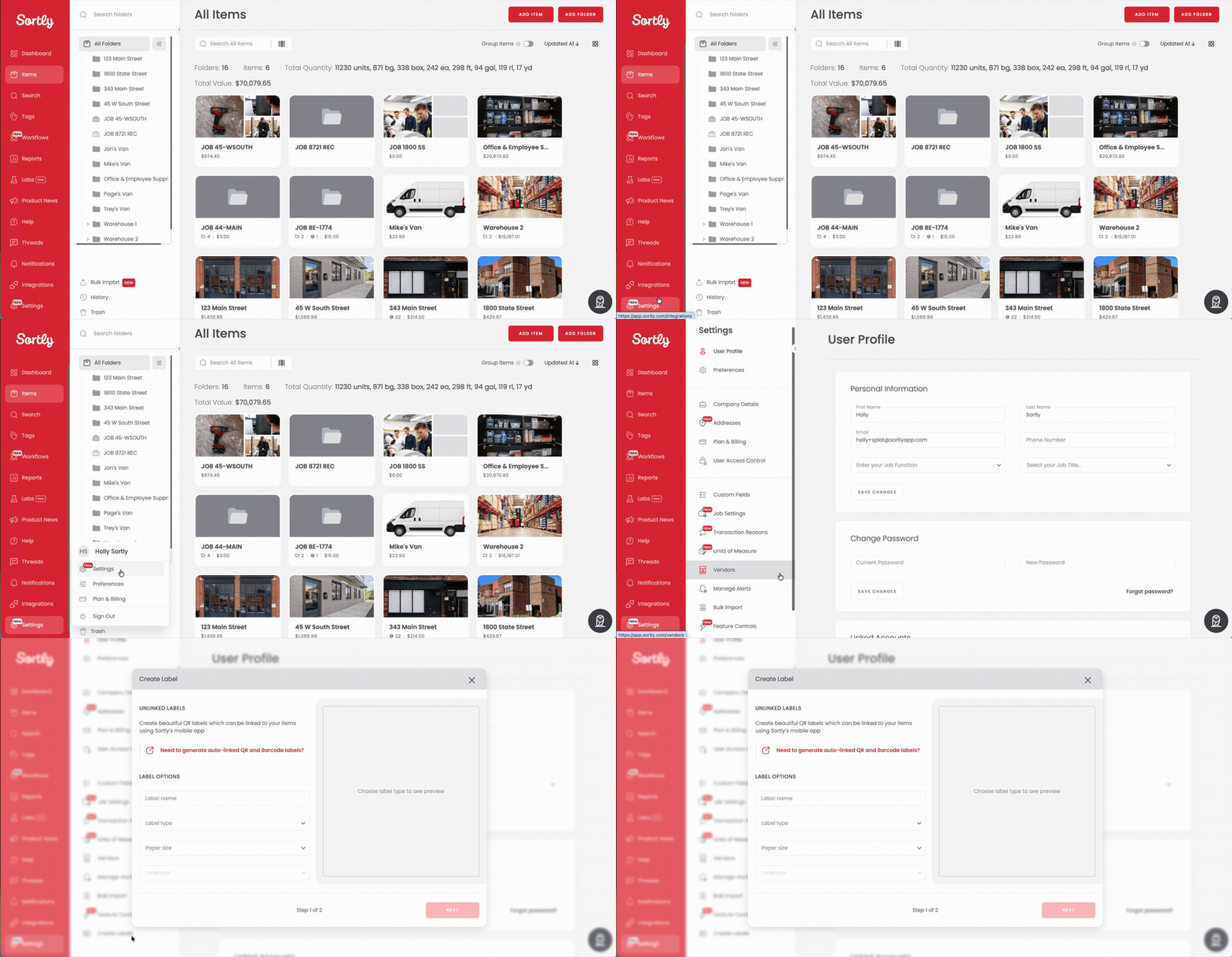
Select Settings in the left menu, then select Create Labels near the bottom of the Settings menu.
Opening Settings and selecting Create Labels
2
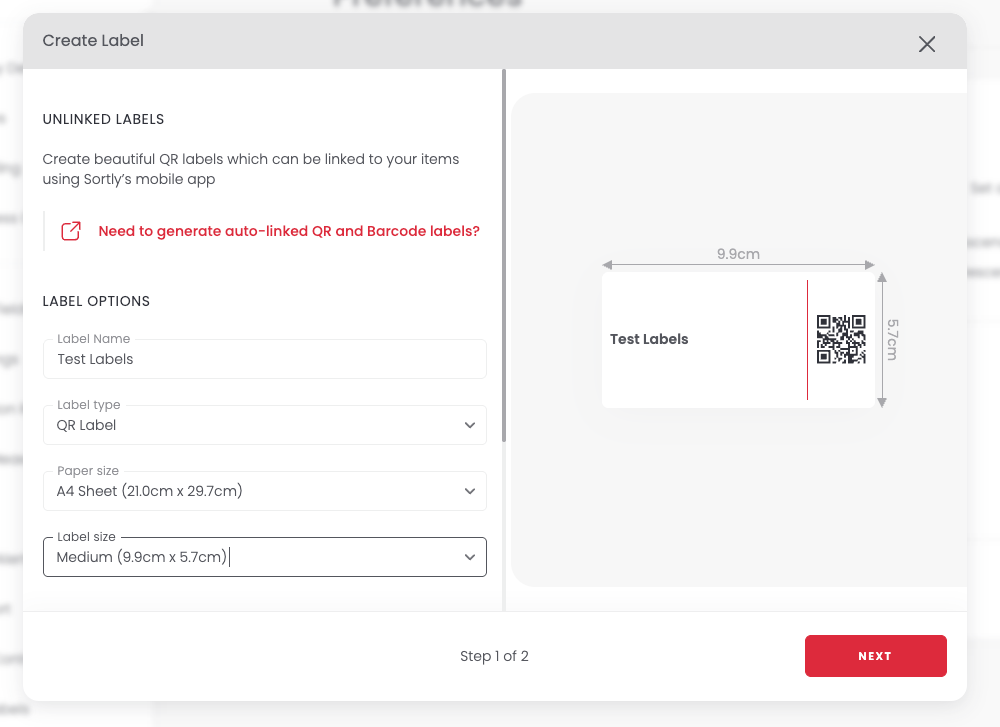
In the Create Label window, under Unlinked Labels, enter a Label Name. Confirm Label type is set to QR Label, then choose a Paper size and a Label size. A preview on the right updates as you choose. Select Next.
Create Label window, step 1 of 2, with label name, type, paper size, and label size
3
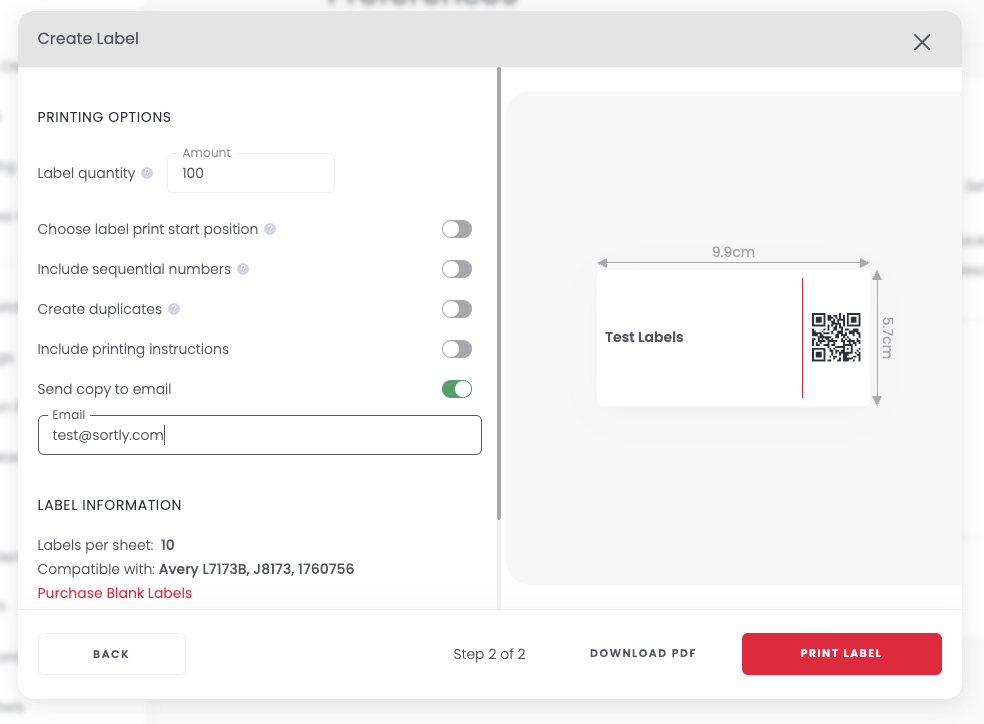
On step 2 of 2, set your Label quantity and choose any of the optional printing settings you want. See Printing options explained below for what each one does.
Create Label window, step 2 of 2, with printing options
4
Select Download PDF to save your labels, or Print Label to send them straight to your printer.

Create unlinked labels on the mobile app

Prefer to create labels from your phone? The Sortly mobile app walks you through each screen and sends a copy of the PDF to your email.
1
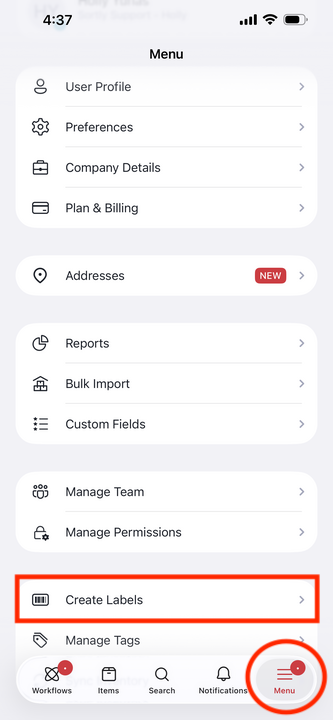
Tap Menu in the bottom bar, then tap Create Labels.
Mobile Menu with Create Labels highlighted
2
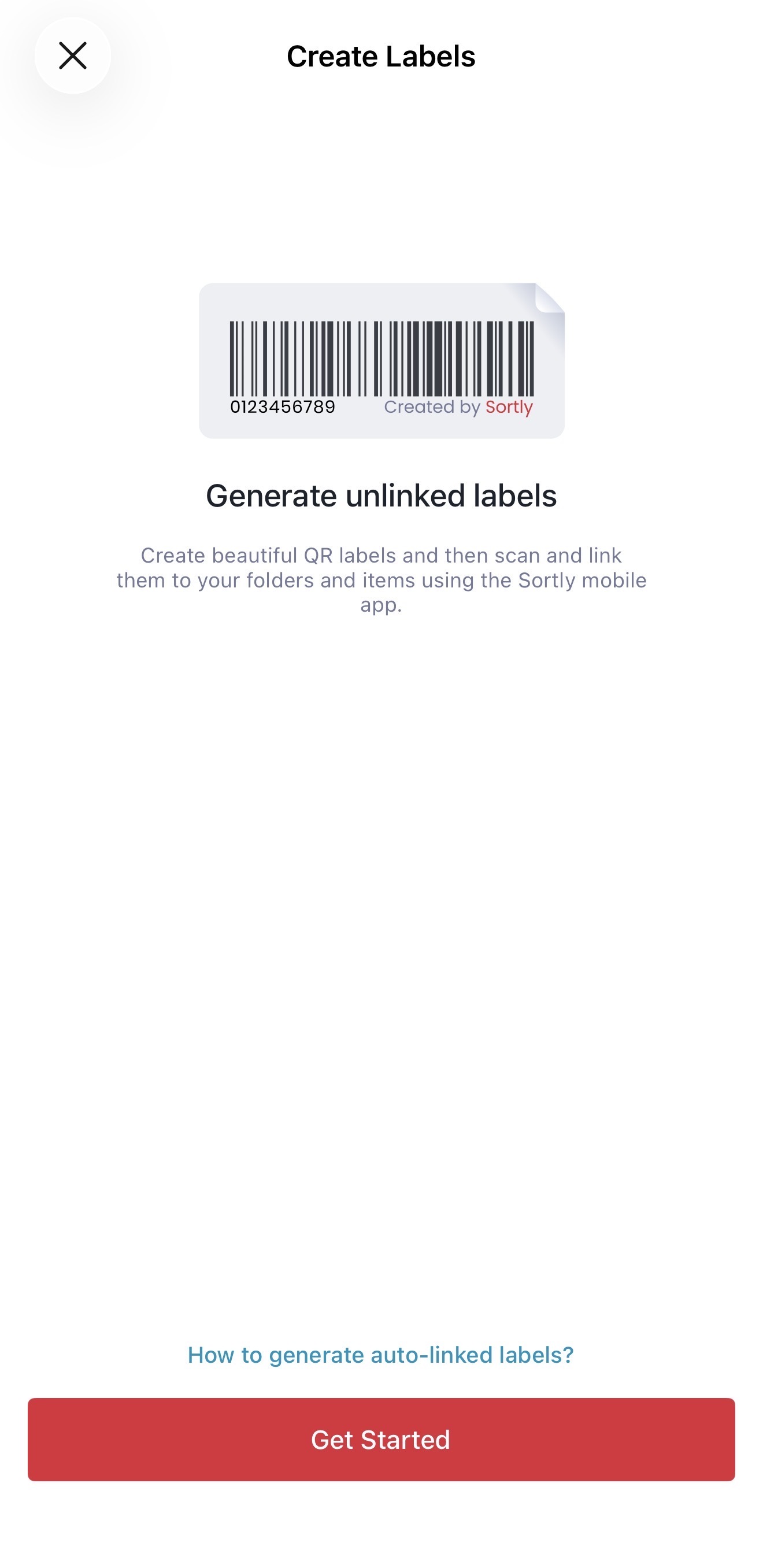
Tap Get Started.
Create Labels screen with the Get Started button
3
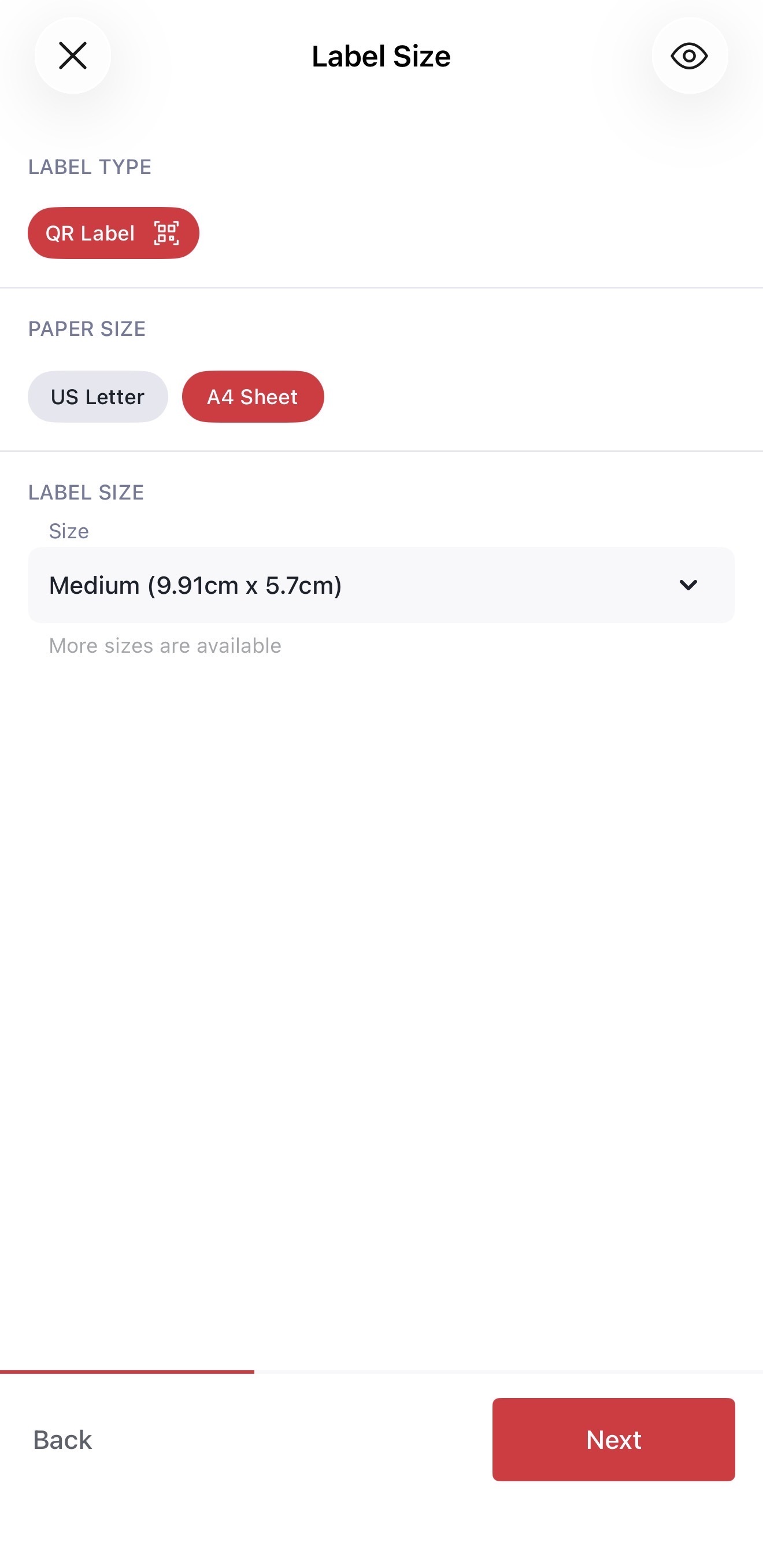
On the Label Size screen, confirm QR Label is selected. Choose a paper size (US Letter or A4 Sheet) and a label size, then tap Next.
Label Size screen with QR Label, paper size, and label size
4
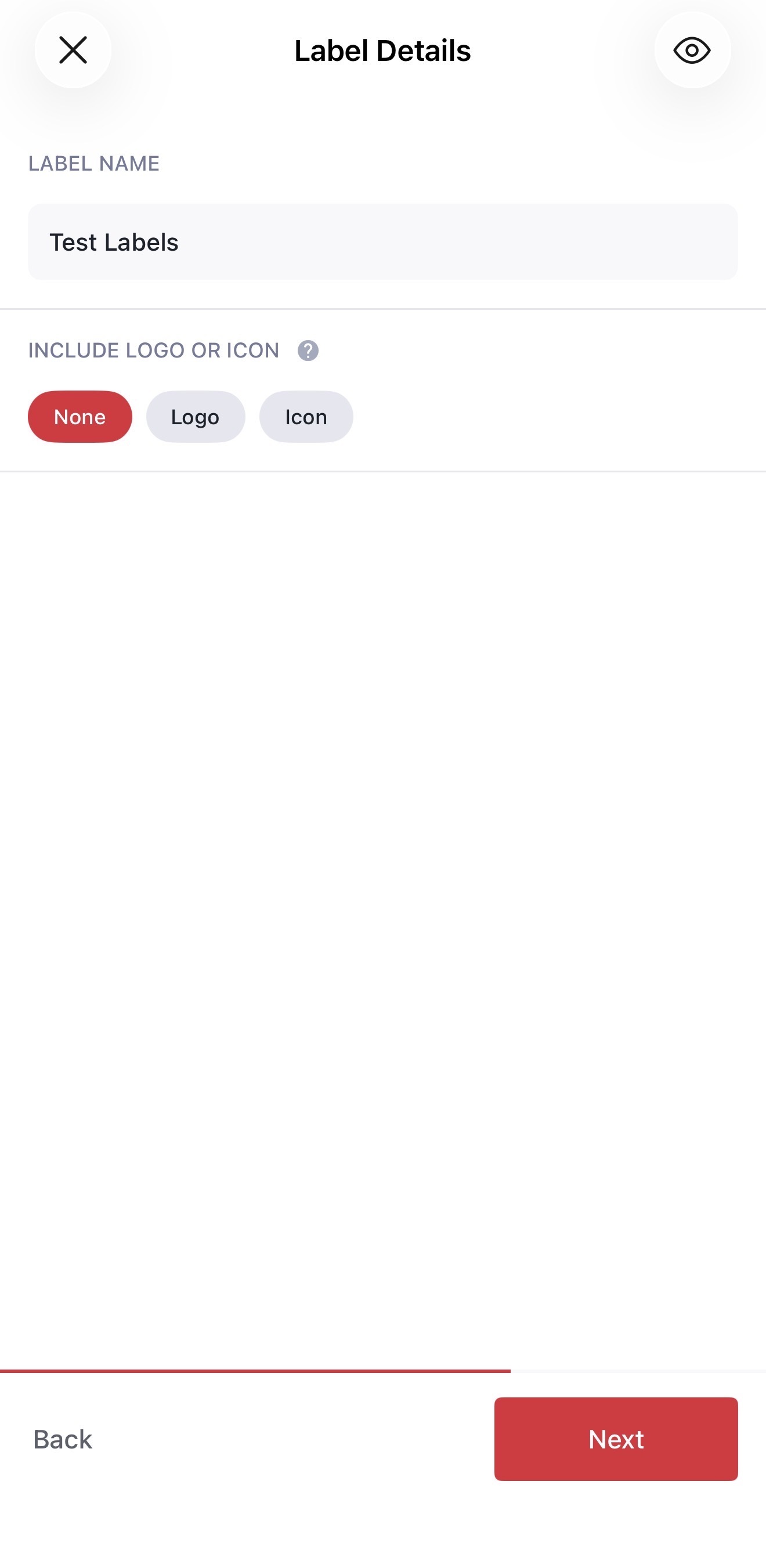
On the Label Details screen, enter a label name. Under Include Logo or Icon, choose None, Logo, or Icon, then tap Next.
Label Details screen with label name and logo or icon options
5
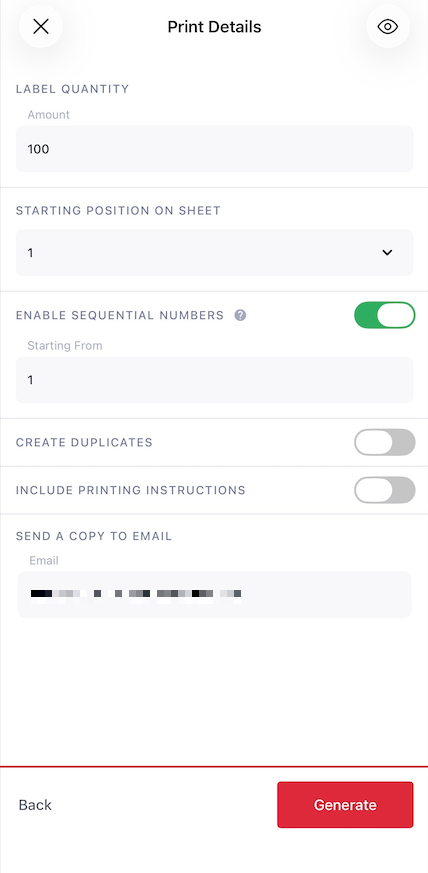
On the Print Details screen, enter your Label quantity and choose a Starting position on sheet. Choose any other printing options you want, then tap Generate.
Print Details screen with quantity, starting position, and printing options
6
When your labels are ready, tap Open PDF to view and print them, or Done to close the window. A copy is also sent to your email.
✅ Once your unlinked labels are printed and applied to your inventory, open the Sortly mobile app and scan each code to connect it to an item or folder. See Scan and Connect Existing QR Codes or Barcodes.

Printing options explained

These are the names on web. The mobile app uses similar names, such as Starting position on sheet and Enable sequential numbers.

Setting
What it does
Label quantity
Sets how many labels to generate in this batch.
Choose label print start position
Lets you start printing on a specific spot on a partially used sheet, so you don't waste labels.
Include sequential numbers
Adds a running number to each label in the batch.
Create duplicates
Prints more than one copy of each unique code.
Include printing instructions
Adds a page of printing instructions to the generated PDF.
Send copy to email
Emails you a copy of the label PDF for future printing needs.

Frequently Asked Questions

What's the difference between an unlinked label and a regular label?
An unlinked label isn't connected to an item when you print it. You scan it later using the Sortly mobile app to connect it to the item or folder it belongs to. A regular label is generated directly from an existing item or folder, so it's already linked when it prints.
Can I create unlinked Barcode labels instead of QR labels?
No. Unlinked labels are only available as QR Labels. If you need a Barcode label, generate it directly from an item or folder instead. See Create QR Code and Barcode Labels.
Can I link an unlinked label to a folder instead of an item?
Yes. When you scan an unlinked label in the mobile app, you can connect it to either an item or a folder.
Can I create unlinked labels for multiple items at once?
Yes. Set the Label quantity to the number of labels you need in a single batch, and each one will generate a unique, unlinked code.
My labels aren't printing correctly. What should I do?
Make sure the label size selected in Sortly matches the label sheet loaded in your printer. If issues continue, see Why won’t my labels print? or contact our Support Team.