Set up date-based reminders to alert you or your team about important dates related to your items, like expiry dates, return dates, or maintenance reminders. You can set these up on desktop or mobile, and choose who gets notified.
In this article
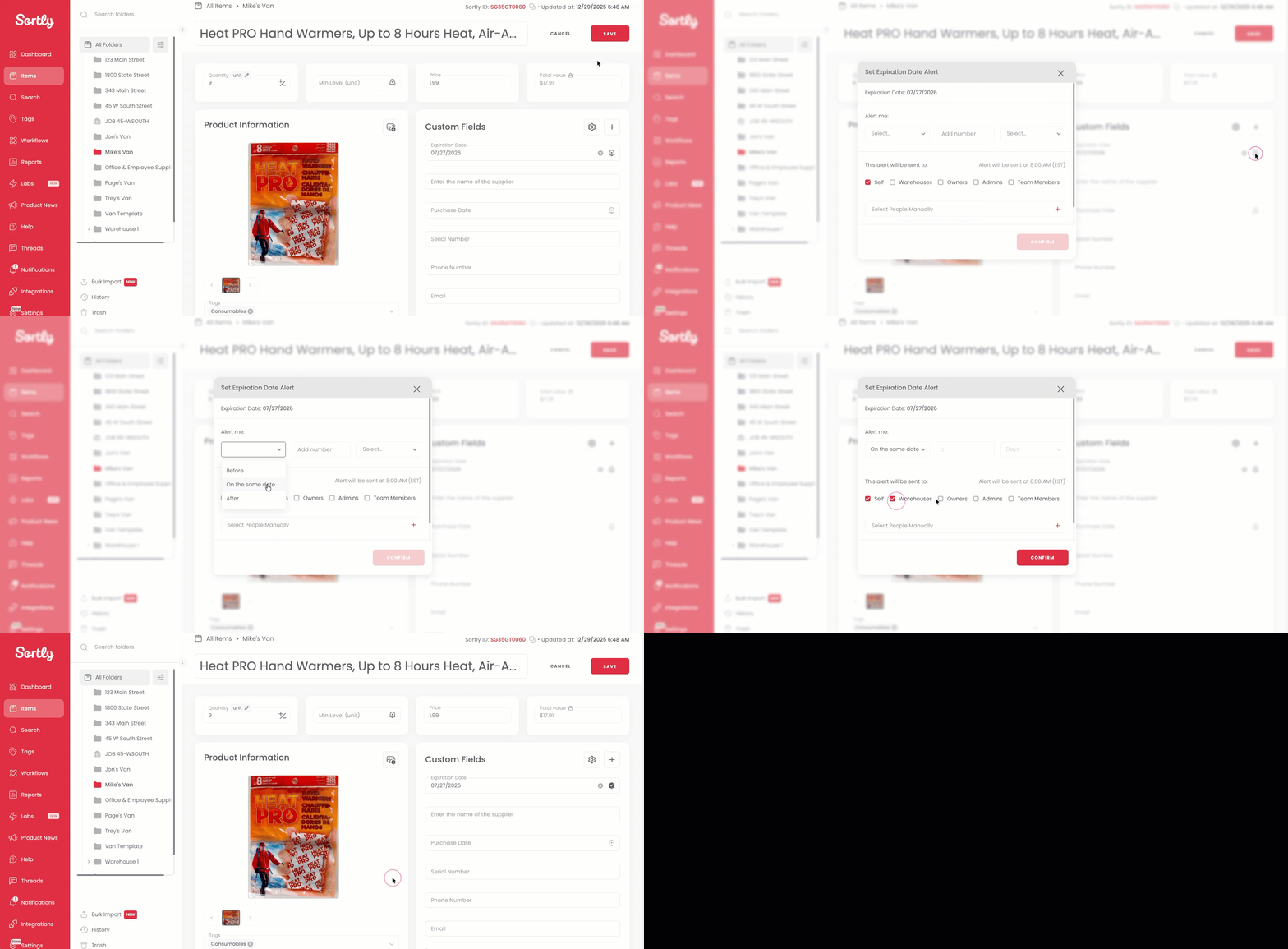
Setting Up Date-Based Reminders on Desktop
1Open the date-based custom field
From the item's details page, click Edit, then click into the date-based custom field.
2Set the alert conditions
Click the Bell icon next to the custom field and select the condition, amount, time period, and who should be reminded.
3Confirm the alert
Click Confirm to finish.
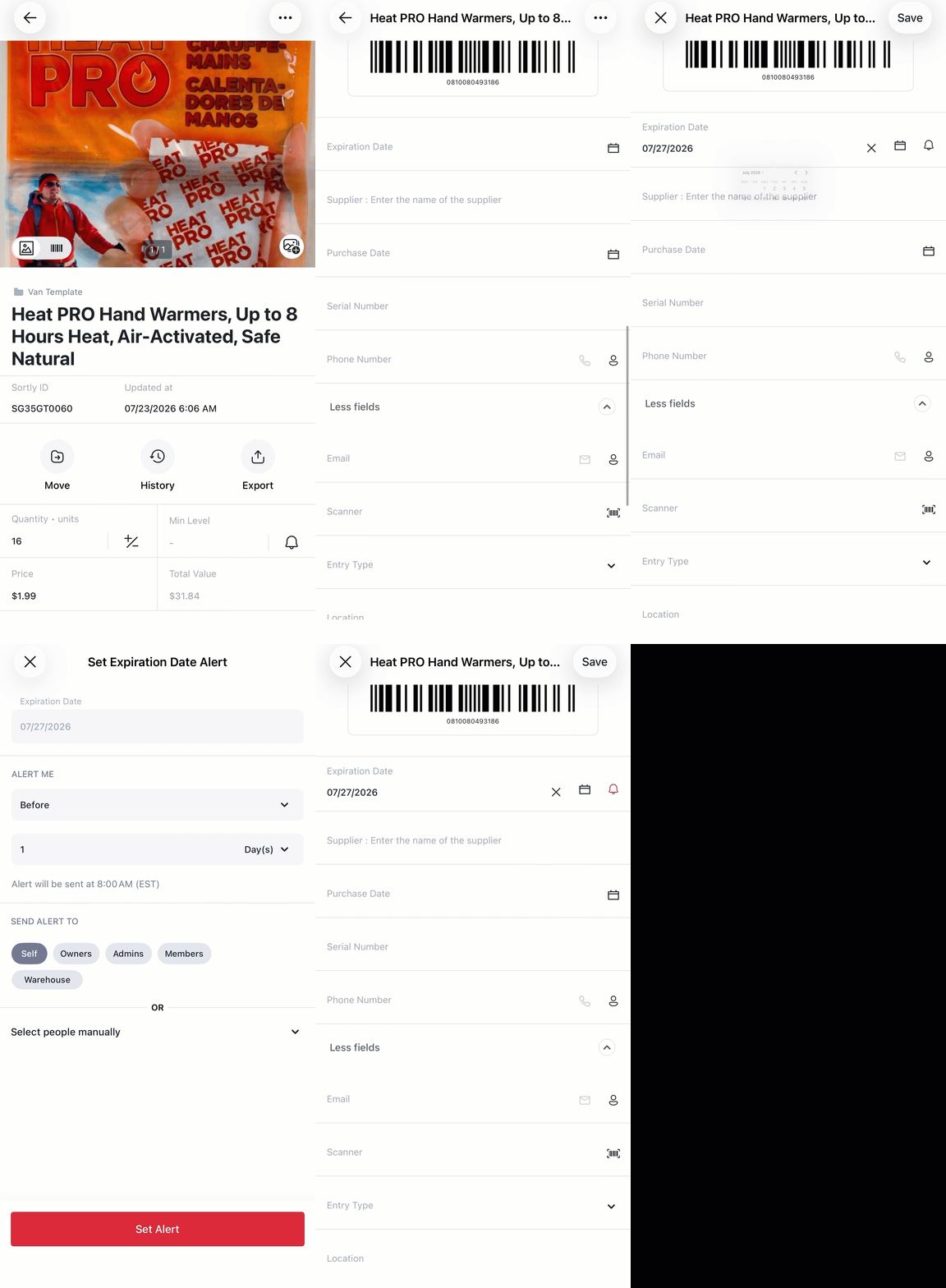
Setting Up Date-Based Reminders on Mobile App
1Set the date
While in the item's Edit mode, click the Calendar icon beside any date-based custom field, select the date, then click Save.
2Set the alert conditions
Click the Bell icon next to the custom field and select the condition, amount, time period, and who should be reminded.
3Confirm the alert
Click Set Alert to finish.