
Keep track of what you have in stock, what's out or sold, and who has it by moving items between folders or updating their quantities. We recommend moving items between folders, since it mirrors how they move in the real world, and you can do it on web or on the mobile app with its built-in scanner. This article walks you through moving items, choosing a move reason, updating quantities, and what counts as a transaction.
In this article
Moving items
Prefer to see where your items are at any moment? Moving items between folders reflects where they are in the real world. For example, you might use one folder for inventory that's available and another for inventory that's out on a job, sold, or rented out.
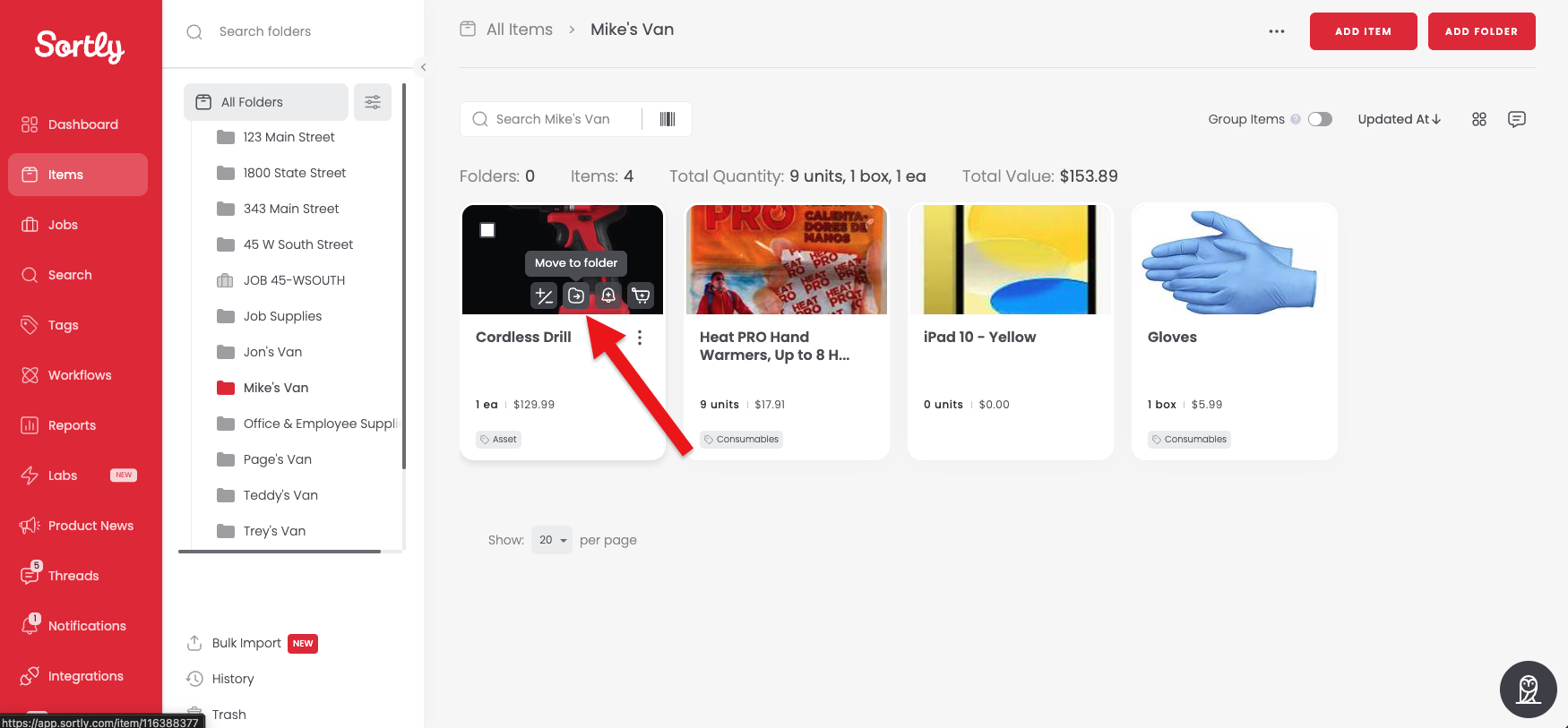
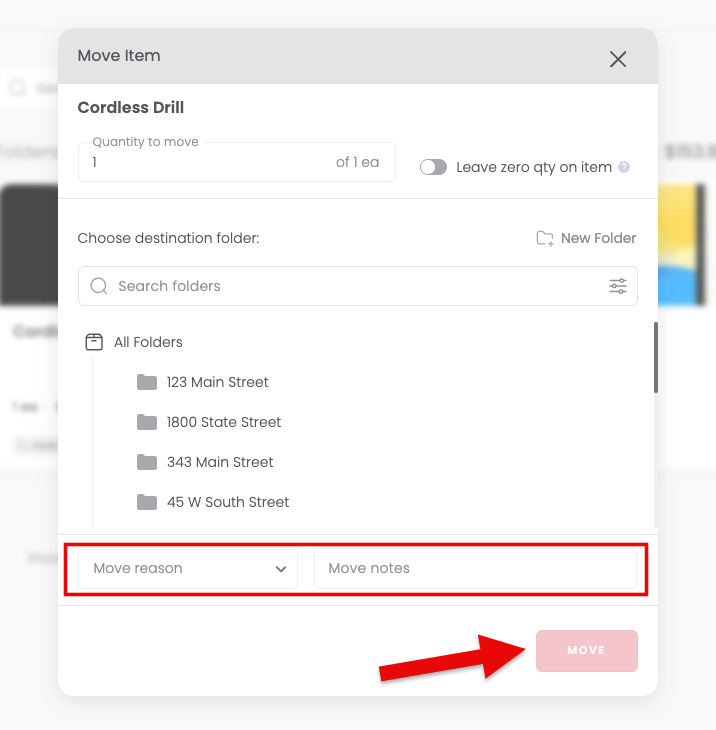
When items come back, follow the same steps to move them back to the folder where they're stored.
Prefer to scan QR codes or barcodes? You can track and move items with Quick Actions on the mobile app. It works much like a checkout scanner at the grocery store, with a bit more flexibility.
Move reasons
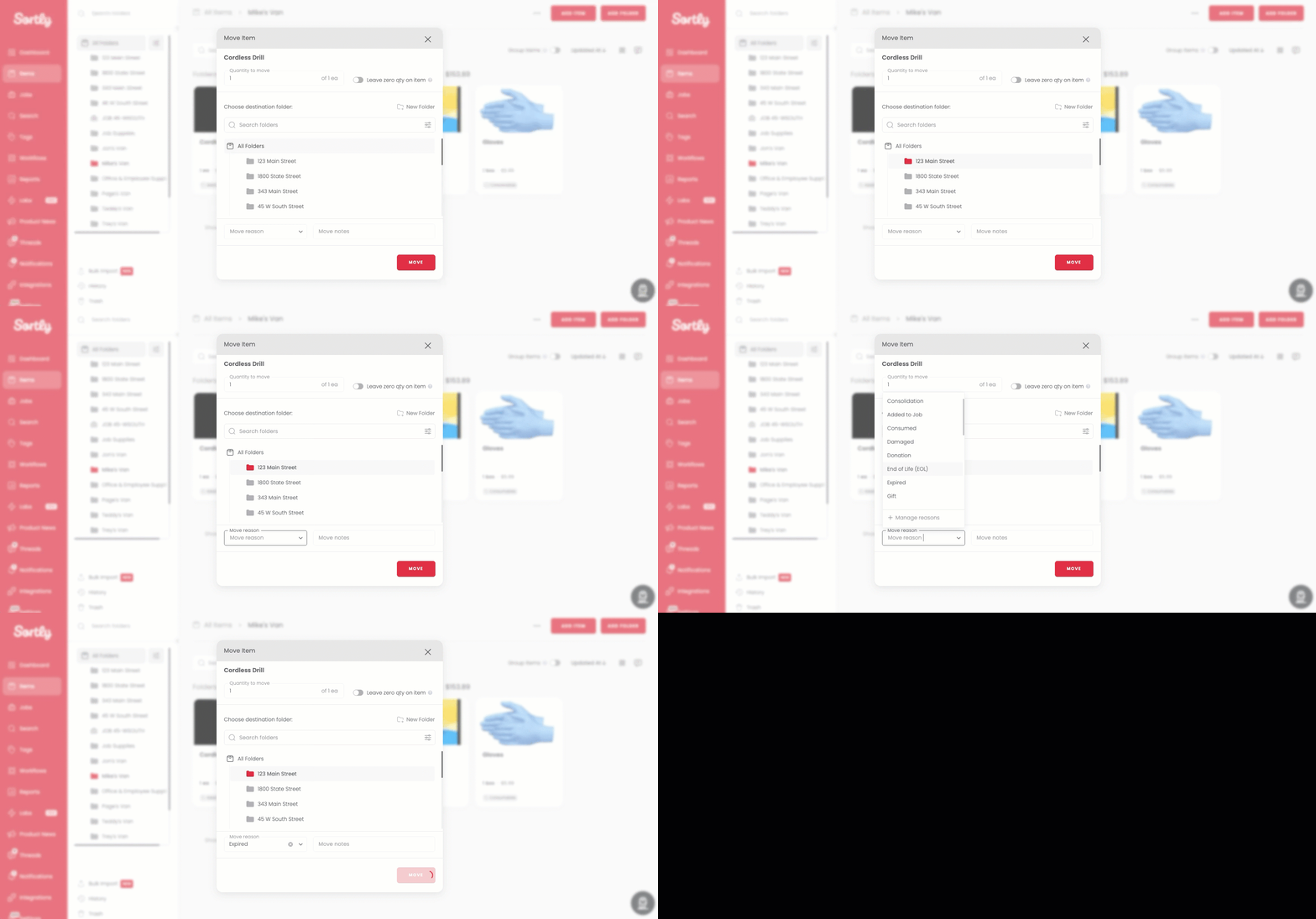
When you move an item on web, you can choose a Move reason such as Consumed, Damaged, Donation, or Sold. You can also create your own move reasons to fit your workflow. See Custom Transaction Reasons to learn more.
Updating quantity
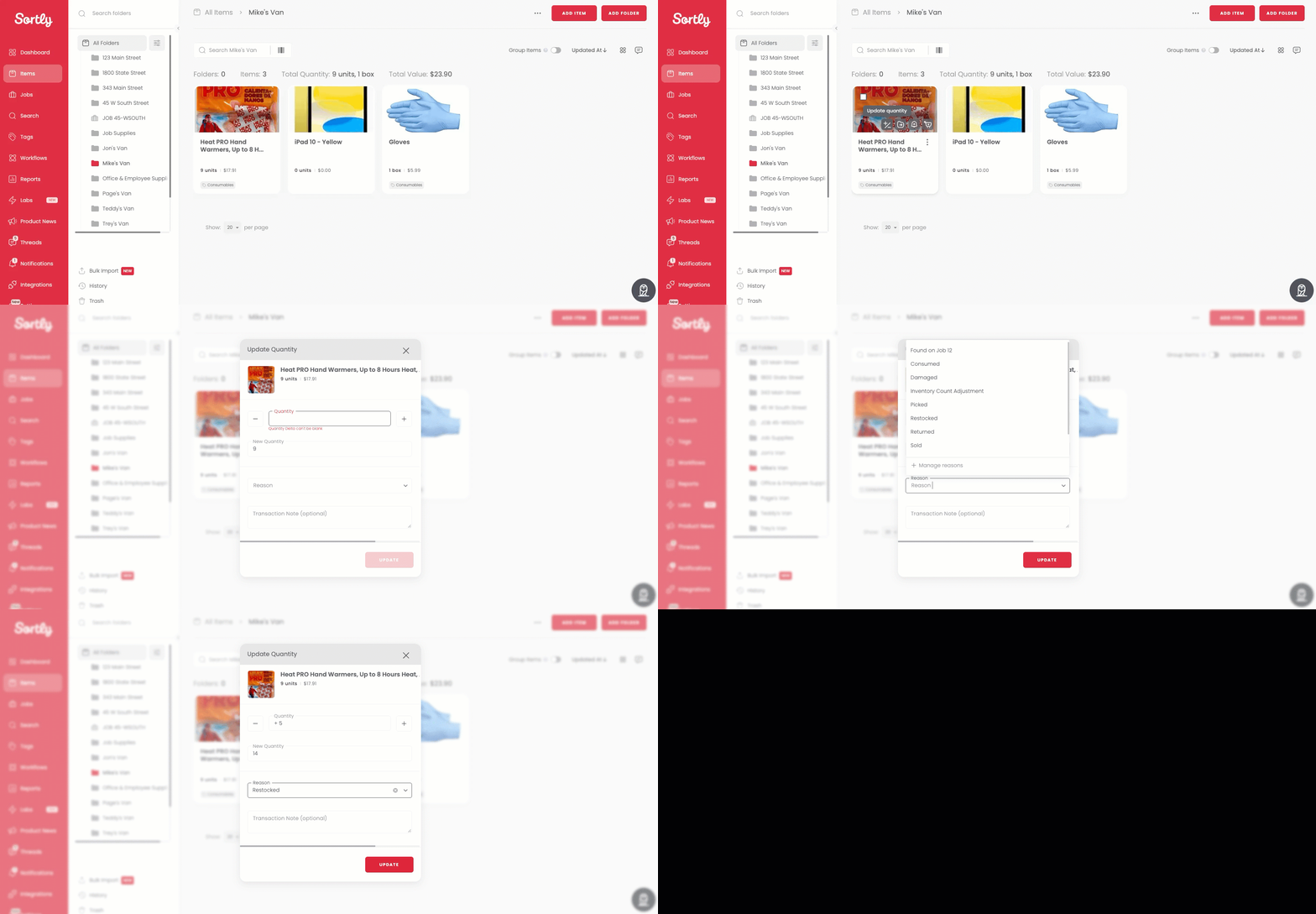
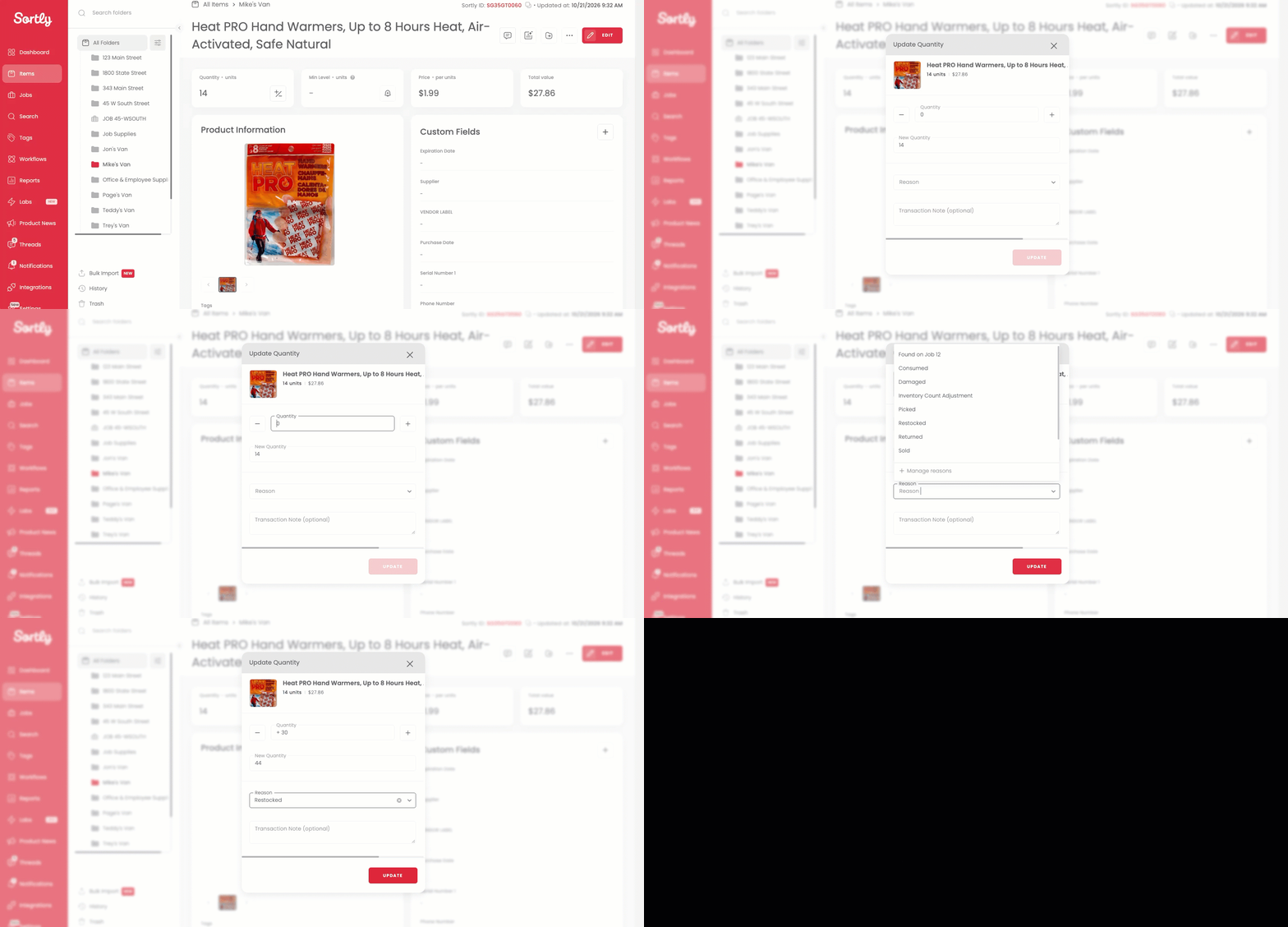
Need to change how many you have without moving the item? You can update the quantity from the item card or from the item page. Both open the same Update Quantity window.
From the item card
From the item page
What counts as a transaction in Sortly?
A transaction is any recorded activity that changes your inventory and shows up in Activity History or Reports.
Transactions are created when you:
- Add or remove stock (quantity update)
- Move items or folders between locations
- Create or delete items or folders
- Edit item details, such as the name, custom fields, or tags
- Merge items
- Use Bulk Edit or Check-In / Check-Out workflows
Viewing or searching items doesn't create a transaction.
If you do one of these actions and don't see a transaction recorded, reach out to our Support Team so we can look into it.