
Easily add new items to your Catalog to keep track of everything you carry and where it is stored, so you always know what you have on hand. This article walks you through creating an item, adding its details, and recording its starting stock.
Free
Advanced
Ultra
Premium
Enterprise
In this article
Add an item to the Catalog
Every item lives in your Catalog. When you create one, you give it a name and unit, add any details you want to track, and record how much you have and where.
1
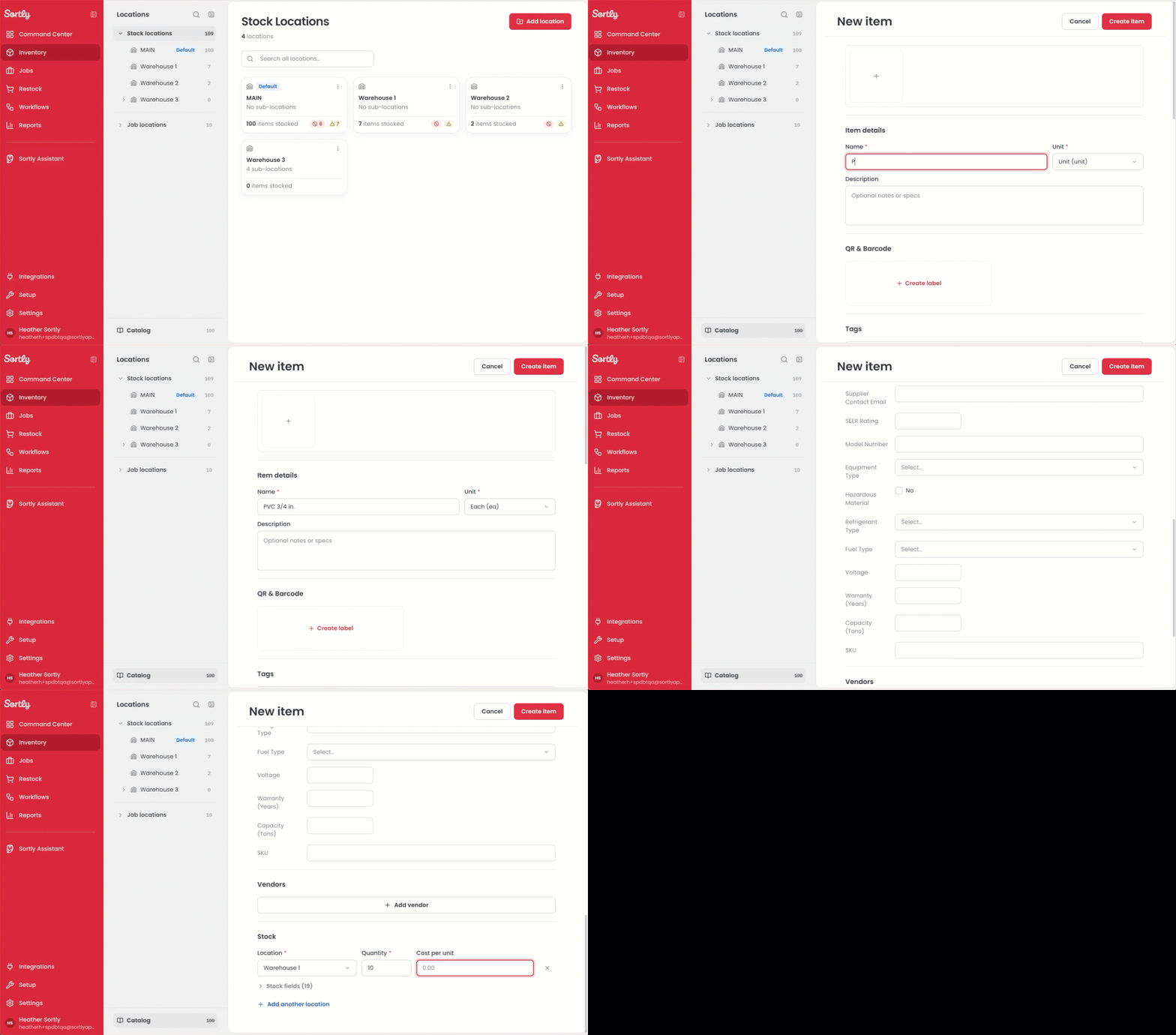
Select Inventory in the left menu.
2
Select Catalog at the bottom of the Locations panel.
3
Select New item in the top right corner.
4
Enter a Name for the item and choose a Unit. Required fields are marked with a red asterisk.
5
Add any other details you want to track, such as a photo, description, label, or tags.
6
Scroll to Stock, choose a Location, and enter the Quantity. You can also add a Cost per unit.
7
Select Create item. The new item opens in a panel on the right side of the Catalog.
💡 Need to add stock to an item you already have? See Adding Stock.