
Easily add stock to your items to keep your counts up to date and accurate.
Free
Advanced
Ultra
Premium
Enterprise
In this article
Adding Stock from the Location View
1
Select Inventory in the left menu.
2
Select the location you want to add stock to.
3
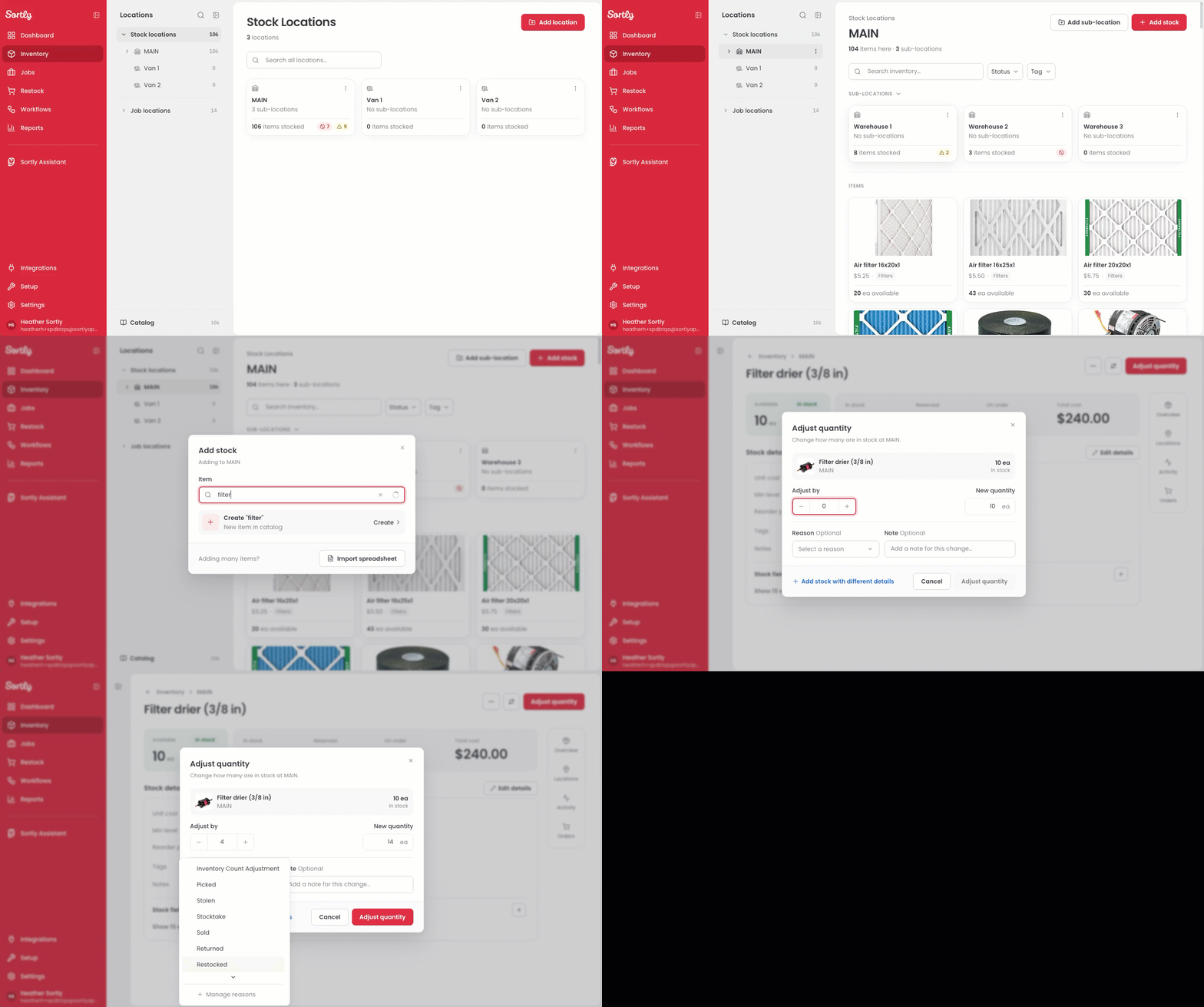
Select Add stock in the top right corner.
4
Search for the item by name and select it from your catalog. If the item isn't in your catalog yet, select Create to add it as a new item.
5
Select Adjust quantity in the top right corner of the item page.
6
Enter the amount you are adding in Adjust by. The New quantity updates to show your new total.
7
Choose a Reason and add a Note if desired.
8
Select Adjust quantity.
Adding Stock from the Item Details
1
Select Inventory in the left menu.
2
Select the location where the item is stored.
3
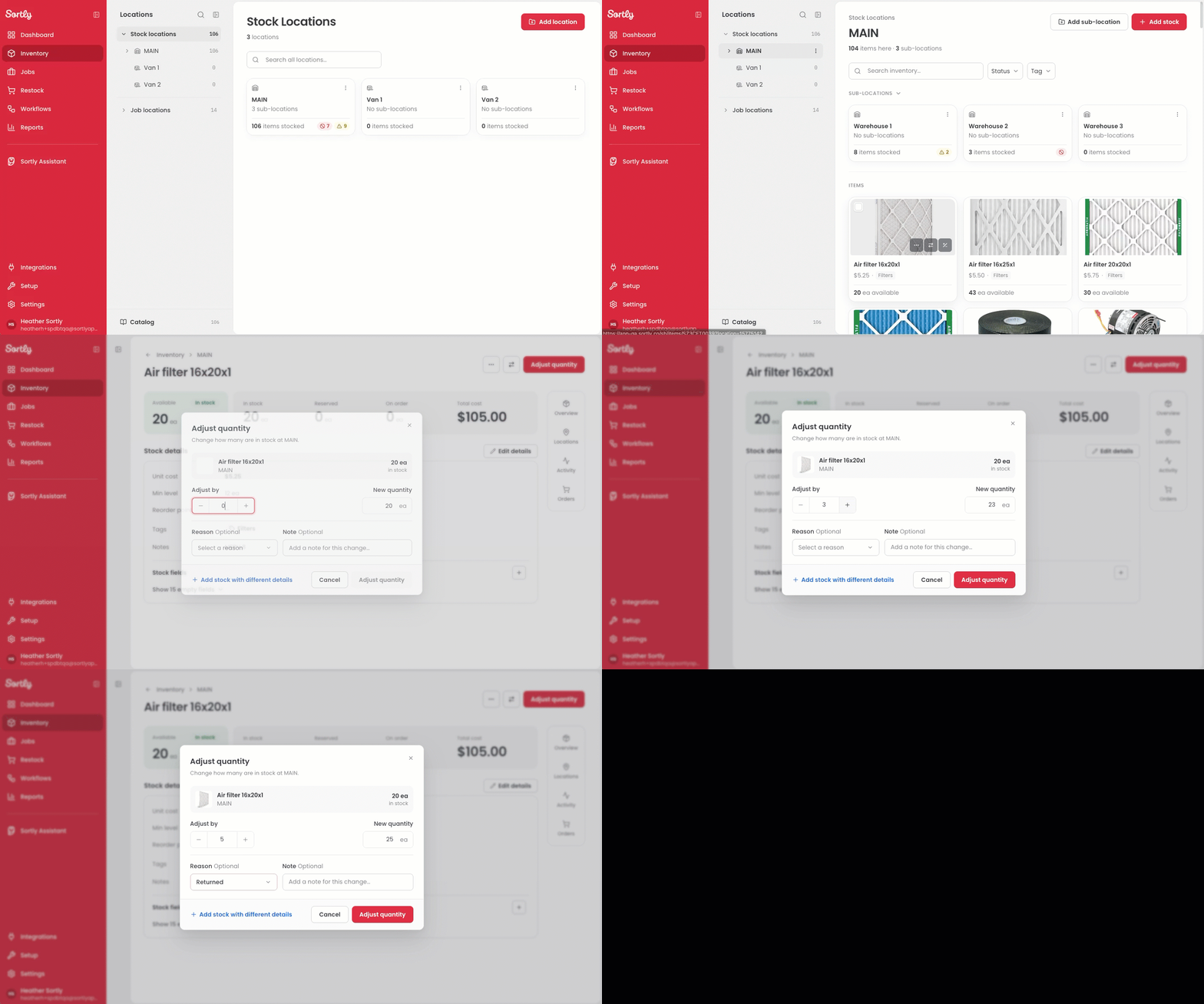
Select the item card for the item you want to add stock to.
4
Select Adjust quantity in the top right corner of the item page.
5
Enter the amount you are adding in Adjust by. The New quantity updates to show your new total.
6
Choose a Reason and add a Note if desired.
7
Select Adjust quantity.
Adding Stock from the Item Card
1
Select Inventory in the left menu.
2
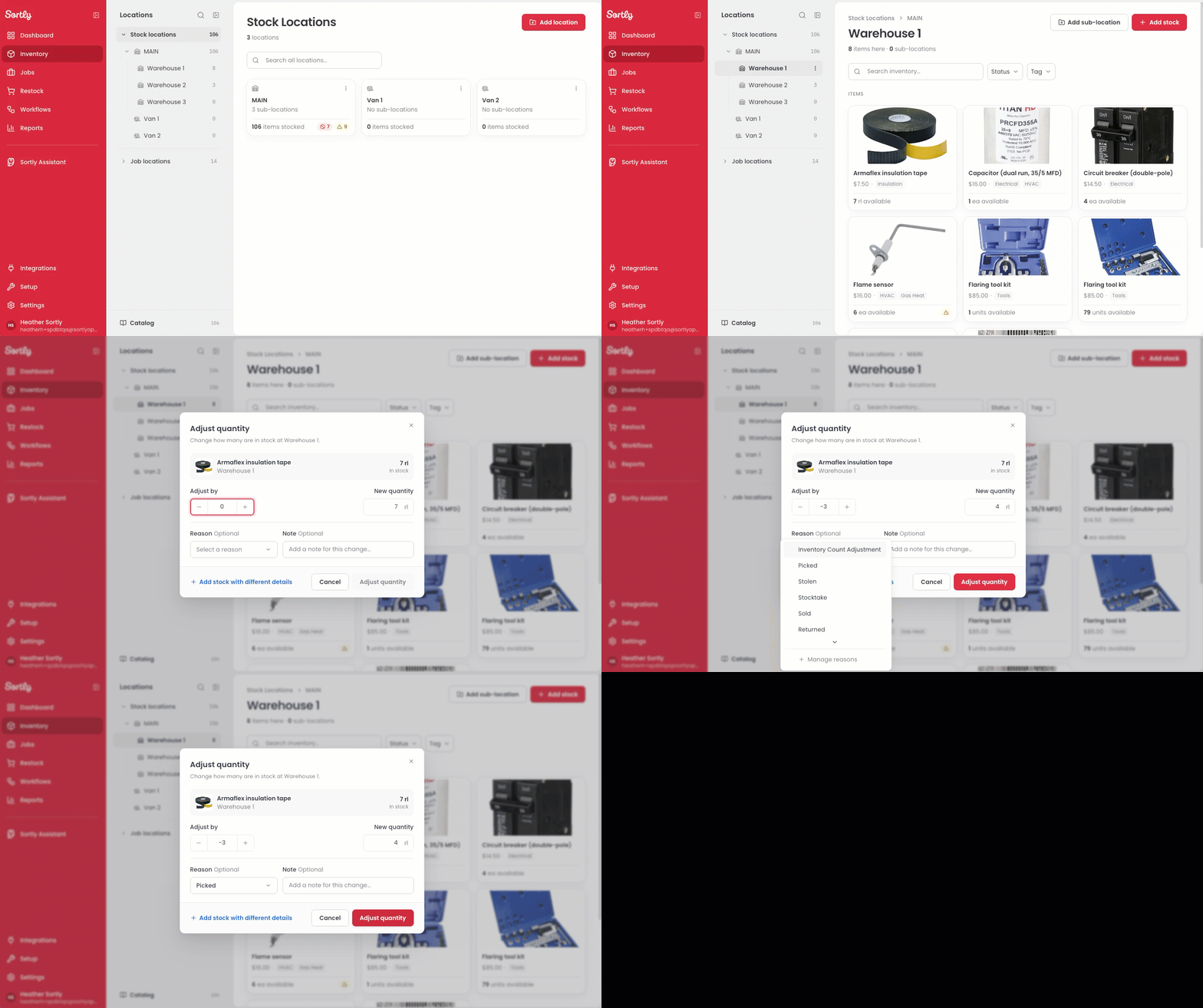
Hover over the item card and select the Adjust quantity icon in the bottom right corner of the item photo.
3
Enter the amount you are adding in Adjust by. The New quantity updates to show your new total.
4
Choose a Reason and add a Note if desired.
5
Select Adjust quantity.
Adding Stock with an Import
Adding stock for many items? You can also add stock by importing a spreadsheet. Select Import spreadsheet in the Add stock window to get started, or see Adding Inventory to Sortly to learn more.
Adding Stock to an Item on Mobile
📷
Steps and screenshot for adding stock to an item on mobile
Click, drag & drop, or paste (Ctrl+V / Cmd+V)