Skip to content
English
  • There are no suggestions because the search field is empty.

Create a Custom Role and Manage Permissions

A Custom Role lets Owners and Admins on Premium and Enterprise plans control who can access and edit locations and items. This article covers what a Custom Role is, how to create one, and how to choose what it can do.

Premium
Enterprise

What Is a Custom Role?

A Custom Role lets you decide exactly what a user can do in Sortly. You choose which actions the role can take, and whether it can edit or only view details like names and quantities.

Users with a Custom Role only see the locations you assign to them, and they can only do what you have turned on for the role.

Want to see what the other roles can do? Check out the article What Each Team Role Can Do.

Creating a Custom Role
1
Select Settings at the bottom of the left menu.
2
Under User Access Control, select Manage Permissions.
3
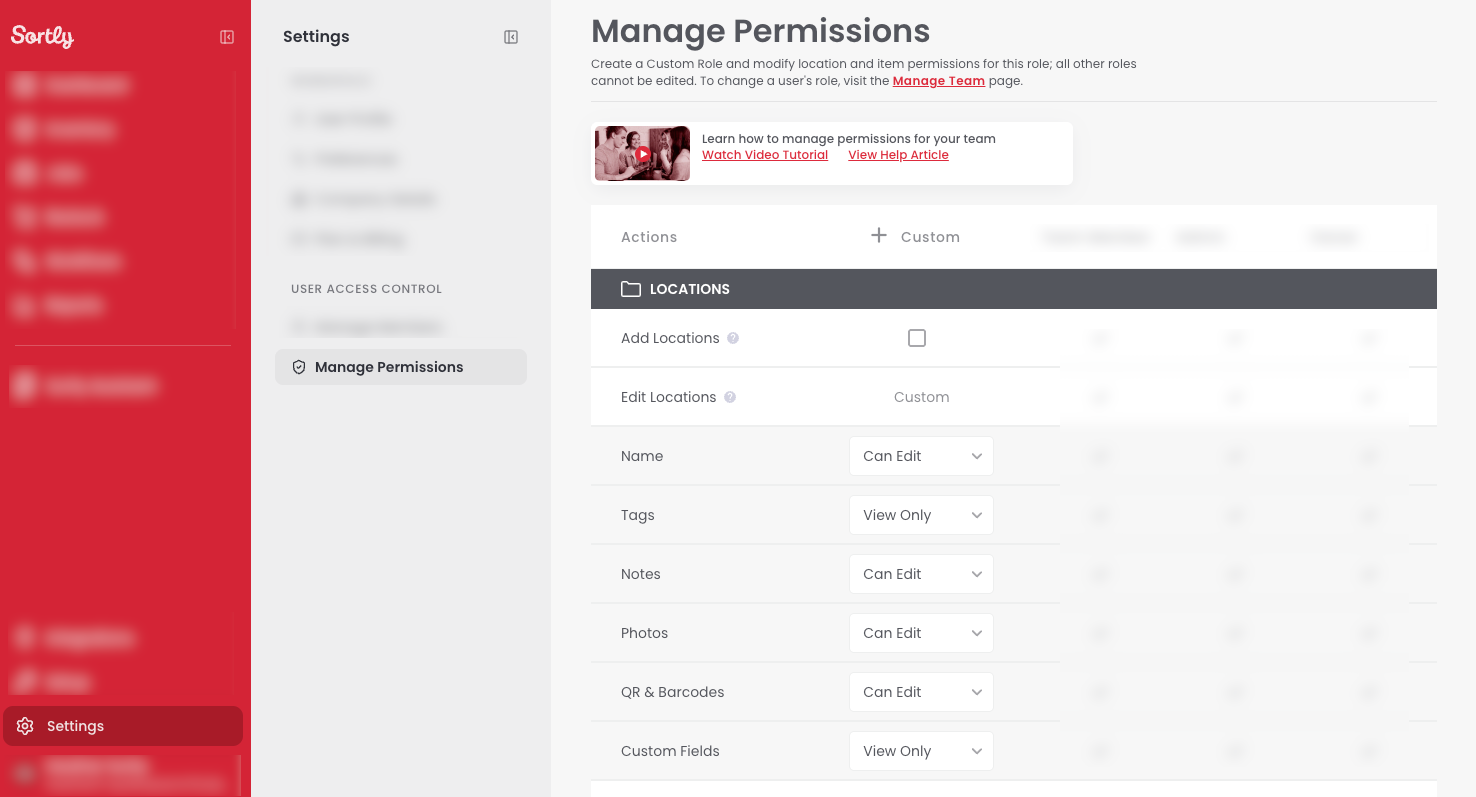
Select the pencil icon at the top of the Custom Role column and enter a name for the role.
4
Select Save.
The Manage Permissions page in Sortly, where you create and name a Custom Role
⚠️ Admins need the Manage Users permission to create a Custom Role.

What You Can Customize

A Custom Role can control which details a user can work with, and which actions a user can take, for locations and items. Here are the details you can customize:

Detail
Locations
Items
Choices
Name
Yes
Yes
Can Edit View Only
Tags
Yes
Yes
Can Edit View Only
Notes
Yes
Yes
Can Edit View Only
Photos
Yes
Yes
Can Edit View Only
QR & Barcodes
Yes
Yes
Can Edit View Only
Custom Fields
Yes
Yes
Can Edit View Only
Quantity
–
Yes
Can Edit View Only
Min Level
–
Yes
Can Edit View Only
Cost
–
Yes
Can Edit View Only Hidden
Variants Details
–
Yes
Can Edit View Only

You can also choose whether the role can Add, Delete, or Move locations and items.

How to Customize the Role

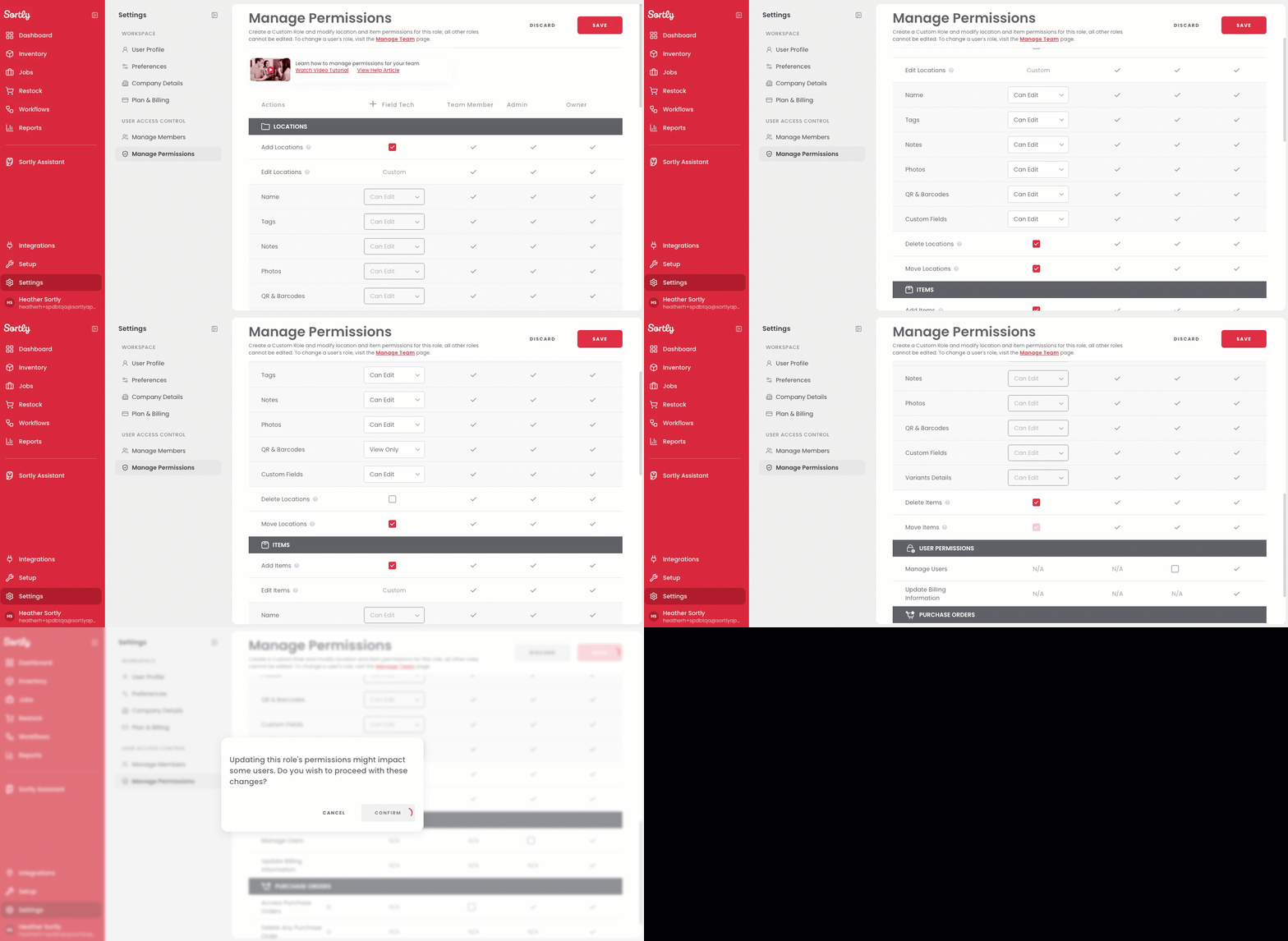
Let's say you have a Field Tech role. You want these users to edit most location details, move locations, and add and delete items, but not add locations or edit QR & Barcodes. Here is how you would set that up.
1
On the Manage Permissions page, uncheck Add Locations so the role cannot add locations.
2
Under Edit Locations, set Name, Tags, Notes, Photos, and Custom Fields to Can Edit.
3
Set QR & Barcodes to View Only.
4
Select Move Locations, and unselect Delete Locations.
5
In the Items section, select Add Items and Delete Items.
6
Select Save.
The Manage Permissions page showing the Field Tech role being set up, with Add Locations unchecked, QR & Barcodes set to View Only, and Move Locations selected
⚠️ To choose Can Edit or View Only for location or item fields, leave Add Locations or Add Items unselected. When these are unselected, the role cannot add locations or items.

Creating a Custom Role on Mobile

1
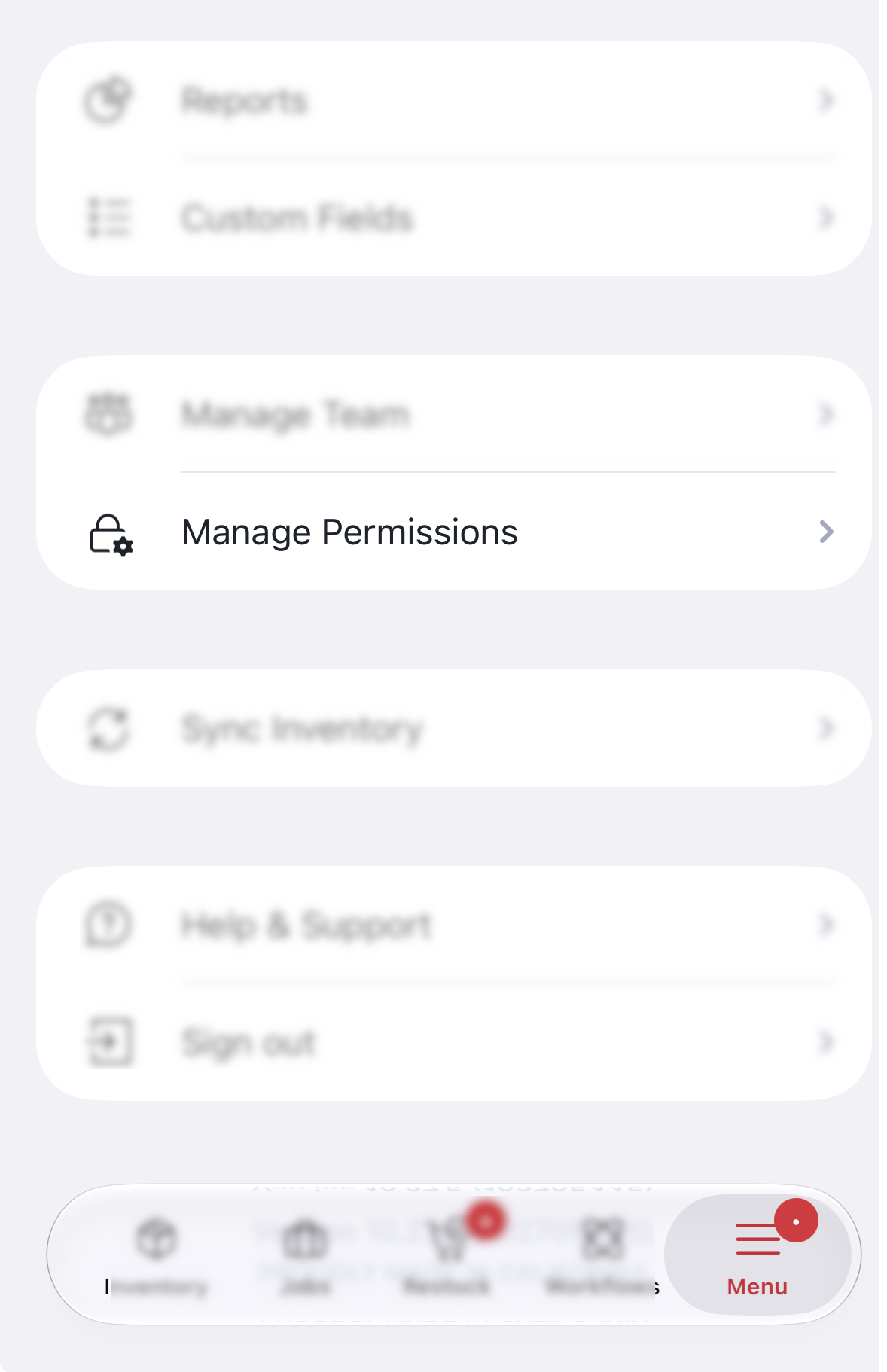
Select Menu in the bottom right corner of the screen.
2
Select Manage Permissions.
The Menu tab on mobile with Manage Permissions
3
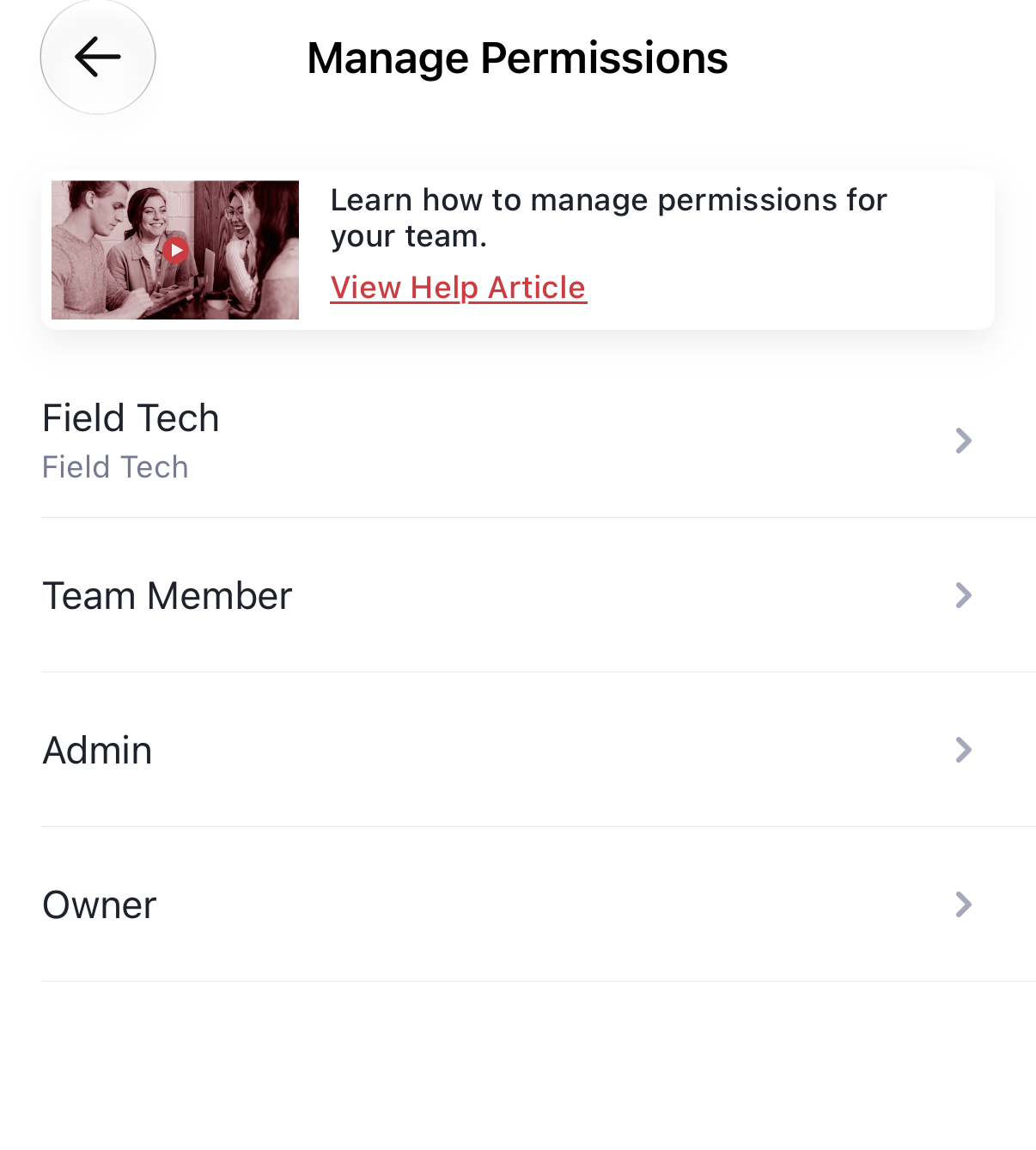
Select your Custom Role from the list.
The Manage Permissions screen on mobile listing the roles
4
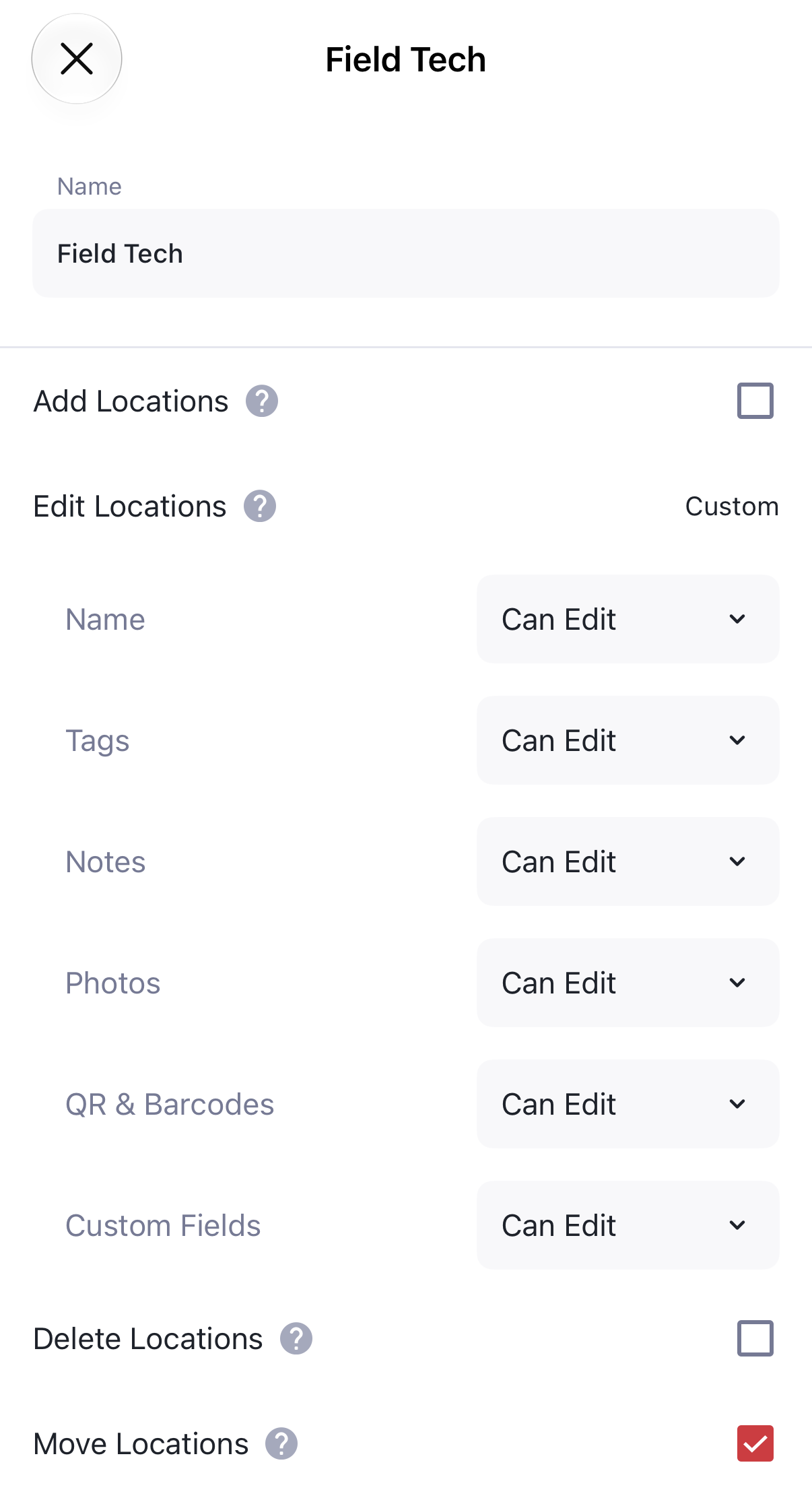
Enter a name for the role in the Name field.
5
Select the checkboxes for what the role can do. Use the dropdown next to each field to choose Can Edit or View Only.
A Custom Role on mobile with its name, checkboxes, and field dropdowns

Assigning a Custom Role to a User

Once your Custom Role is saved, you can assign it to users. Choose it as their role when you invite a new user, or edit an existing user on the Manage Members page. To learn more, check out the article Invite and Manage Members.

Frequently Asked Questions

Are Custom Roles available on all plans?

No. Custom Roles are available on Premium and Enterprise plans.

Who can create a Custom Role?

Owners can create Custom Roles by default, and Admins can if they are given the Manage Users permission.

Can I create more than one Custom Role?

No. Only one Custom Role can be created per account.

How can I stop Admins from managing users?

An Owner can go to Manage Permissions and unselect Manage Users in the Admin column. Admins can no longer manage users or create Custom Roles.

Are there limitations on what Admins can do?

Yes. Admins cannot:

  • Assign or promote themselves or others to the Owner role
  • Assign other Admins
  • Add or delete seats from the Manage Team page
  • View or manage any billing details
Are there extra costs for Custom Roles?

No. Custom Roles are included in Premium and Enterprise plans at no additional charge.