Skip to content
English
  • There are no suggestions because the search field is empty.

Import Items from a File

Easily import items from a spreadsheet into any stock location or job location, so you never have to add them one at a time. This article walks you through opening Bulk Import, uploading your file, reviewing your field mapping, fixing errors, and finishing your import.

Free
Advanced
Ultra
Premium
Enterprise

How importing works

Bulk Import adds the items in your spreadsheet to one location. You choose that location when you upload your file. It can be any stock location or job location.

  • You can import .xlsx and .csv files up to 30 MB.
  • You don't need to reformat your file or use a template. Sortly reads your column headers and matches them to Sortly fields for you.
  • Item Name is the only required field.
  • If your file has columns that don't match an existing field, Sortly Assistant creates custom fields for them so nothing is left behind.
  • Before any items are added, you can review the field mapping and preview your data.
  • Bulk Import is available on web.

Open Bulk Import

You can start an import from three places. Each one opens the same Bulk Import page.

From the Catalog

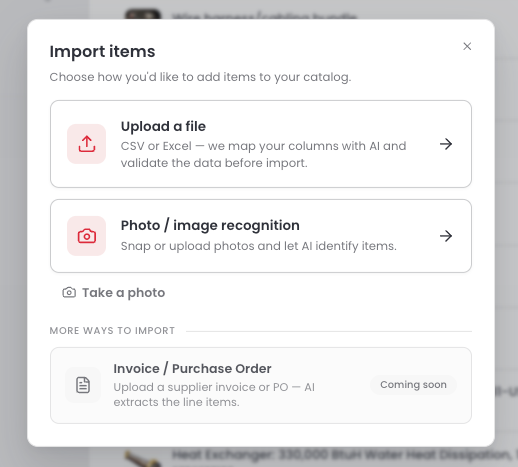
Adding new items to your Catalog? Select Inventory, then Catalog at the bottom of the Locations panel. Select Import, then Upload a file.
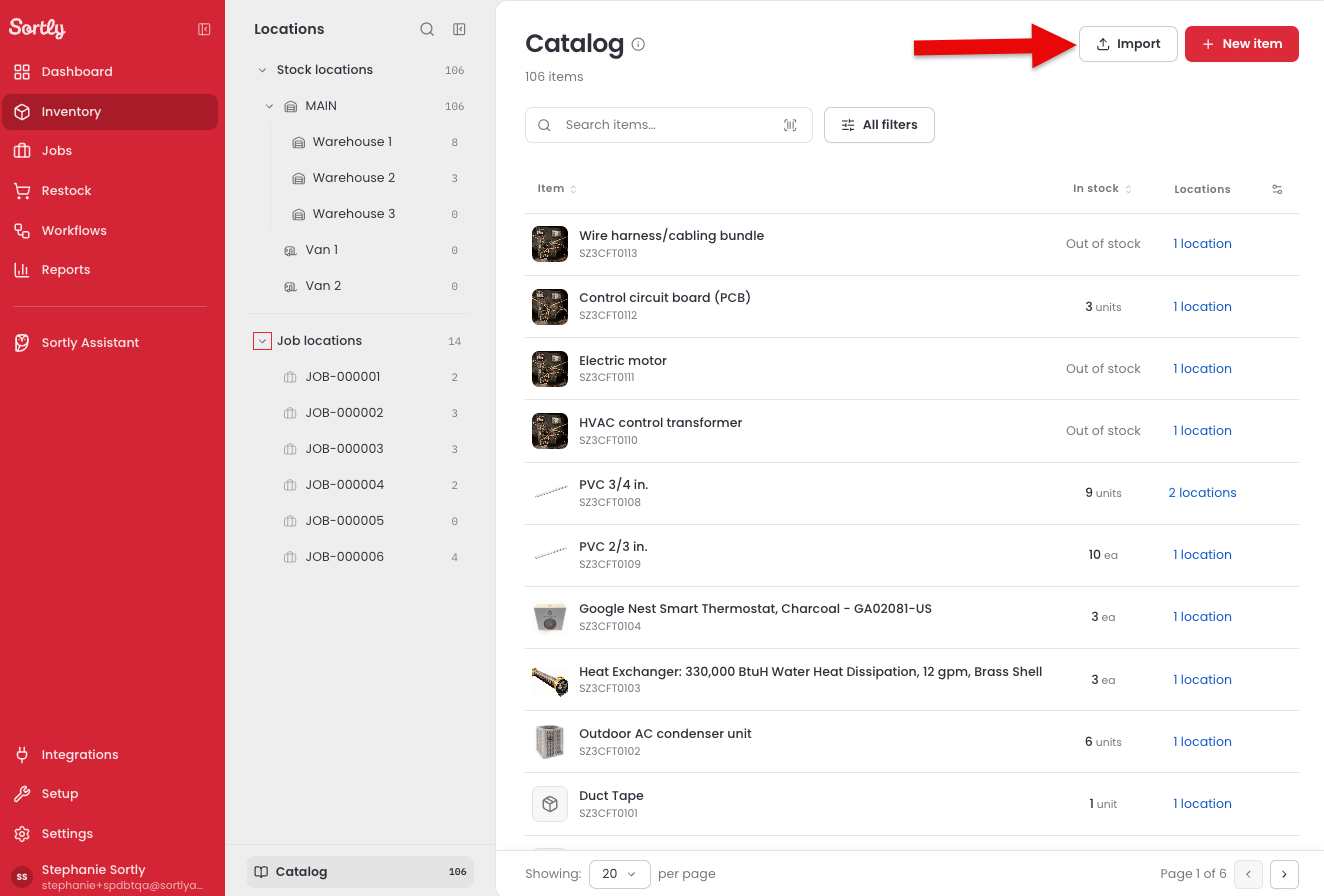
The Catalog page with the Import button next to New item
The Import items window with Upload a file, Photo / image recognition, and Invoice / Purchase Order

From a location

Adding stock to a location you're already working in? Open the location and select Add stock. Under "Adding many items?", select Import spreadsheet. Bulk Import opens with that location already chosen.
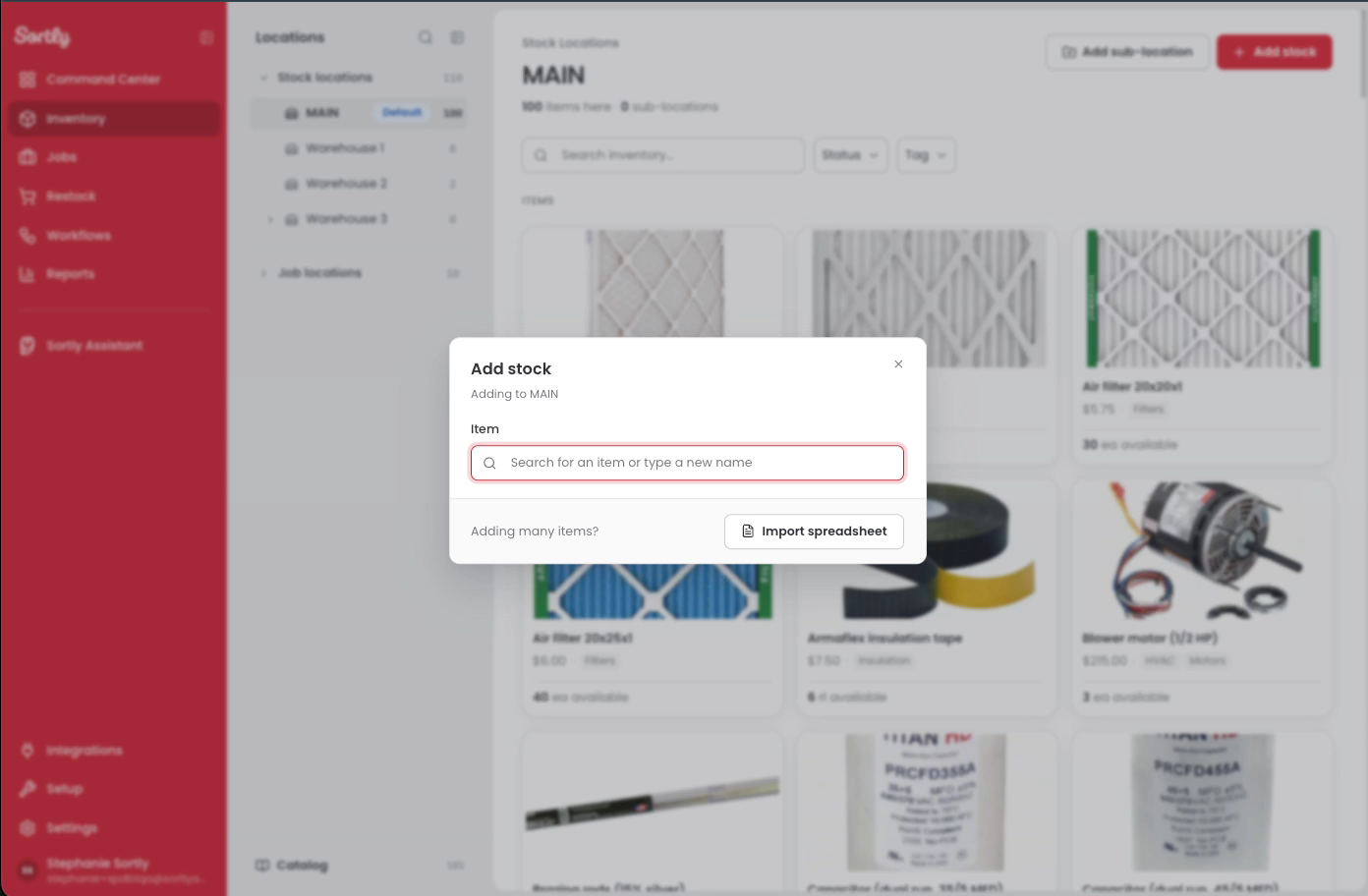
The Add stock window with the Import spreadsheet button

From Setup

Setting up your account? Select Setup at the bottom of the main menu, then Import inventory. Select Upload a file.
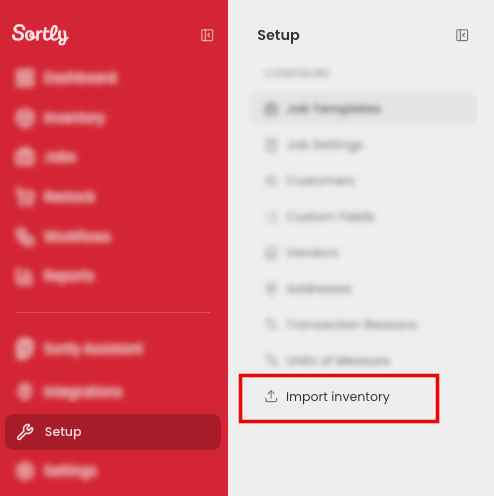
The Setup menu with Import inventory highlighted

New accounts can also start an import from Sortly Assistant during setup. See Add Inventory to Sortly.

Upload your file
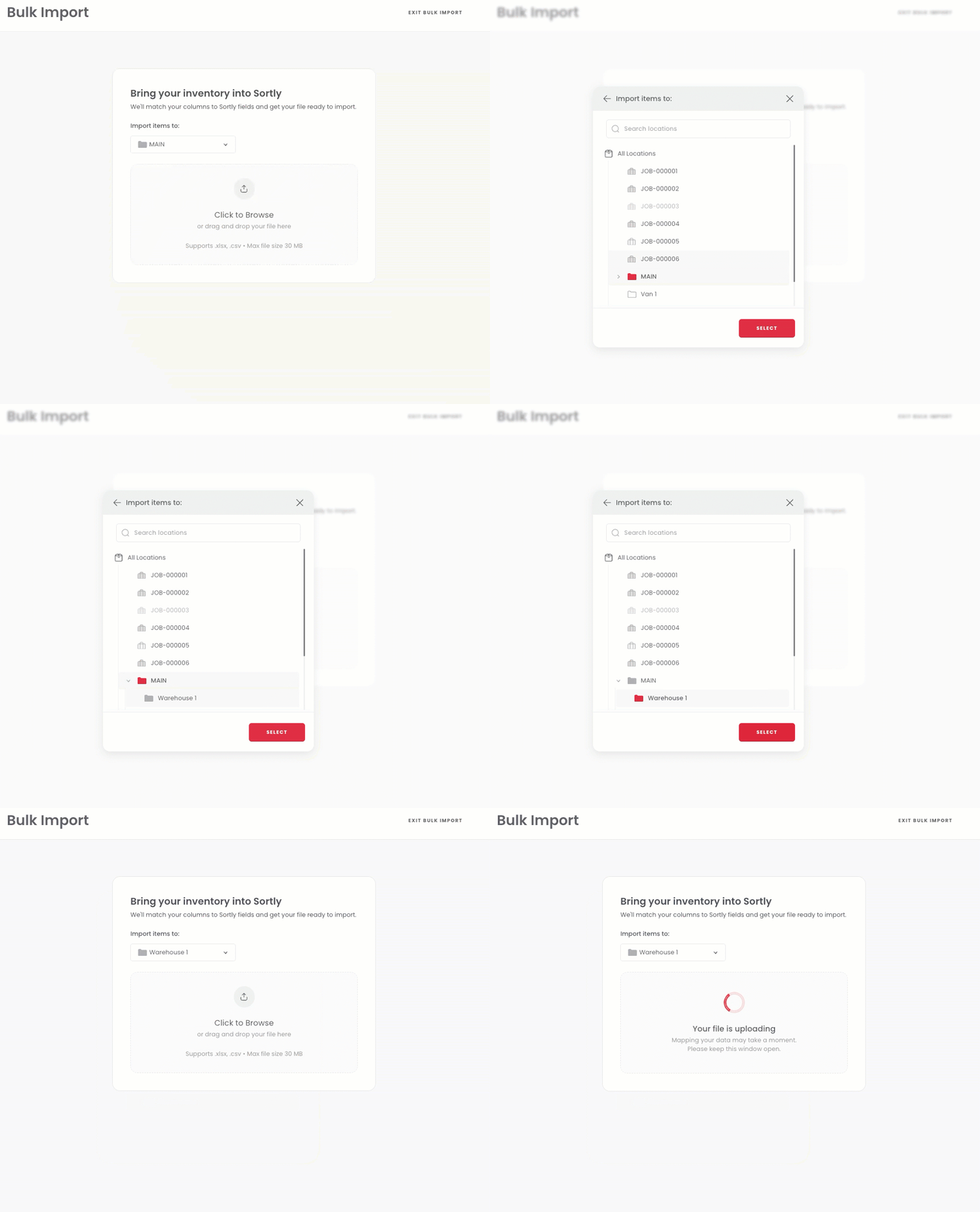
1
Under Import items to:, select the dropdown. If you started from a location, it's already chosen.
2
Choose a stock location or job location, then select Select.
3
Select Click to Browse, or drag and drop your file onto the page.
Choosing a location under Import items to, then uploading a file
4
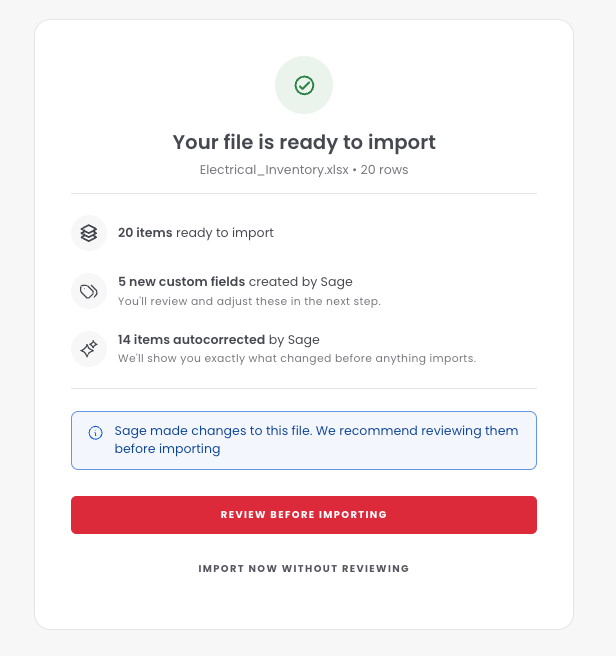
Keep the window open while your file uploads. When it's done, Sortly shows how many items are ready to import, how many custom fields Sortly Assistant created, and how many items it autocorrected.
The Your file is ready to import summary with Review Before Importing and Import Now Without Reviewing
5
Select Review Before Importing to check the field mapping and see what changed before anything is imported. To skip the review, select Import Now Without Reviewing.

Review your field mapping

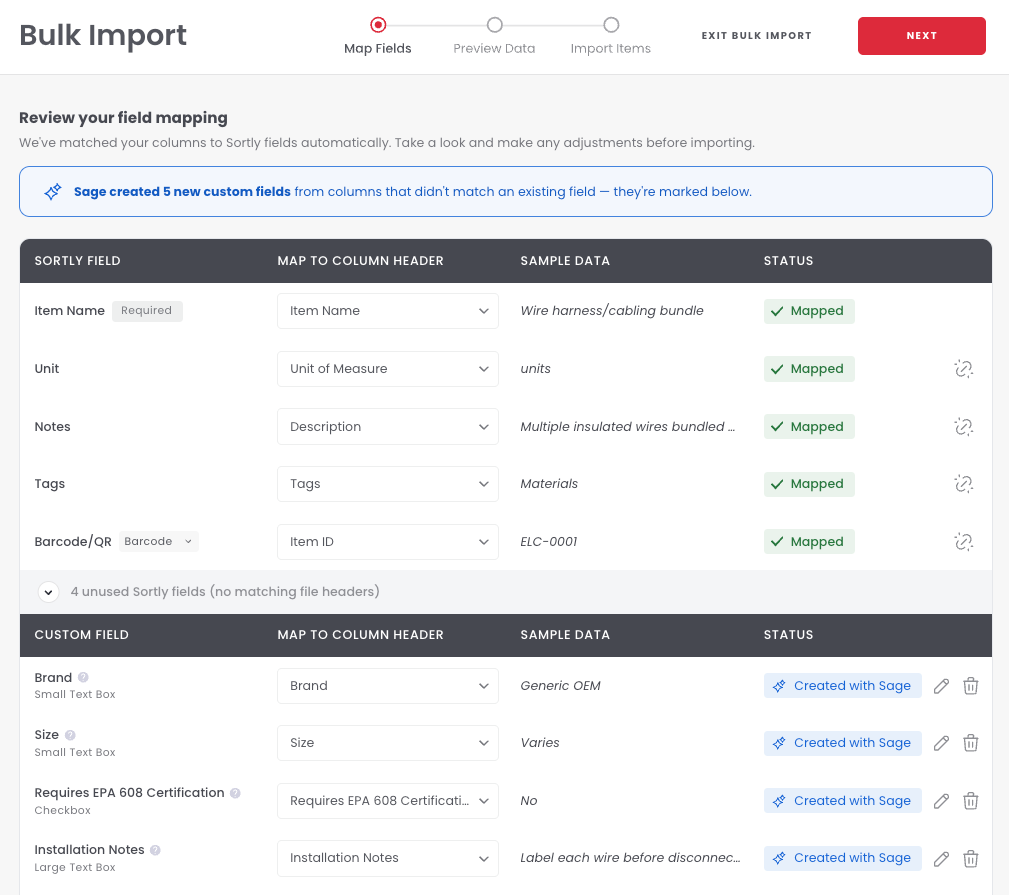
The Map Fields step lists each Sortly field with the column from your file it's matched to, a sample of your data, and a status. Check the matches before you continue.
1
Check each Sortly field. A field matched to one of your columns shows Mapped.
The Review your field mapping screen with Sortly fields and custom fields
2
To change a match, choose a different column from the dropdown.
3
To clear a match, select the unlink icon.
4
Make sure Item Name is matched to a column, since it's required.
5
Review the custom fields marked in the Status column. The banner at the top says how many Sortly Assistant created from your columns.
6
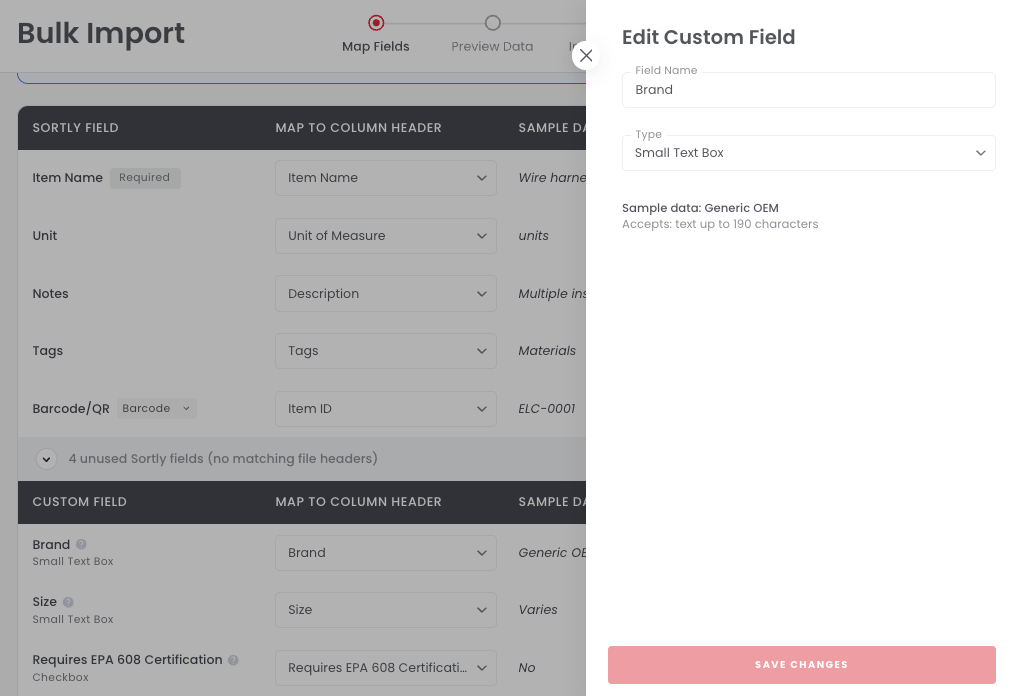
To rename a custom field or change its type, select the pencil icon, make your changes, then select Save Changes.
The Edit Custom Field panel with Field Name and Type
7
To remove a custom field, select the trash icon.
8
When the matches look right, select Next in the top right.

Fields with no matching column are listed under unused Sortly fields and unused custom fields. Expand either list to match one of them to a column from your file. To add a new custom field, select Add Custom Field.

Preview and fix your data

The Preview Data step shows all your items in a table. At the top, you can see how many items are ready to import and how many have errors. Rows with errors are not imported, so fix them before you continue.
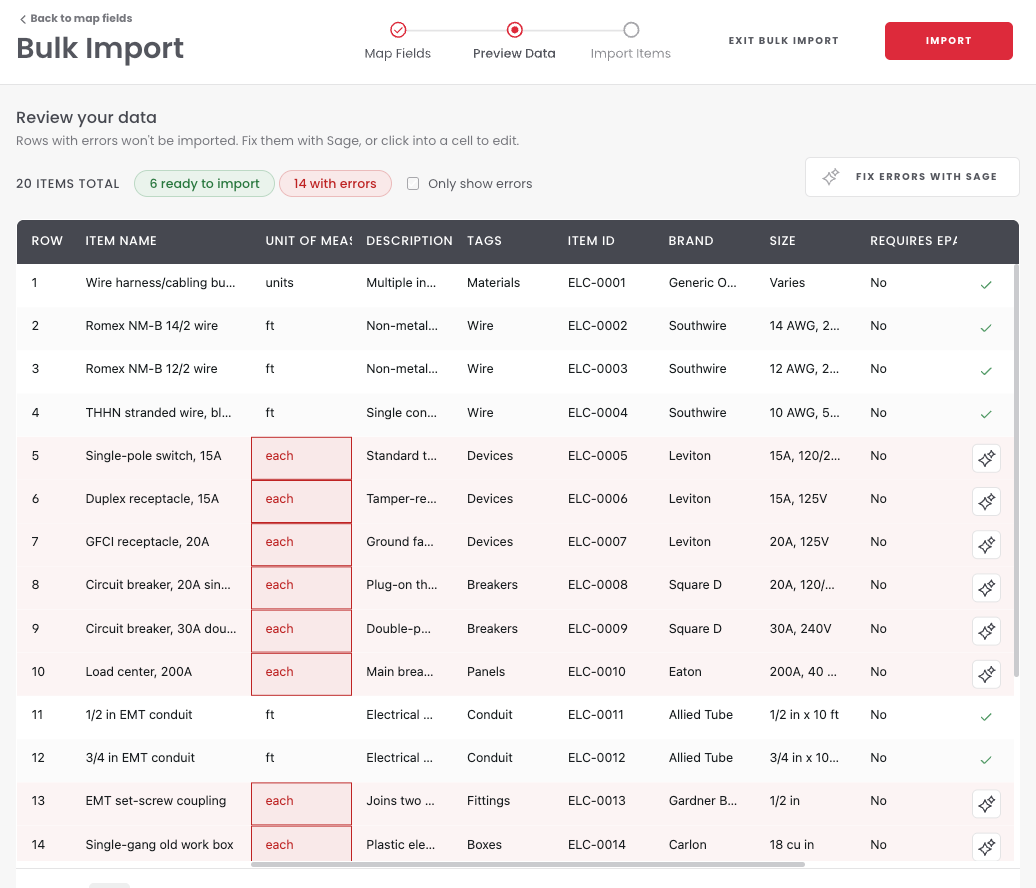
The Review your data table with items ready to import and items with errors highlighted
1
To see only the rows that need attention, select Only show errors.
2
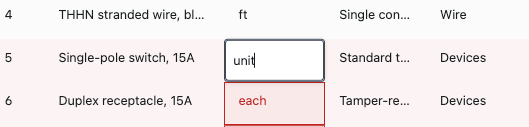
To fix a single value, select the cell and edit it.
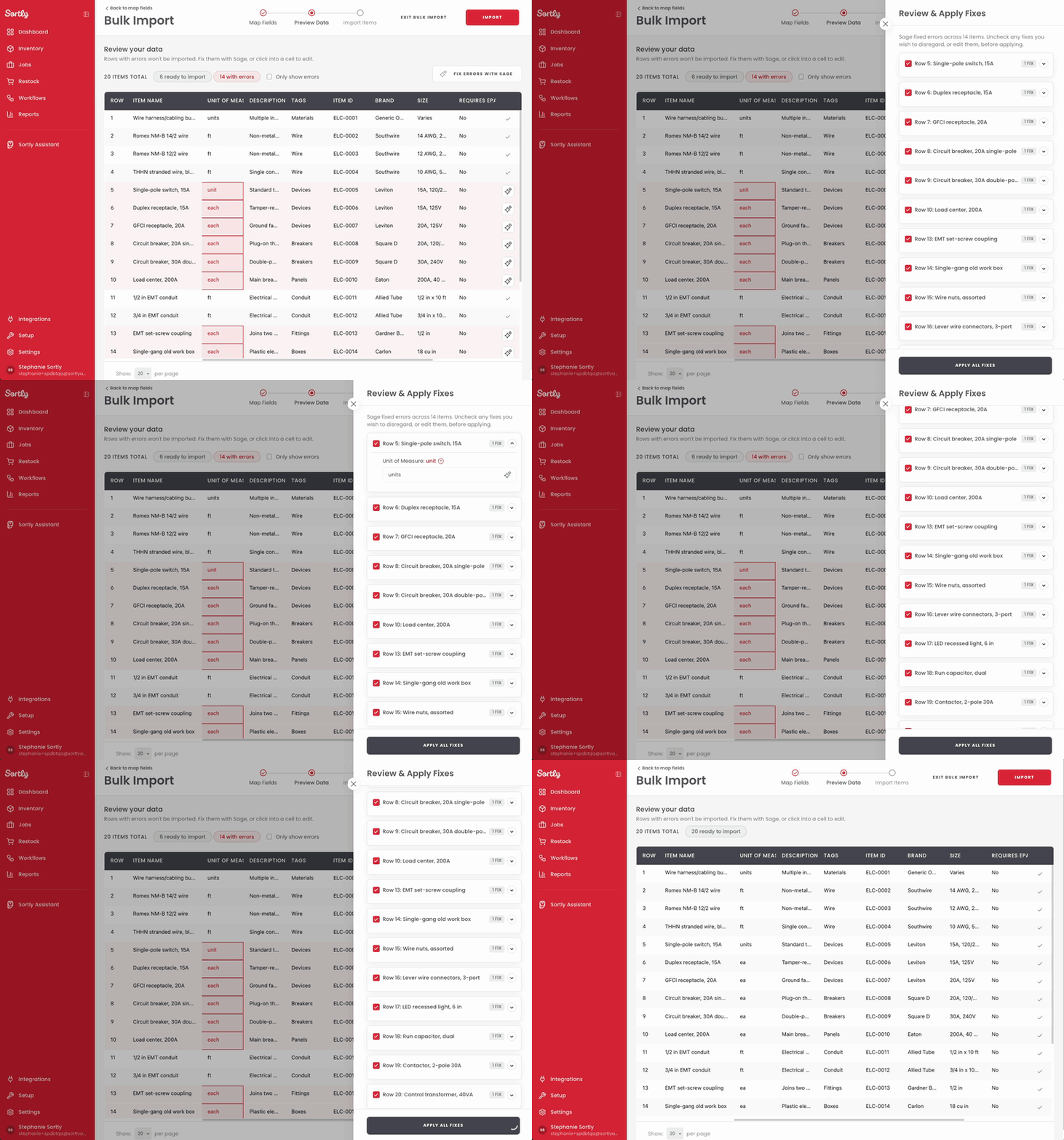
Editing a highlighted cell in the Unit of Measure column
3
To fix several errors at once, select the button at the top right to fix errors with Sortly Assistant. The Review & Apply Fixes panel lists each row it fixed.
4
Clear the checkbox for any fix you don't want, or expand a row to edit the fix.
5
Select Apply All Fixes.
Reviewing suggested fixes in the Review and Apply Fixes panel and applying them

Finish your import

1
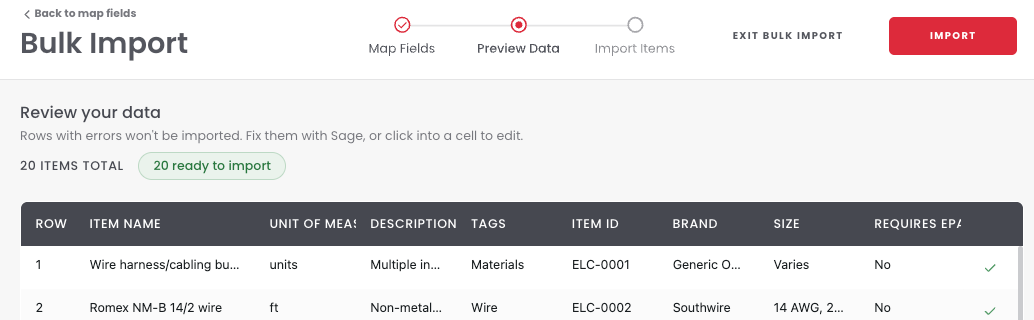
When all your items are ready to import, select Import in the top right.
The Preview Data step with all items ready to import and the Import button
2
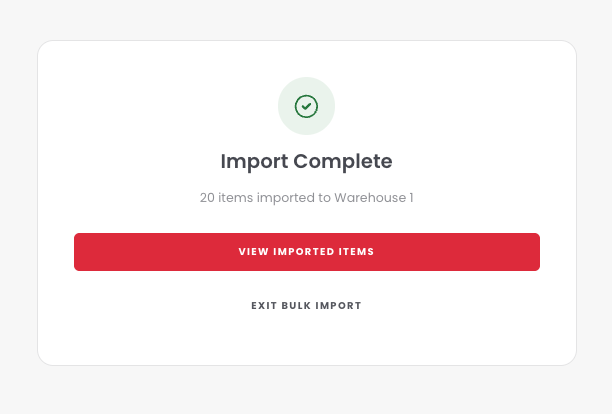
When the import is complete, Sortly shows how many items were imported and to which location. Select View Imported Items to see them, or select Exit Bulk Import.
The Import Complete screen showing 20 items imported to Warehouse 1
💡 If some rows can't be imported, select Review Import Errors to see which rows failed and why, or select Skip Items & Finish Import to finish with the rows that worked.

Leave Bulk Import before you finish

Need to stop partway through? You can leave Bulk Import at any step.

1
Select Exit Bulk Import in the top right.
2
Select Exit to leave, or Cancel to keep going.
🗑️ If you exit before your import finishes, your field mapping and changes are lost. No items are added.

Frequently Asked Questions

Do I need to reformat my spreadsheet before I import it?
No. You can upload your file as it is. Sortly reads your column headers and matches them to Sortly fields, even when the names are different.
What file types can I import?
You can import .xlsx and .csv files up to 30 MB.
Can I import into more than one location at once?
No. Each import adds items to the one location you choose under Import items to:. To have some of an item's stock in another location, import it first, then move part of its quantity to the other location. See Move Stock to Another Location.
Can I import into a job location?
Yes. The Import items to: list includes your job locations as well as your stock locations.
What happens to columns that don't match a Sortly field?
Sortly Assistant creates custom fields for them and marks them on the Map Fields step. You can rename, change, or delete these fields before you continue.
What happens if some rows have errors?
Rows with errors that aren't fixed are not imported. After you select Import, you can review the failed rows or skip them and finish with the rows that worked.
Can I import items on the mobile app?
Bulk Import is available on web. On mobile, you can add items one at a time. See Add Inventory to Sortly.