
Make sure every stock move has a reason that fits how your team works by adding your own, hiding the ones you do not use, and requiring one before a move can be completed. Below is where to find these settings and how each one works.
In this article
How move reasons work
A move reason tells your team why stock was moved from one location to another, such as Consumed, Damaged, or Donation. People choose a reason when they move stock, and you can filter by reason in your reports. Sortly provides a starting list, and choosing a reason is optional until you decide otherwise.
For example, say your team often moves stock from the warehouse to a service van. You can add a reason called Van restock, make it the default so it is already selected, and require a reason so every move is explained.
Only Owners and Admins can change move reasons. Everyone else on your team still chooses from the list when they move stock, but cannot change it. Customizing reasons is available on Advanced, Ultra, Premium, and Enterprise plans.
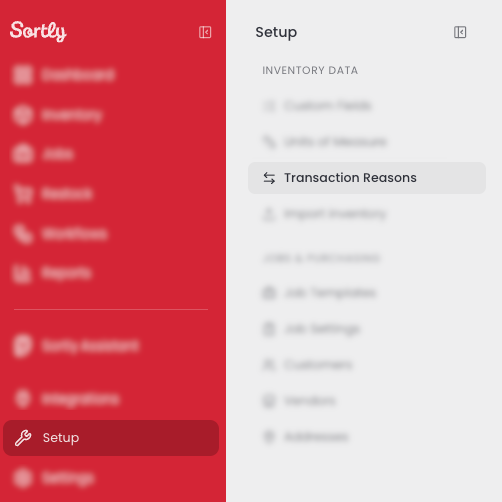
Open Transaction Reasons
Move reasons and quantity update reasons are managed in the same place, each on its own tab.
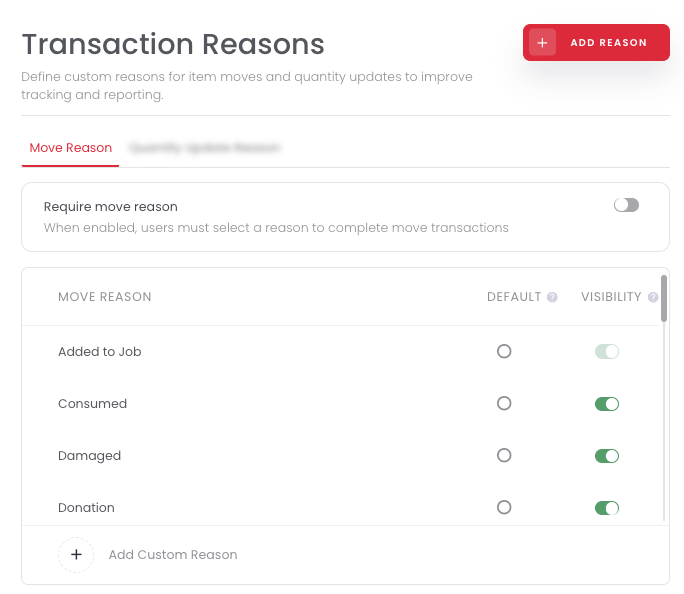
Each reason is one row. Select the circle under Default to pre-select it, and use the toggle under Visibility to show or hide it.
Customize your move reasons
Add a custom reason
Prefer to use your own wording? Add a reason for each kind of move your team makes. You can add up to 15 custom move reasons.
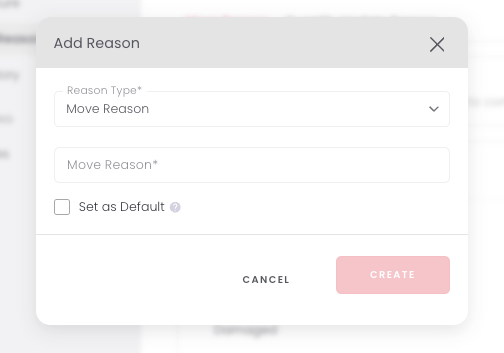
Set a default reason
Want your team to spend less time choosing? Select the circle in the Default column for the reason they use most. It is already selected when someone moves stock, and they can still choose a different one. Only one reason can be the default at a time, so selecting a new one replaces the old one.
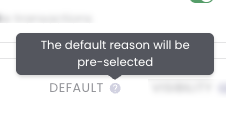
Show or hide a reason
Not every reason fits your business. Select a reason's toggle in the Visibility column to hide it from the options your team sees. Select the toggle again to bring it back.
A few reasons cannot be hidden. The default reason stays visible until you set a different one as the default, and reasons Sortly uses in other workflows, such as Added to Job, have a toggle you cannot change. At least one reason always has to stay visible.
Require a move reason
Want every move to be explained? Require a reason, and nobody can complete a move without choosing one. Pairing this with a default keeps moves fast, because people only change the reason when the default does not fit.

This applies to every move, including bulk moves and moves in the Sortly mobile app. It only affects moves. Quantity updates have their own setting, covered in Customize and Require Quantity Update Reasons.
See move reasons in your reports
Once your team is choosing reasons, you can filter by them to see why stock moved. The Transactions Report and the Activity History Report both list the reason for each move, and past moves keep the reason they were recorded with.