
Find every item you carry in one place with the Catalog, then open any item to see where it is stocked and its recent activity. This article walks you through what the Catalog shows and how to search, filter, sort, and open items.
In this article
How the Catalog works
The Catalog lists every item you track, across all of your locations. Each item appears once, no matter how many locations it is stocked in. For example, if you stock hard hats in three locations, the Catalog shows one row for hard hats, with the total units in stock and the number of locations. You can read more about how items, stock, and the Catalog fit together.
Use the Catalog
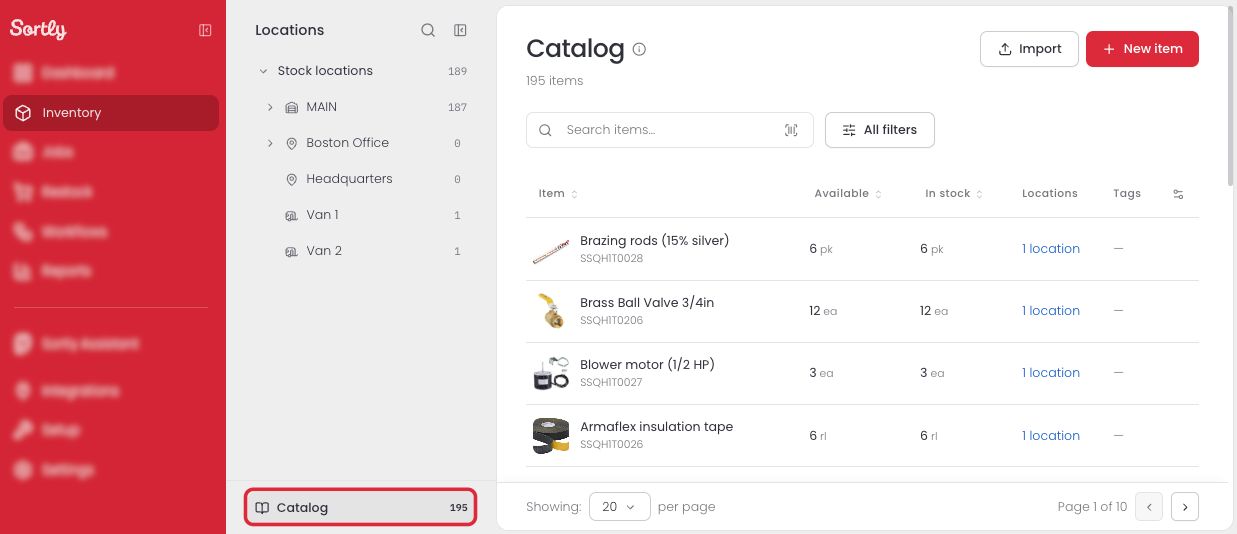
Select Inventory in the main menu, then select Catalog at the bottom of the Locations panel.
Choose what the table shows
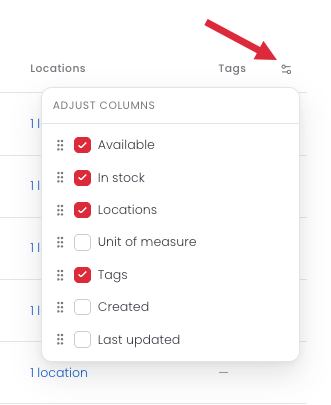
Each row is one item, shown with its ID. Select the column icon at the top right of the table to open Adjust columns. Select the columns you want to show, from Available, In stock, Locations, Unit of measure, Tags, Created, and Last updated. Drag a column by its handle to change the order. The item name always stays in the table.
Search, filter, and sort
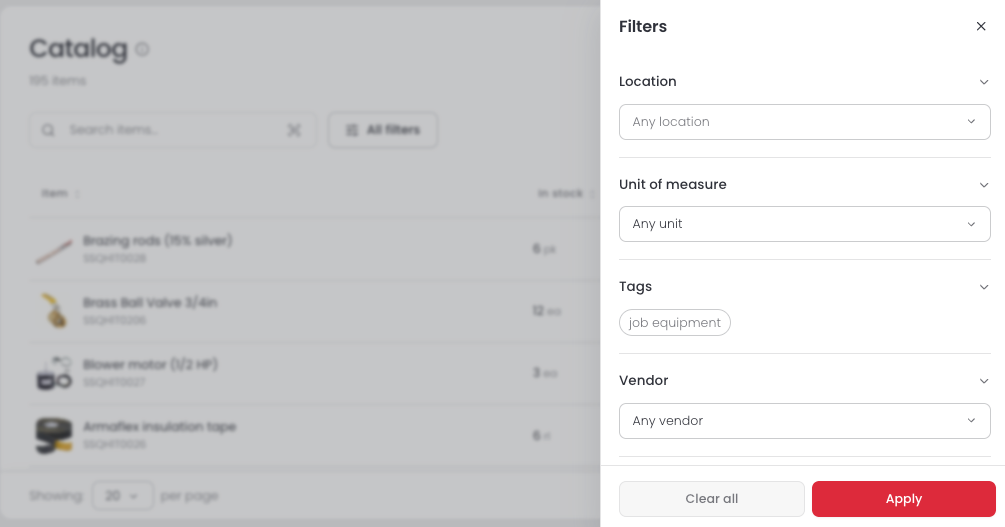
Search by item name to go straight to an item. Select All filters to open the Filters panel, then narrow the list by location, unit of measure, tags, vendor, or any custom field in your account. For example, filter by one location to see only the items stocked there. Select Apply to see the results, or Clear all to start over.
You can sort the table by item name, Available, In stock, Created, or Last updated. The table starts sorted by Last updated, so the items changed most recently appear first.
Open an item
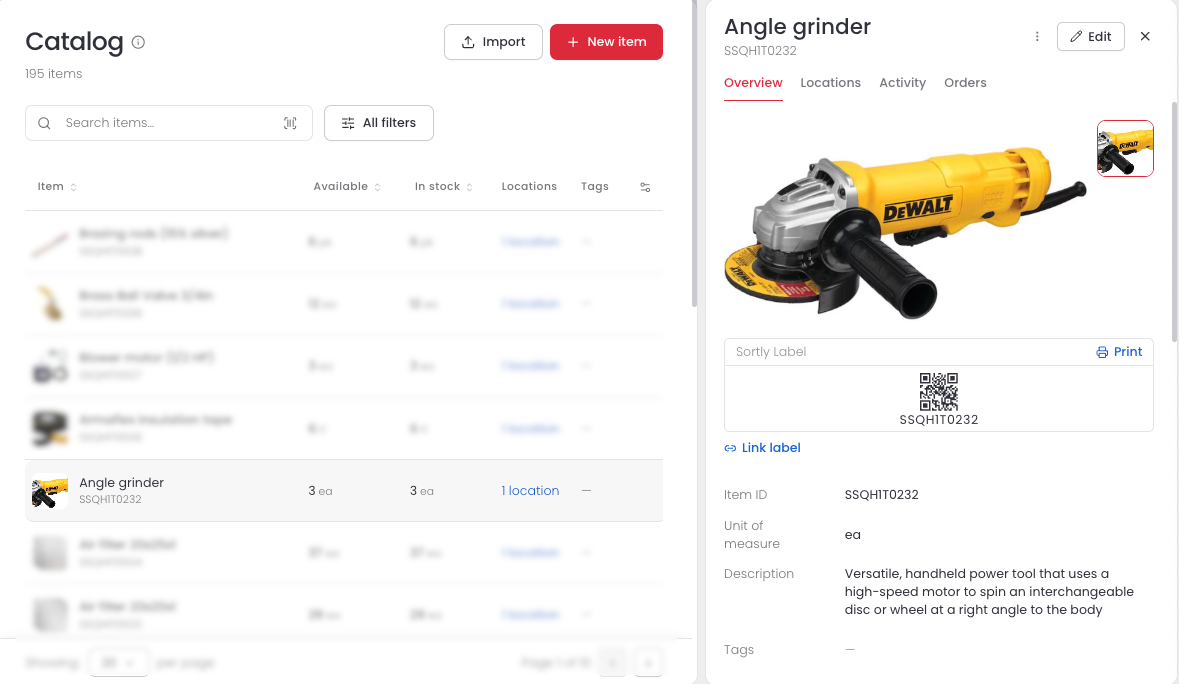
Select an item to open its Item details panel on the right. The panel has four tabs: Overview, Locations, Activity, and Orders.
Overview
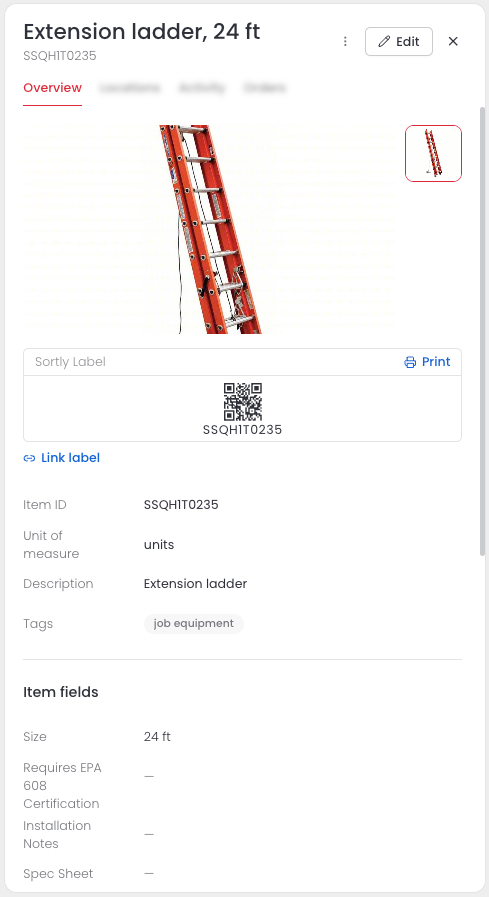
Overview shows the item's photos, its Sortly label, and its details, such as the item ID, unit of measure, description, tags, and item fields. Select Print to print the label, or Link label to link a label you already have.
Locations
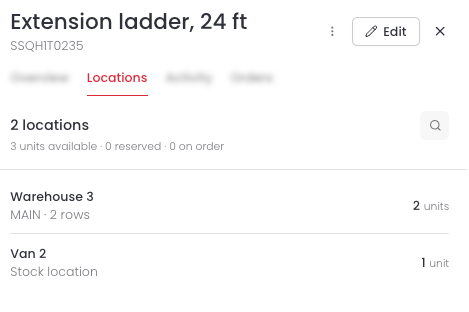
Locations shows how many locations stock the item, and the units available, reserved, and on order across all of them. Each location lists its units, and its number of stock rows when it has more than one.
Activity
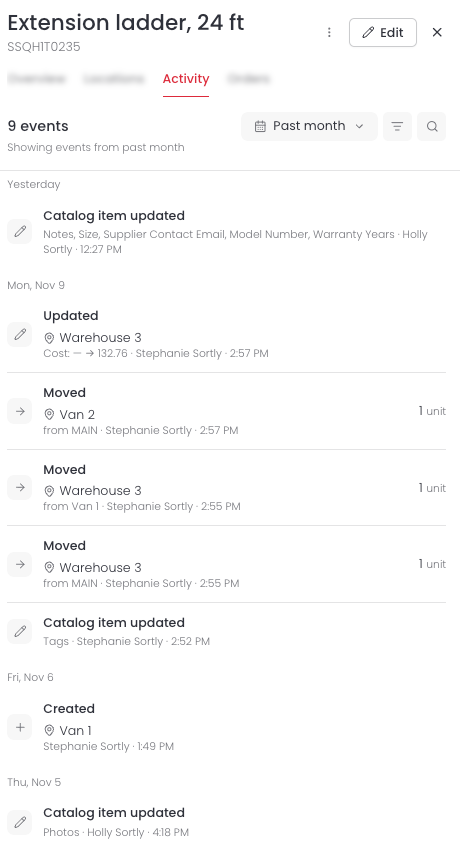
Activity lists what has happened to the item, with the newest events first. Each event shows what changed, who made the change, and when, such as an item created at a location, units moved between locations, or details updated. The list starts with the Past month. Use the date menu, the filter icon, or the search icon to change what you see.
Orders
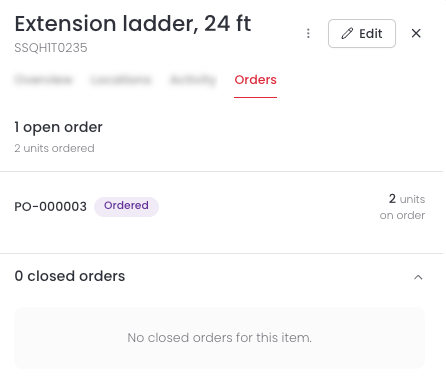
Orders lists the purchase orders for the item. Open orders show the order number, its status, and the units on order. Closed orders appear in their own section below.
Add, edit, and delete items
You can add new items by hand, import them from a file, or import them from photos. To change an item's details, edit the item. When you no longer carry an item, you can delete it.