
Make sure your items, folders, and photos show up on every device by running a full sync and working through a few checks. If recently added items or photos don't appear on another device, your data may not have finished syncing. This article walks you through checking your sync status, troubleshooting sync issues, and resetting the app.
In this article
Full Sync Process
Step 1: Check Sync Status
1
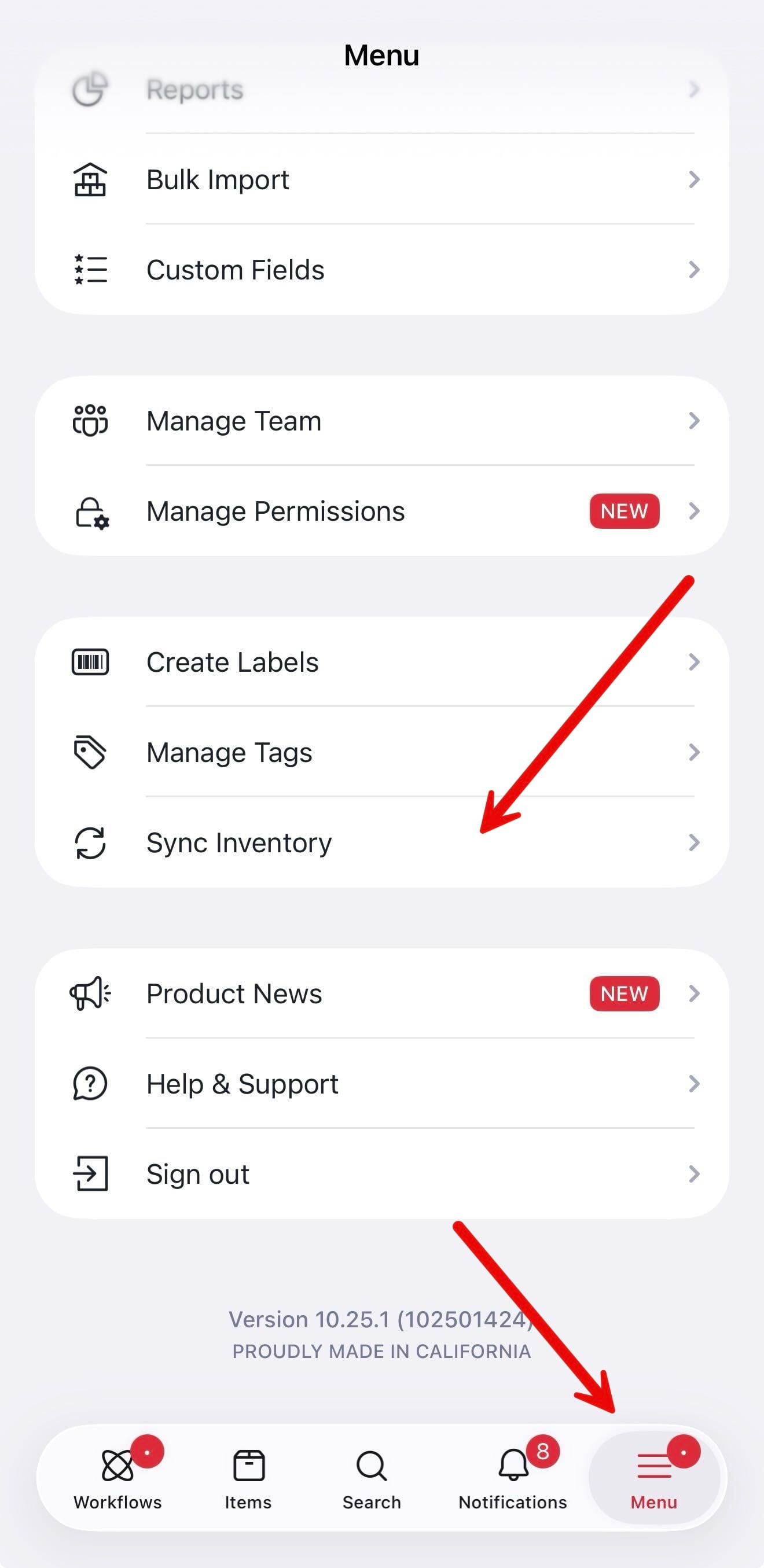
Open the app, tap Menu, then tap Sync Inventory.
2
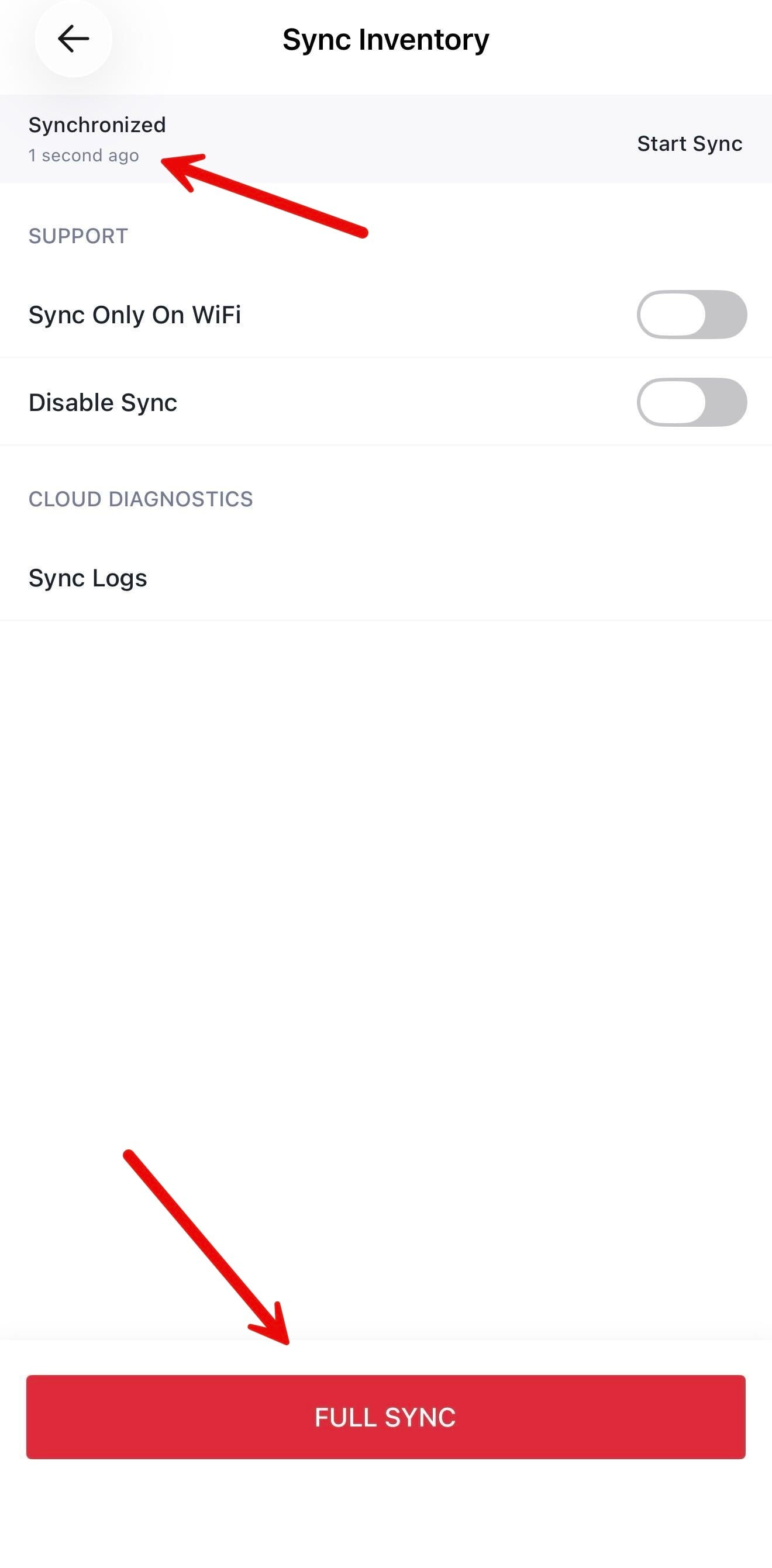
Check the status at the top of the screen to see when your last sync completed.
3
Tap Full Sync to start a new sync.
Step 2: Troubleshooting Sync Issues
If a Full Sync does not solve the issue, try the following steps.
1
Check your internet connection. Make sure you are connected to the internet. Wi-Fi works better than cellular data.
2
Check your permissions. Make sure you have permission to view the data. Team Members need explicit access to view data in folders. If that is you, ask the account owner to confirm they gave you the right access.
3
Update the app. Make sure you have the latest app version from the Apple App Store or Google Play Store. If you already have it, tap Full Sync again to force a sync.
4
Check the web app. Go to app.sortly.com and see whether the data is there. If you are already signed in on the computer, refresh the page. Also open Trash in the left menu to make sure another user did not delete the items by accident.
Step 3: Contact Support
If the issue continues, contact our Support Team.
💡 Closing or fully quitting the mobile app starts a full sync the next time you open it. The more items you have in your inventory, the longer this sync can take.
Reset App
If there is no new data on your phone that has not synced and you are still having issues, try signing out and back in to reset the app. You can find Sign out in the Menu.
⚠️ Resetting the app deletes any locally stored data that has not yet uploaded to the cloud. This data cannot be recovered.