
Easily keep your inventory organized with folders and subfolders, so you can quickly find items by their name, description, or photo. When wrapping up a project, returning tools or equipment to their original folders can feel like a hassle, especially if you’re dealing with multiple items and folders. That’s where the new "Return to Origin" feature comes in! With just one click, you can send items back to their original folders without the guesswork. It’s a simple way to save time, avoid misplaced items, and always know exactly where your inventory is.
- How to Enable the Return to Origin Feature
- How to Use the Return to Origin Feature
- Video Walkthrough
- FAQ
How to Enable the Return to Origin Feature
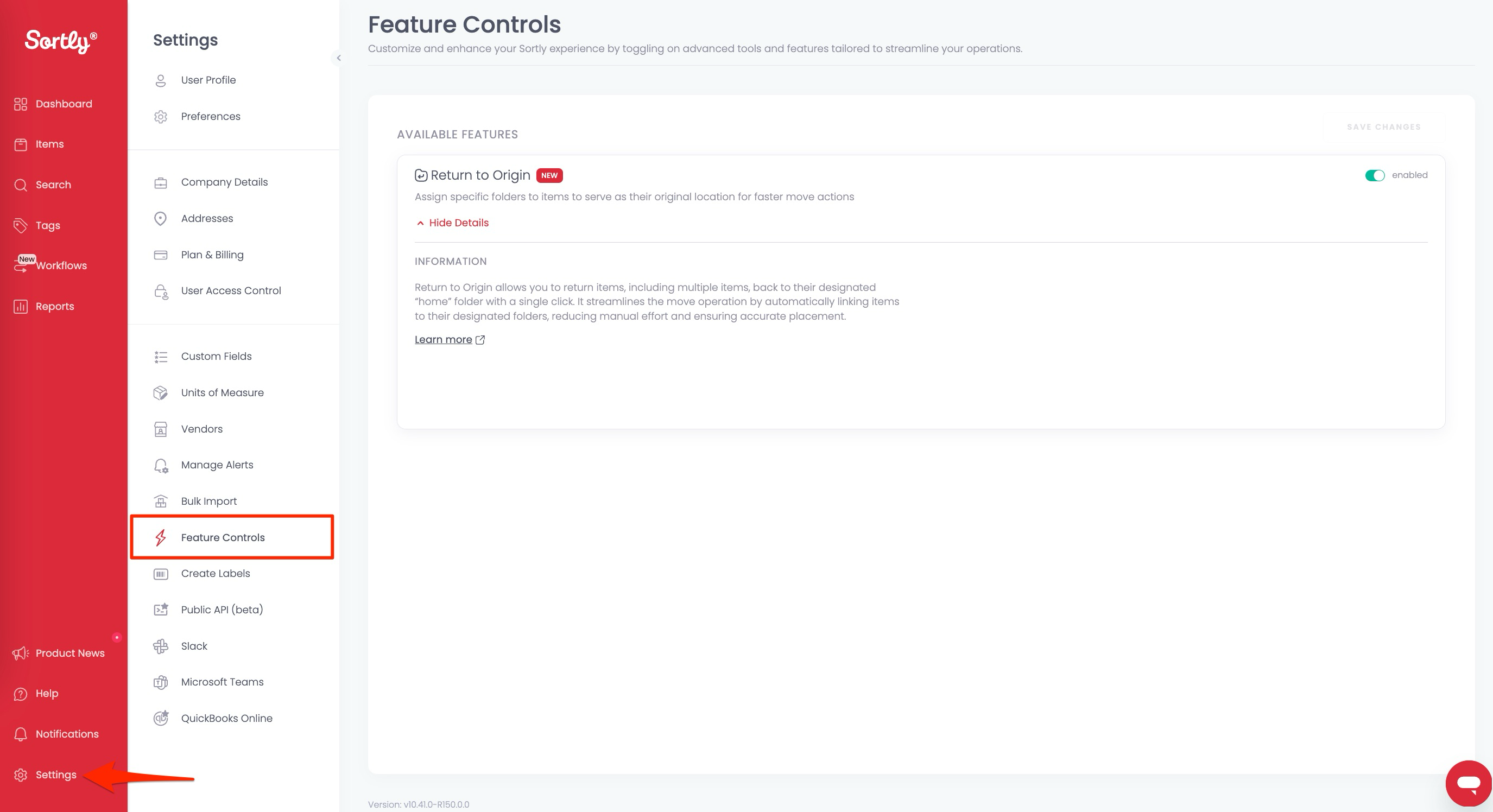
To start using the Return to Origin feature, simply turn it on in your settings. Head to the Feature Control Page within the Settings panel and toggle it on. Please note that Return to Origin will need to be enabled on Web before it can be used on Mobile.
How to Use the Return to Origin Feature
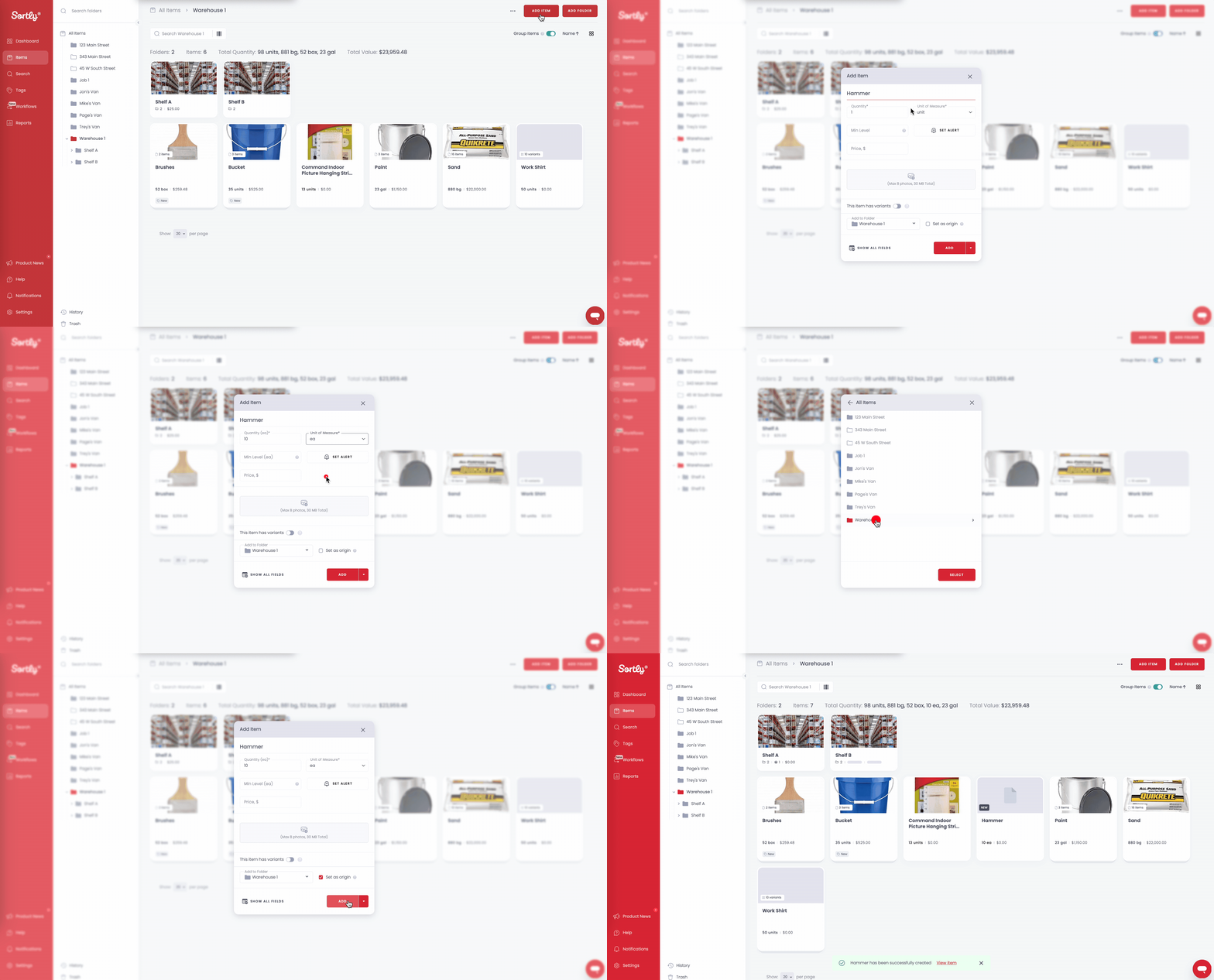
Adding an item
- Click the Add Item button and fill out the details of the item.
- At the bottom, select the folder you want as the Origin folder and click Set Origin.
- Click Add Item.
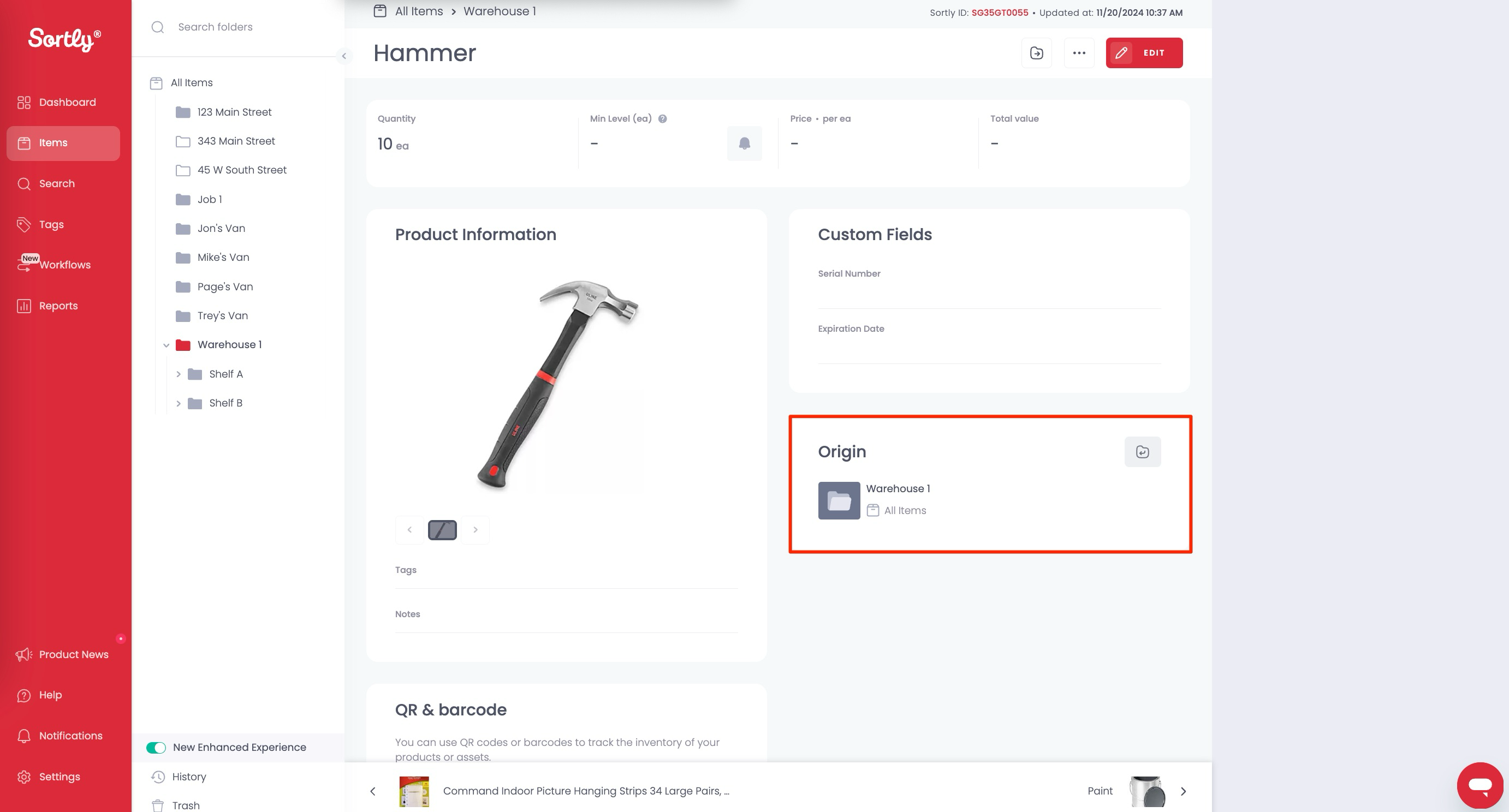
- Click into the item to see the Origin Folder
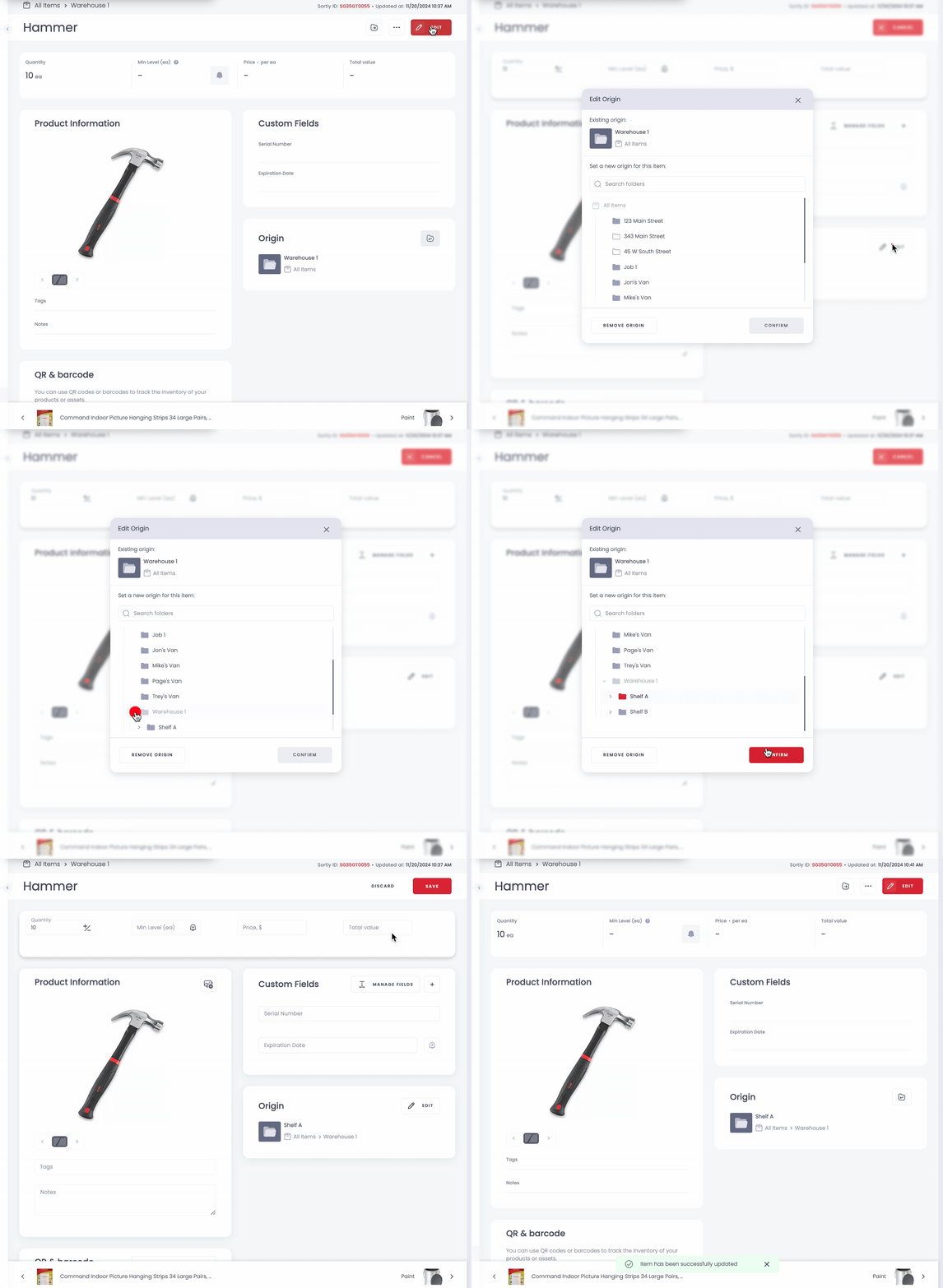
Editing the Origin for a Single Item
- Click the Edit button at the top right
- Then, click the Edit button next to the Origin
- Choose a new Origin folder and click Confirm
Editing the Origin for Multiple Items
- Select multiple items
- Then, from the Bulk Edit bar, choose Edit
- Choose Add/Replace for the Origin
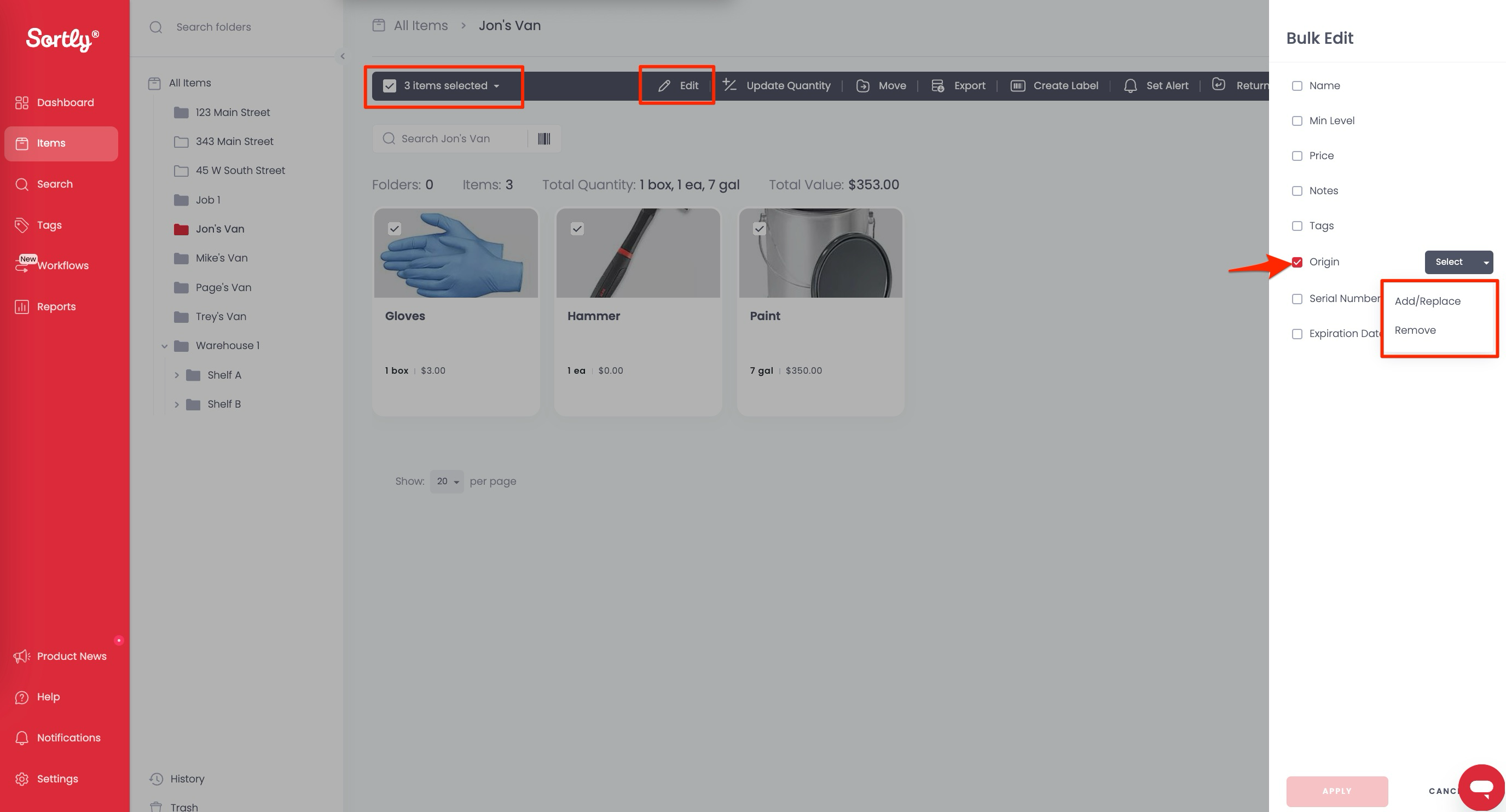
- Choose the Origin Folder for these items and click Apply
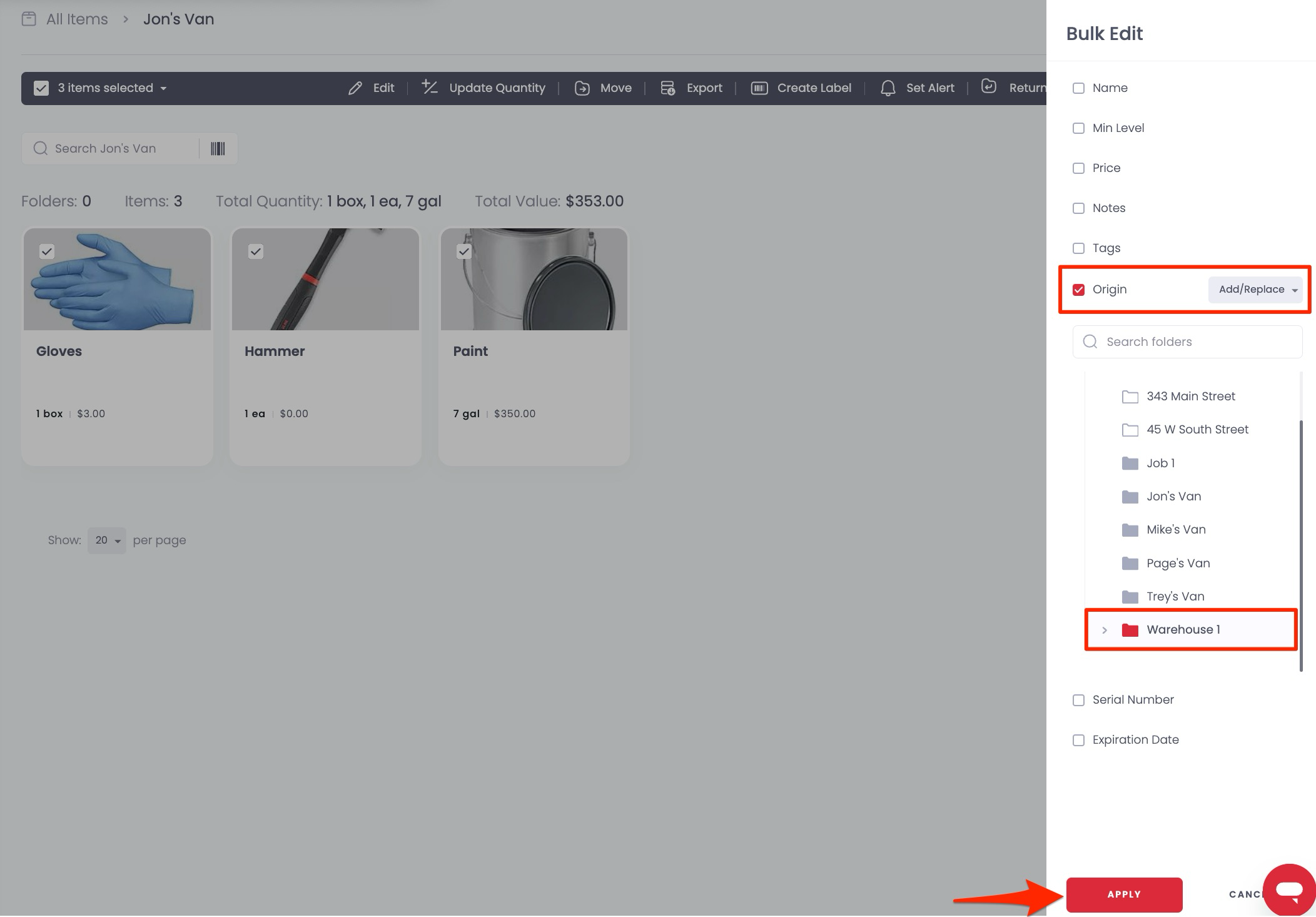
- Now, these items will have Warehouse 1 as the Origin Folder
Returning a Single Item
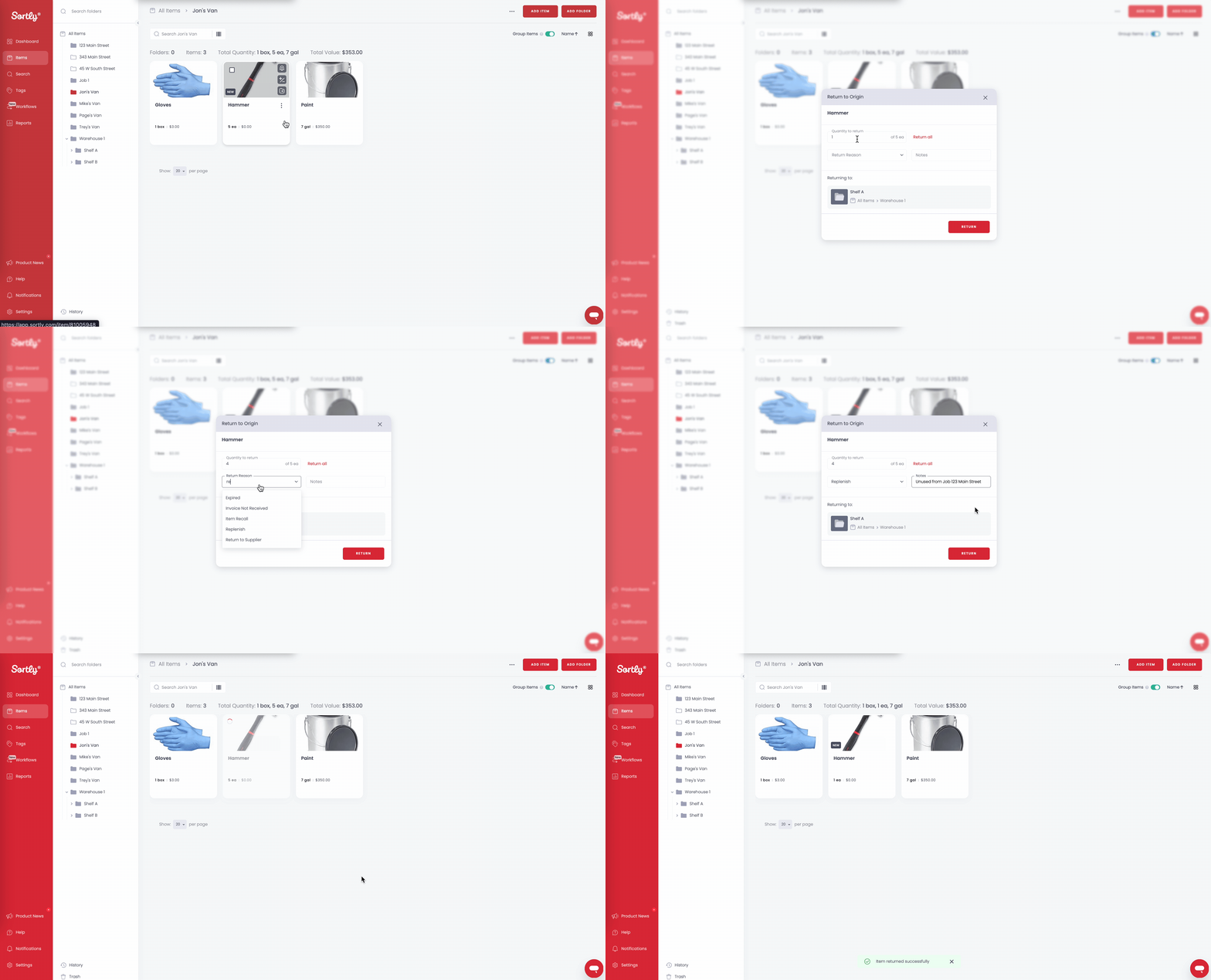
Once activated, you can effortlessly send an item back to its original folder by clicking the three dots next to it and selecting Return to Origin.
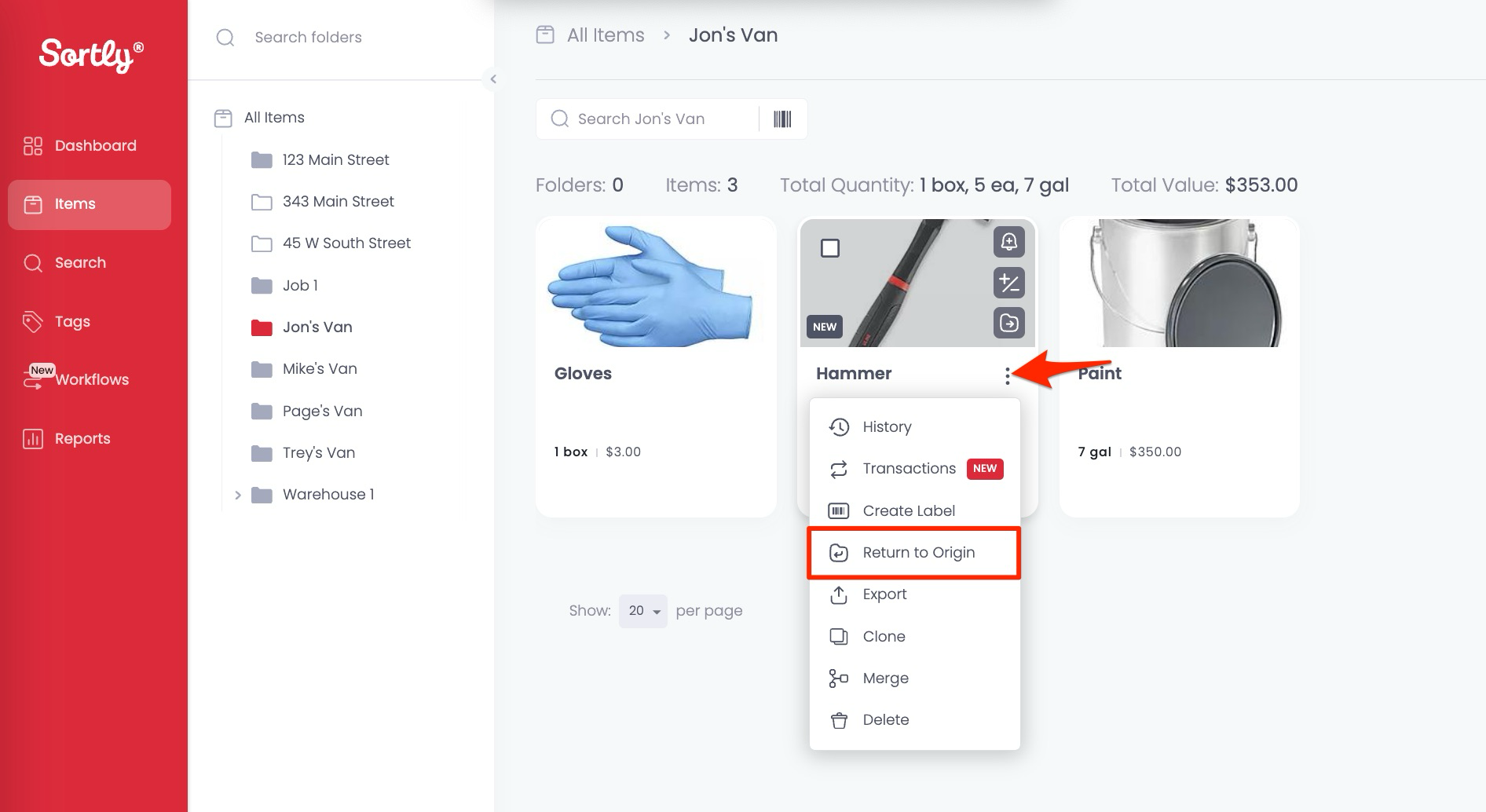
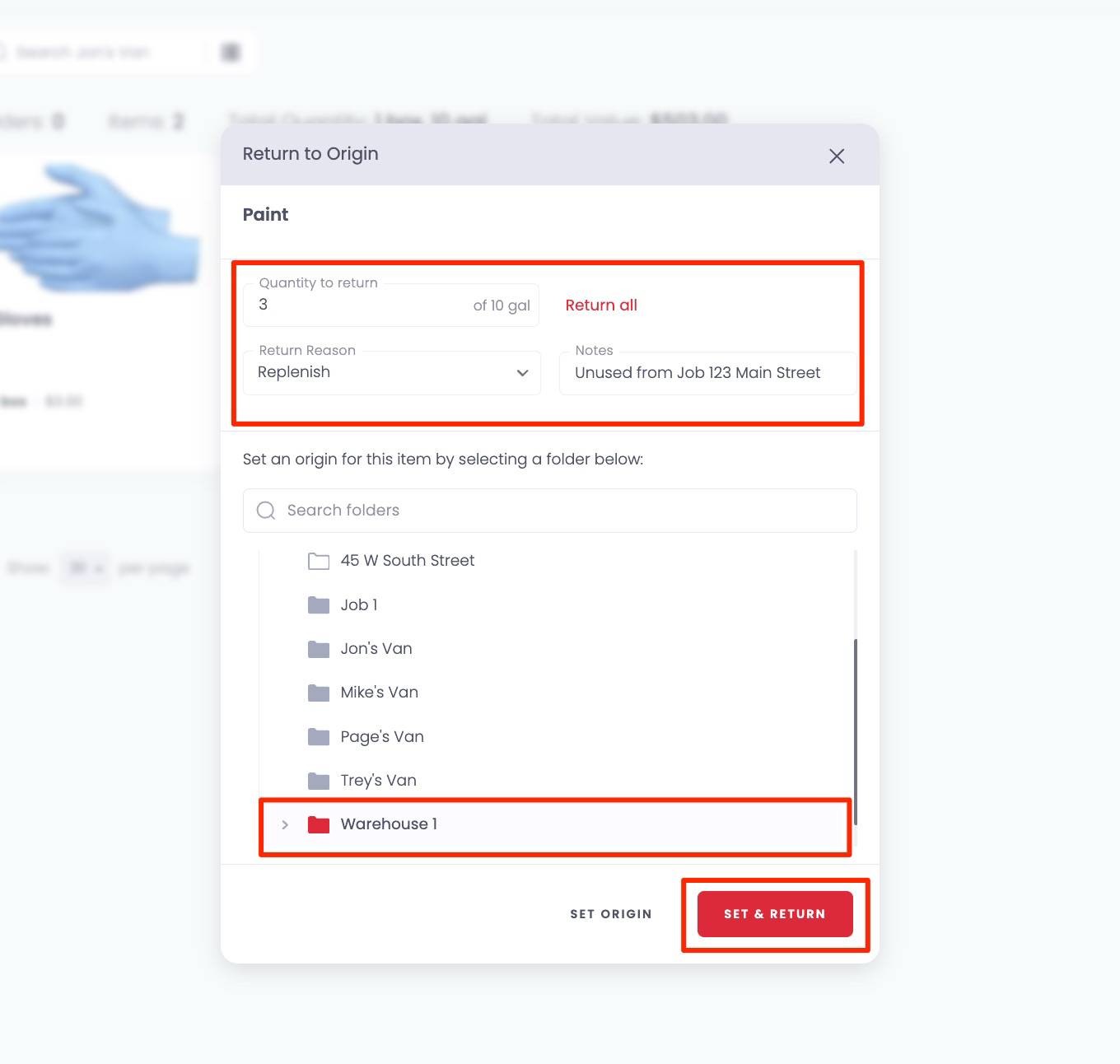
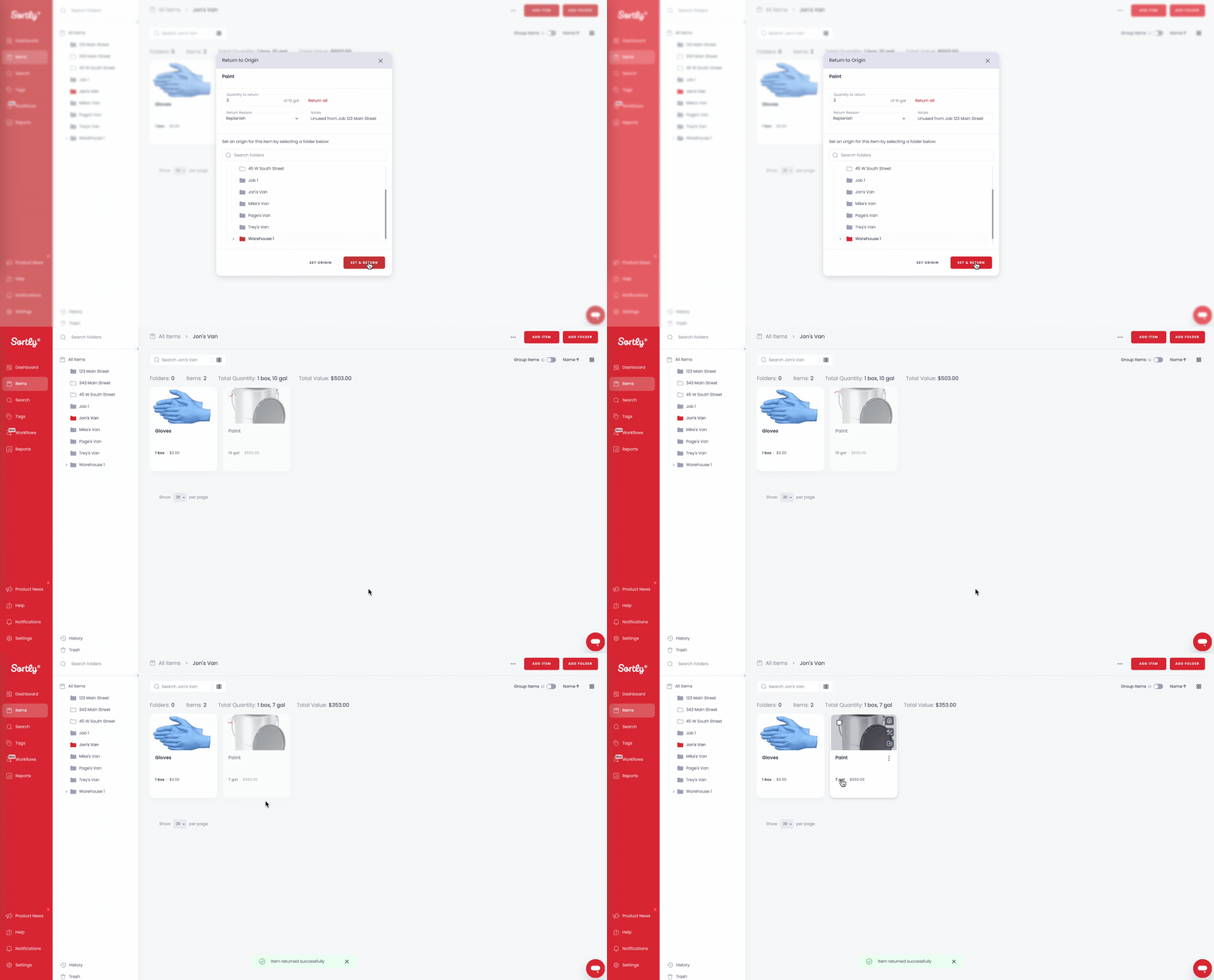
- If an origin folder has not been selected:
- Specify the quantity of items to return.
- Provide a reason for the return.
- Select the origin folder where the item should be returned.
- Click Set & Return to complete the process.
- If an origin folder has been selected:
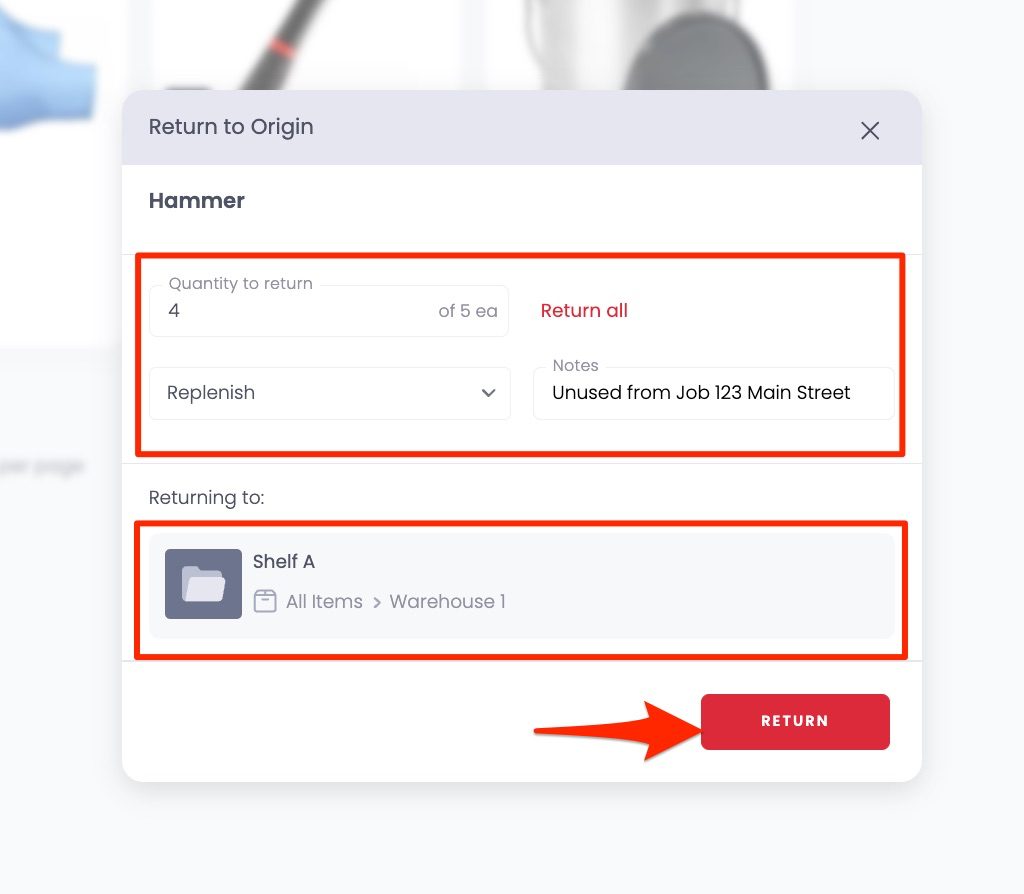
- Specify the quantity of items to return.
- Provide a reason for the return.
- View the breadcrumb trail to confirm the destination folder.
- Click Return to finalize.
Returning Multiple Items in Bulk
To return multiple items at once, follow these steps:
- Navigate to the folder containing the items you’d like to return.
- Select the items you wish to return.
- Click on the three dots and choose Return to Origin.
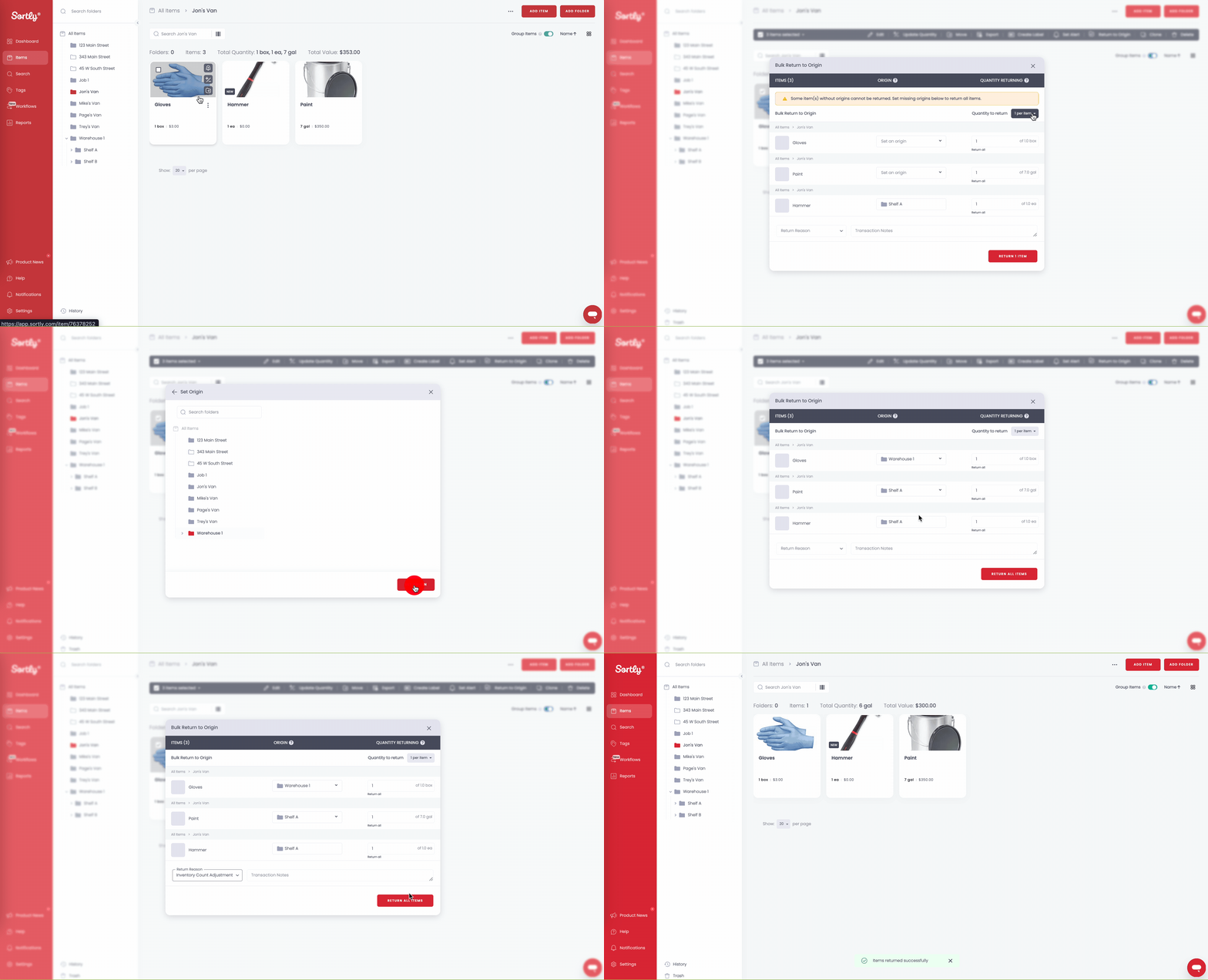
- A modal will appear where you can:
- View each selected item.
- Set the origin folder for items that do not have one pre-selected.
- Specify the quantity of each item to return.
- Add a reason for the return (optional).
- Include transaction notes (optional).
- Click Return to complete the bulk return process.
Video Walkthrough
FAQ
Is this feature available on all plans?
Return to Origin is not included on all plans—it’s available exclusively on Ultra, Premium, and Enterprise.
How do I enable the Return to Origin feature?
You can enable this feature by navigating to the Feature Control Page within the Settings panel and toggling on the Return to Origin option.
What happens if I haven't specified an origin folder for an item?
If an origin folder hasn’t been selected, you can specify the quantity of items to return, provide a reason, select the desired origin folder, and then choose "Set & Return."
Will I be able to see where items are being returned?
Yes! When using the Return to Origin feature, you can view the breadcrumb trail for each item, allowing you to see exactly where they will be returned.